DocHub Review 2026: The Best Free PDF Editor for Google Users (My “Secret Weapon”)
We talk a lot about “power tools” here at Feisworld. We talk about heavy-duty video editors, complex AI agents, and enterprise automation. But sometimes, you don’t need a power tool. Sometimes, you just need a Swiss Army Knife.
Here is a scenario I bet you know well: You are checking your email. A client (or your kid’s school, or your accountant) sends you a PDF attachment. They say, “Just sign this and send it back.”
In the old days, you would download the file, open it in a heavy app like Adobe Acrobat, sign it, save it as a new file (v2_final_signed.pdf), and upload it back to the email. That is too many steps.
For the past few years, my “secret weapon” for these quick, everyday PDF tasks has been DocHub. It is not the most expensive tool I use. In fact, I mostly use the free version. But it is the one that saves me the most small pockets of time every single week.
Here is why DocHub is, IMHO, one of the best for Google Workspace users.
TL;DR: Why DocHub is My “Quick Fix”
- It Lives in Gmail: You can open, sign, and reply to a PDF without ever leaving your inbox.
- No Downloads: It is 100% browser-based. It works on my Chromebook, my iPad, and my main desktop instantly.
- AI Assistant: Available on the free plan with usage limits.
What is DocHub?
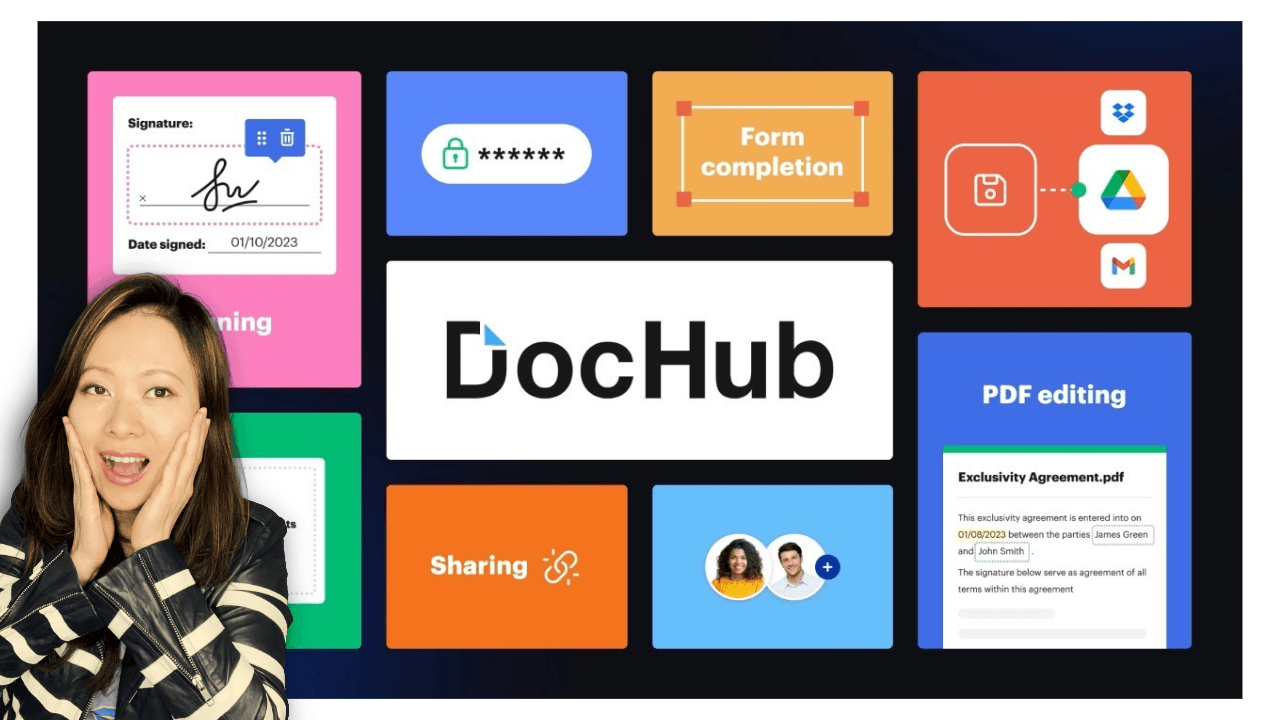
DocHub is a browser-based PDF editor and eSignature tool built for Google Workspace users. It lets you edit, sign, and send PDFs directly from Gmail or Google Drive without downloading files.

Key Features (What DocHub Actually Lets You Do)
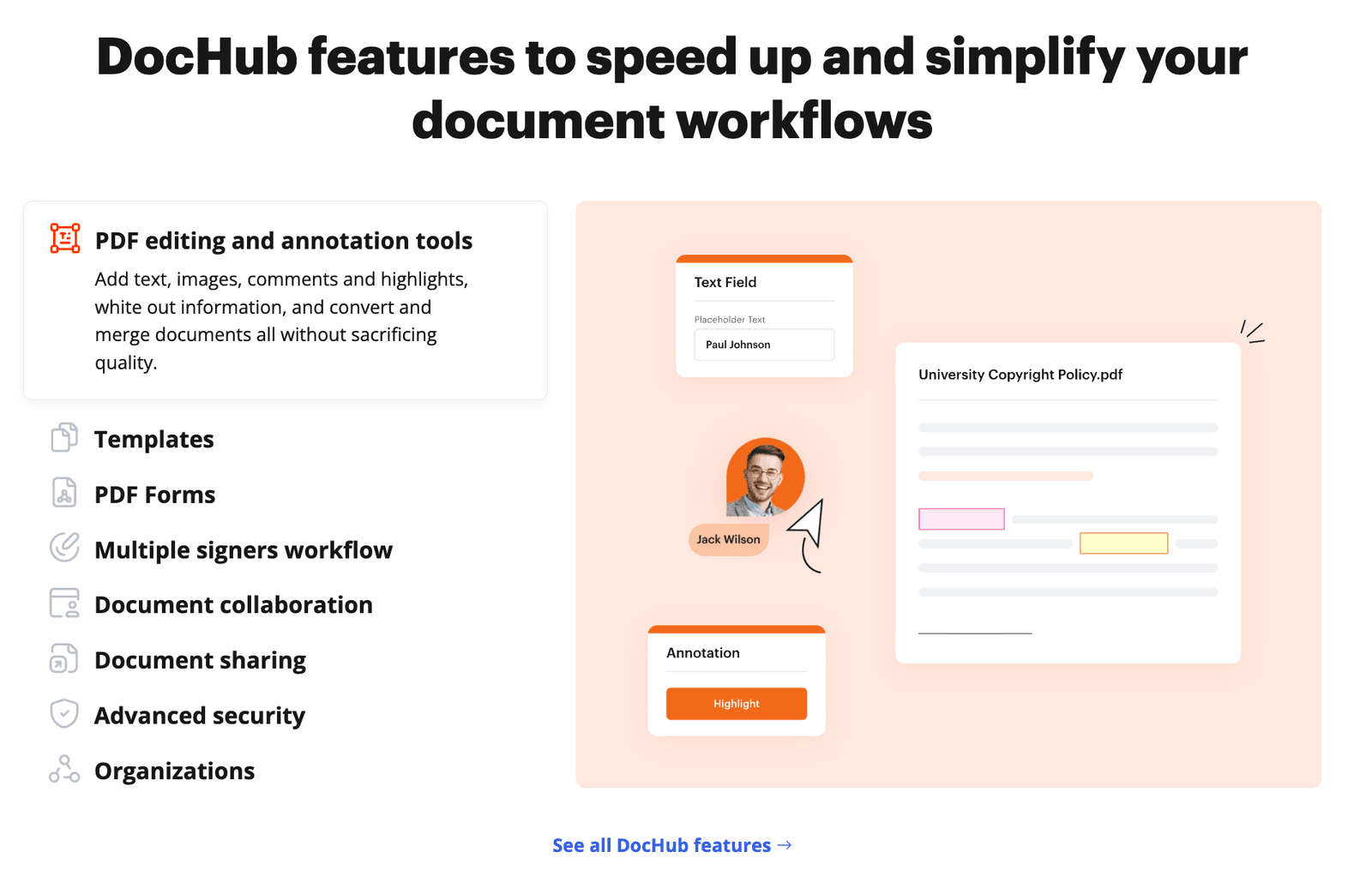
- eSign and initials: Save your signature and sign in seconds.
- Fill forms: Add text boxes, checkmarks, and dates.
- Gmail + Drive integration: Open and send PDFs without downloads.
- AI Assistant: Summarize documents and rewrite text (even on free).
DocHub at a Glance
- Category: PDF editor + eSignature
- Best for: Gmail/Google Drive workflows
- Free plan: Yes (3 documents/month)
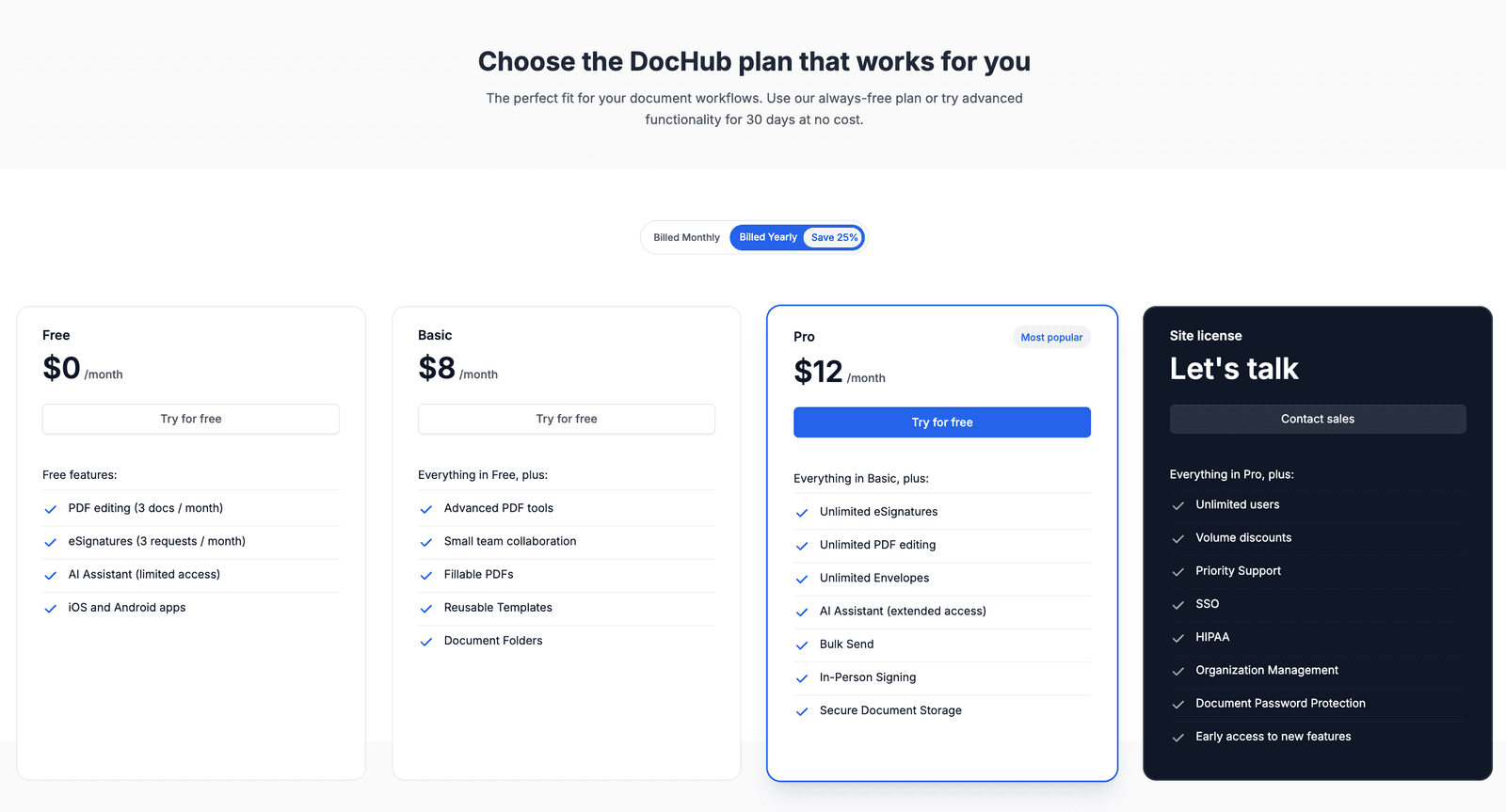
- Paid plans: From $8/month (Pro $12/month)
- Owner: airSlate
- Security: SOC 2 Type II, SSL encryption, 2FA
- Platforms: Web, Chrome extension, iOS, Android
The “Google Magic” (Why I Use It)
If your business runs on Google Workspace (Gmail, Drive, Docs) like mine does, DocHub feels like a superpower.
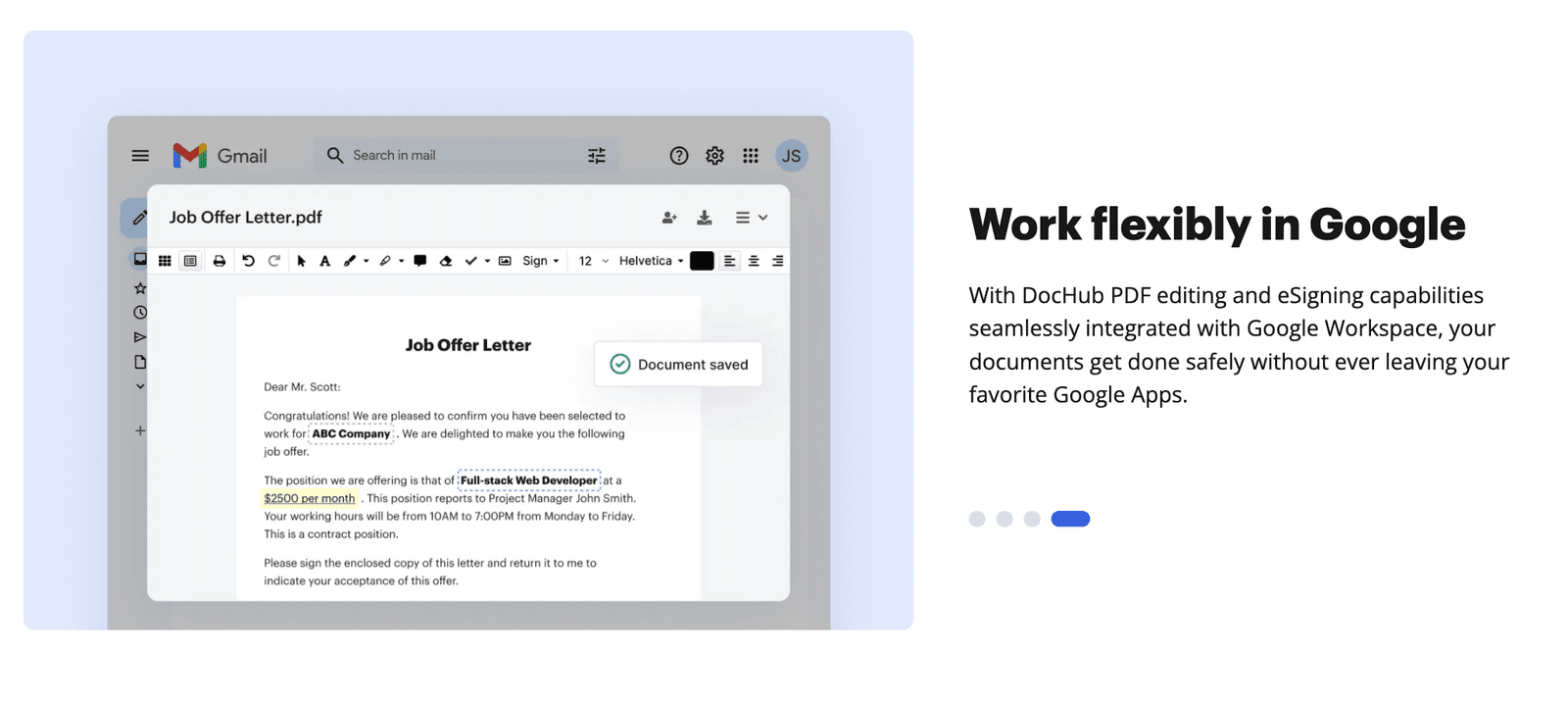
The integration is deep. When someone emails me a PDF, I don’t download it. I click the DocHub icon right inside Gmail.
The document opens instantly in my browser. I can:
- Sign it with my saved signature.
- White out a typo.
- Add a text box to fill in a form field.
Then (and this is the best part) I click “Send.” It attaches the signed version to a reply email automatically. I never cluttered my “Downloads” folder. I never left the browser tab.
Feisworld Tip: DocHub lets you open and edit PDFs straight from Google Drive — no “Preview Only” frustration. Double-click the PDF, or select Open with → DocHub from the three-dots menu, and the file will open in the DocHub editor. From there, you can use plenty of free tools to edit your PDF right away.
Is DocHub Really Free? (The Reality Check)
One of the top questions I get is, “Is there a truly free PDF editor?”
DocHub is the closest thing to “yes,” but you need to know the limits. As of 2026, the Free Plan is generous but capped.
What you get for $0/month:
- 3 Documents per month: You can edit or sign up to 3 docs.
- 3 Sign Requests: Send docs to others for signature (3x/month).
- AI Assistant: Yes, you can use the AI to summarize docs or rewrite text even on the free plan.
- Mobile App: Full access to the iOS/Android app.
My Take: If you are a freelancer who signs one or two contracts a month, or a parent signing school forms, the free plan is perfect. If you are a power user, you will hit the limit quickly, but the upgrade ($12/mo) is still cheaper than Adobe.
Who DocHub Is (and Isn’t) For
DocHub is ideal if you:
- Work mainly in Gmail and Google Drive
- Need to edit text inside PDFs (not just sign)
- Want a fast, browser-based workflow
- Sign a few documents per month (free plan) or many (Pro)
DocHub is not ideal if you:
- Need advanced print/layout tools (Adobe-level)
- Work with heavy OCR on scanned documents
- Manage complex enterprise compliance workflows
Is DocHub Safe?
If you search for DocHub, you might see queries like “Is DocHub safe?” or “Is DocHub legit?”
This happens because people are rightfully nervous about uploading tax forms or contracts to a free website.
Here is the verdict: Yes, DocHub is safe.
- Compliance: It is SOC 2 Type II certified and HIPAA compliant (on paid plans).
- Ownership: It is owned by airSlate, the same company behind SignNow and pdfFiller. This isn’t a random website run by a teenager; it’s an enterprise-grade platform.
- Security: They use 256-bit SSL encryption and Two-Factor Authentication (2FA).
Note: Always enable 2FA on your account. The platform is safe, but your password is only as safe as you make it.
Video: Watch me use DocHub
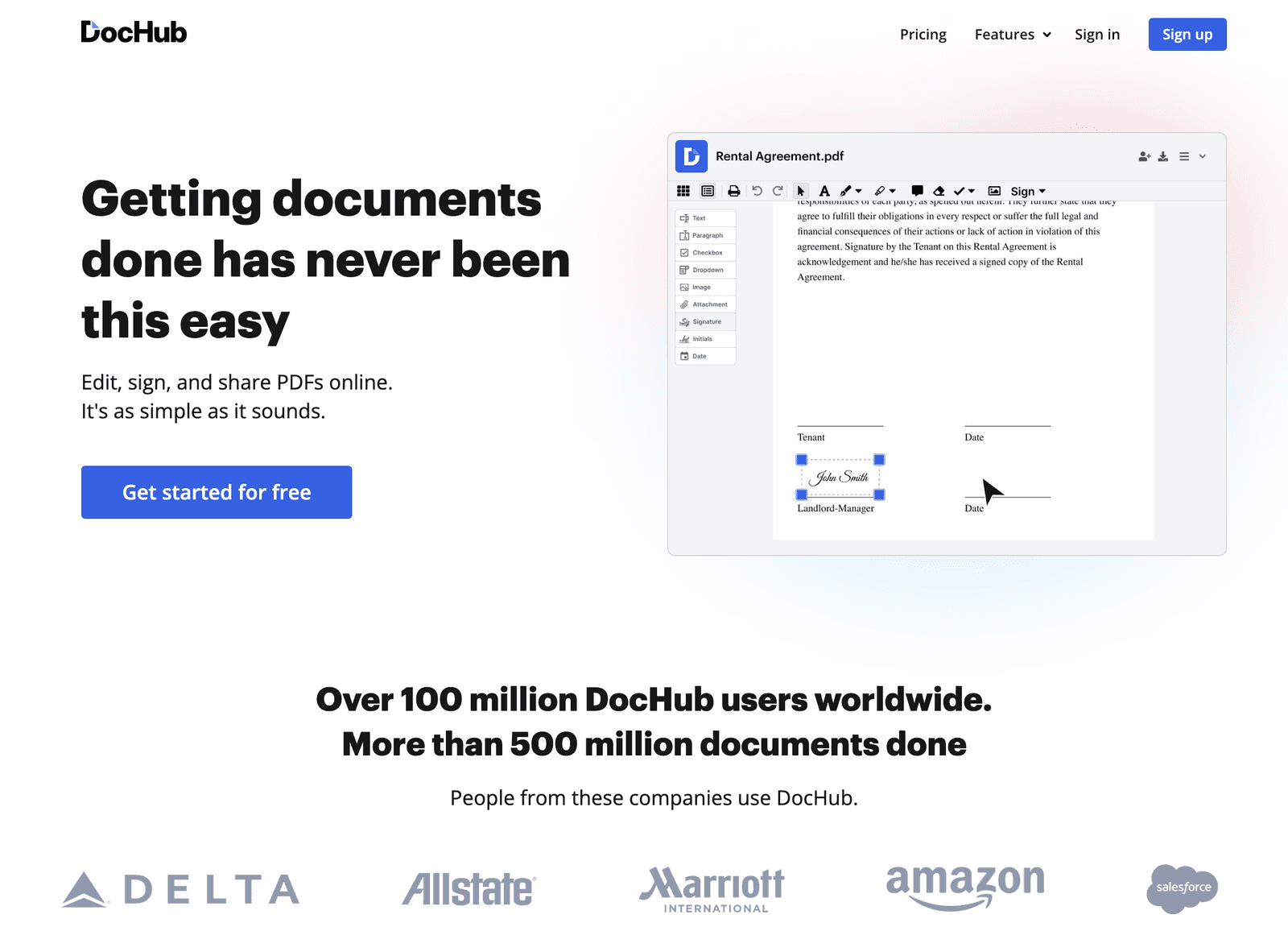
I’ve been using DocHub for years, and it’s perfect for filling, annotating, and signing documents, as well as syncing with Google Drive and Dropbox. In this video, I walk you through the basics.
DocHub Pricing 2026: Which Plan Do You Need?
If you outgrow the free plan, DocHub’s pricing is straightforward.
- Free ($0): Best for “Once-in-a-while” users. (3 docs/mo).
- Basic ($8/mo): Access to advanced editing and annotation features. Good for small teams using standard forms.
- Pro ($12/mo) – The Best Value:
- Unlimited eSignatures and Documents.
- Unlimited Editing.
- In-Person Signing: A new feature for 2025/26 that lets you hand your iPad to someone to sign instantly.
- Bulk Sending: Send one doc to 50 people at once.
Comparison: Adobe Acrobat’s paid plans start around ~$23.99–$29.99/month with advanced PDF tools, while a free Reader can view but has limited editing compared to DocHub.
DocHub vs. Lumin PDF vs. Adobe
If you live in Gmail and Google Drive and need to edit or sign PDFs quickly, DocHub is one of the most practical free options available. For advanced design or print workflows, Adobe Acrobat is still better.
Since DocHub lives in the Google ecosystem, its main rival is Lumin PDF. Here is how they stack up.
| Feature / Capability | DocHub | Lumin PDF | Adobe Acrobat |
|---|---|---|---|
| Best for | Gmail/Drive users, light–medium PDF editing & eSign | Annotation & collaboration | Full enterprise PDF tools |
| Free plan availability | ✔️ Full free tier available | ✔️ Free version available | ✔️ Free Reader (limited) |
| Free plan limits | 3 completed documents/month, 5 eSignatures/month, 3 sign requests/month | Free tier limits vary (feature restricted) | Reader only |
| Browser-based editing | ✔️ (no installs required) | ✔️ | ✔️ (web + desktop) |
| True text editing | ✔️ Edit text + add text | ✔️ (varies by plan) | ✔️ Full text editing |
| eSignature support | ✔️ (included) | ✔️ | ✔️ |
| Bulk sending | ✔️ (Pro) | Limited | ✔️ |
| Google Workspace/Gmail integration | ✔️ Deep integration | ✔️ | Limited |
| AI Assistant / AI features | ✔️ Included (summarize / extract) | Varies | Acrobat generative AI (paid) |
| Mobile app | ✔️ iOS & Android | ✔️ | ✔️ |
| Security | SOC 2 Type II, HIPAA & GDPR compliance claim | Standard security | Enterprise-grade security |
| Pricing (paid) | From ~$8/mo (Basic) / ~$12/mo (Pro) | Varies by tier | From ~$23.99–$29.99+/mo |
The Verdict: Choose Lumin if you are marking up assignments for students visually. Choose DocHub if you need to edit text, sign contracts, and get work done fast. Choose Adobe if you are a graphic designer.
Conclusion: Why DocHub is One of the Best Free PDF Editors in 2026
In 2026, “productivity” isn’t about working harder. It’s about removing the things that slow you down.
Downloading a PDF slows you down. Printing slows you down. Waiting for software to load slows you down.
DocHub removes that friction. It makes PDFs feel as flexible as Google Docs. Whether you use the free version for the occasional permission slip or the Pro version to run your freelance business, it is a tool that respects your time.
Frequently Asked Questions (FAQ)
What is DocHub used for?
DocHub is used to edit, sign, and send PDF documents online. It is especially popular with Google Workspace users because it integrates directly with Gmail and Google Drive, allowing PDFs to be handled without downloading files.
Is DocHub really free?
Yes. DocHub offers a free plan that does not expire. The free plan allows users to complete up to 3 documents per month, send 3 signature requests, and use core PDF editing and eSignature features. Paid plans remove these limits.
What are the limits of DocHub’s free plan?
As of 2026, DocHub’s free plan includes: up to 3 completed documents per month, up to 3 sign requests per month, and access to basic PDF editing and signing tools. Users who exceed these limits must upgrade to a paid plan.
Is DocHub safe to use for sensitive documents?
Yes. DocHub uses SSL encryption, supports two-factor authentication, and is SOC 2 Type II compliant. Paid plans also support HIPAA compliance, making DocHub suitable for contracts, financial forms, and other sensitive documents when proper security settings are enabled.
Who owns DocHub?
DocHub is owned by airSlate, a document workflow company that also owns SignNow and pdfFiller. airSlate provides document automation tools used by individuals, small businesses, and enterprises.
Can I edit PDFs directly in Gmail with DocHub?
Yes. After installing the DocHub for Gmail add-on, you can open PDF attachments directly inside Gmail, edit or sign them, and send the signed version in a reply email without downloading the file.
Does DocHub include AI features?
Yes. DocHub includes an AI Assistant that can summarize PDF documents, extract key information, and help rewrite text. Availability and usage limits depend on the plan, but AI features are accessible even on the free tier.
Is DocHub better than DocuSign?
DocHub and DocuSign serve different purposes. DocuSign focuses primarily on eSignatures and enterprise compliance, while DocHub combines PDF editing and eSignatures in one tool. DocHub is generally better for users who need to edit documents before signing and want a lower-cost solution.
Is DocHub better than Adobe Acrobat?
For everyday tasks like signing documents, filling forms, and light PDF editing, DocHub is faster and significantly cheaper than Adobe Acrobat. Adobe Acrobat is better suited for advanced layout design, print workflows, and complex document production.
Is DocHub good for small businesses and freelancers?
Yes. DocHub is well suited for freelancers and small businesses that regularly sign contracts, proposals, or client forms and want a simple, browser-based solution without paying per user.
Can I cancel or pause my DocHub subscription?
Yes. DocHub subscriptions can be managed from the account billing dashboard. Users can cancel at any time, and newer plans allow subscriptions to be paused temporarily instead of fully canceled.
You might also enjoy…
- SignNow Review
- Top PDF Editors in 2026
- How to Build a Brand in 2026 (And Get ChatGPT, Gemini, and AI to Mention You)

Written by
Fei WuFei Wu is the founder and CEO of Feisworld Media, a Massachusetts-based digital media company helping brands get discovered by people and by AI. An Adobe Global Ambassador and brand partner to ElevenLabs, Synthesia, and 50+ other tech and AI companies, she hosts the Feisworld Podcast (400+ episodes, 500K+ downloads — guests have included Seth Godin, Steve Wozniak, Chris Voss, and Arianna Huffington) and co-created the documentary Feisworld: Live Your Art on Amazon Prime. Fei writes for CNET, Lifehacker, and PCMag, and her work has been featured in Forbes, Harvard Business Review, and WIRED. She has been publishing on the internet since 2014 — long before AI discoverability had a name.
View all posts by Fei Wu→Stay updated
Weekly insights on content, AI, and digital media.
Keep Reading
Related Articles
Ecamm Review 2026: Dual Mode Changed How I Create Video (Here’s How)

The Ultimate Guide to Adobe Firefly Video Generation: Choosing the Right Model for Your Project (2026)