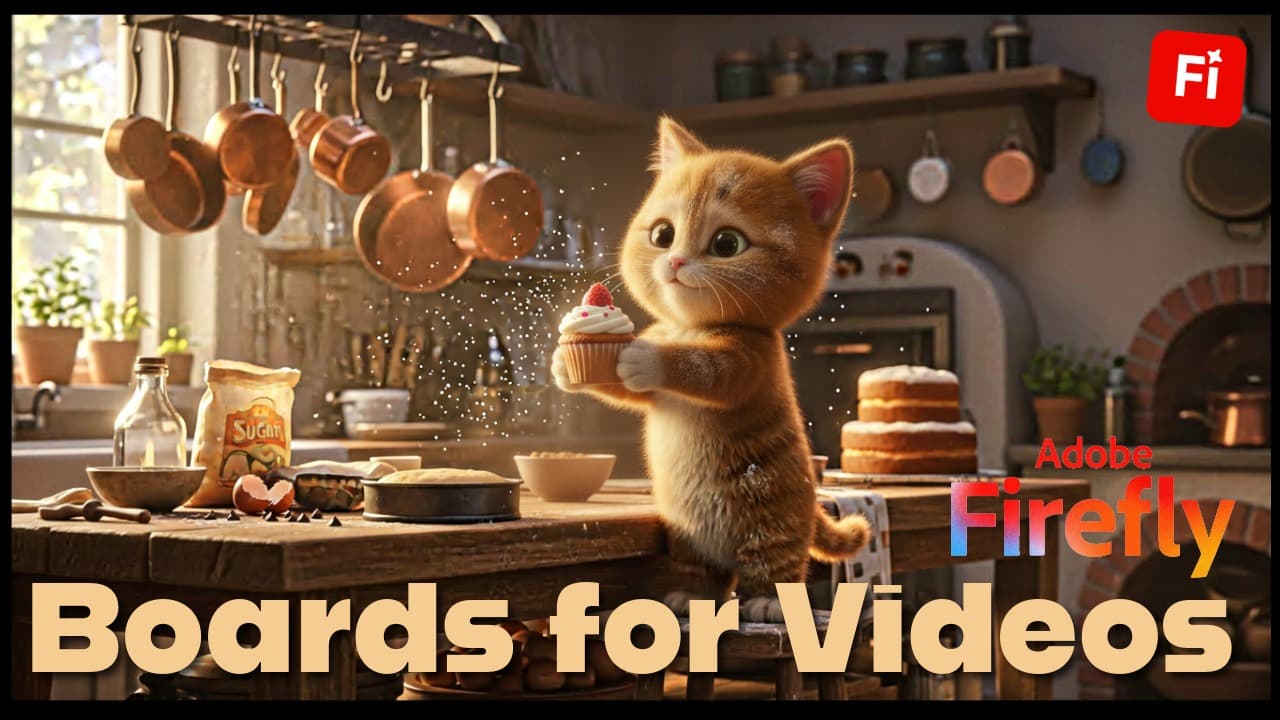
Disclaimer: this article is brought to you by Adobe Firefly. I am an Adobe Global Ambassador who focuses primarily on Adobe Firefly, Adobe Express and Adobe Podcast. #AdobeFireflyAmbassadors #Ad
Sometimes, the hardest part of creating isn’t the tools.
It’s knowing where to begin.
I’ve been making content for years — for Feisworld, for brands, for my mom’s art projects — and I still find that the very first step can feel heavy. You have an idea, but it’s fuzzy. You can’t quite see it yet. You don’t want to open a dozen apps just to “try something.”
That’s what drew me to Adobe Firefly Boards.
It promises a space for that early, uncertain phase of creativity — where you’re not executing yet, just thinking in images.
So instead of starting with a client project or something high-stakes, I decided to try something simple and light:
Could I use Adobe Firefly Boards to go from nothing to a tiny, 8–10 second AI kitten video — just to explore the process?
No pressure. Just curiosity. By the way, if you haven’t encountered one of those cute AI kitten videos, you can check out an example here. (Be ready for cuteness overload!)
Why Start Small
If you’re new to AI video or visual storytelling, it’s easy to feel like you need to build something impressive — a full short film, a polished ad, a perfect sequence.
But I’ve learned that small experiments are often where the most learning happens.
An 8–10 second video is enough to:
- practice shaping an idea,
- explore styles,
- think about consistency,
- and understand how tools fit together.
That’s all I wanted from this exercise.
What Adobe Firefly Boards Feels Like to Use
Firefly Boards is an AI-first, infinite canvas where you can:
- generate images and video,
- bring in references,
- remix and iterate,
- and arrange everything visually in one place.
For me, it feels a bit like a whiteboard, a moodboard, and a sketchbook all living in the same space.
Instead of deciding everything in your head, you can see your thinking take shape.
In a previous article, I shared Adobe Firefly Boards Presets: Top 9 for Creators and Small Businesses which you may find helpful.
My Simple Idea: One Kitten, One Moment
Before opening anything, I wrote down a rough thought:
A fluffy kitten baking a cake in a cozy kitchen, warm lighting, Pixar-style, cinematic, shallow depth of field.
That was it. No script. No big story. Just a feeling: warm, gentle, a little playful.
That became my starting point.
How I Built It in Adobe Firefly Boards
Here’s the exact process I followed, in a very beginner-friendly way.
Open a New Board and Give Yourself Space
When you create a new board, you’re greeted by a large, empty canvas. At first, it can feel intimidating. But I reminded myself: this is just a place to think out loud, visually.
I added a small text note with my idea so I wouldn’t lose sight of it.
Generate the First Kitten Images
Using Firefly’s image generation in Boards, I tried a prompt like:
A fluffy orange kitten baking a cake in a cozy kitchen, warm light, soft, cute, cinematic style.
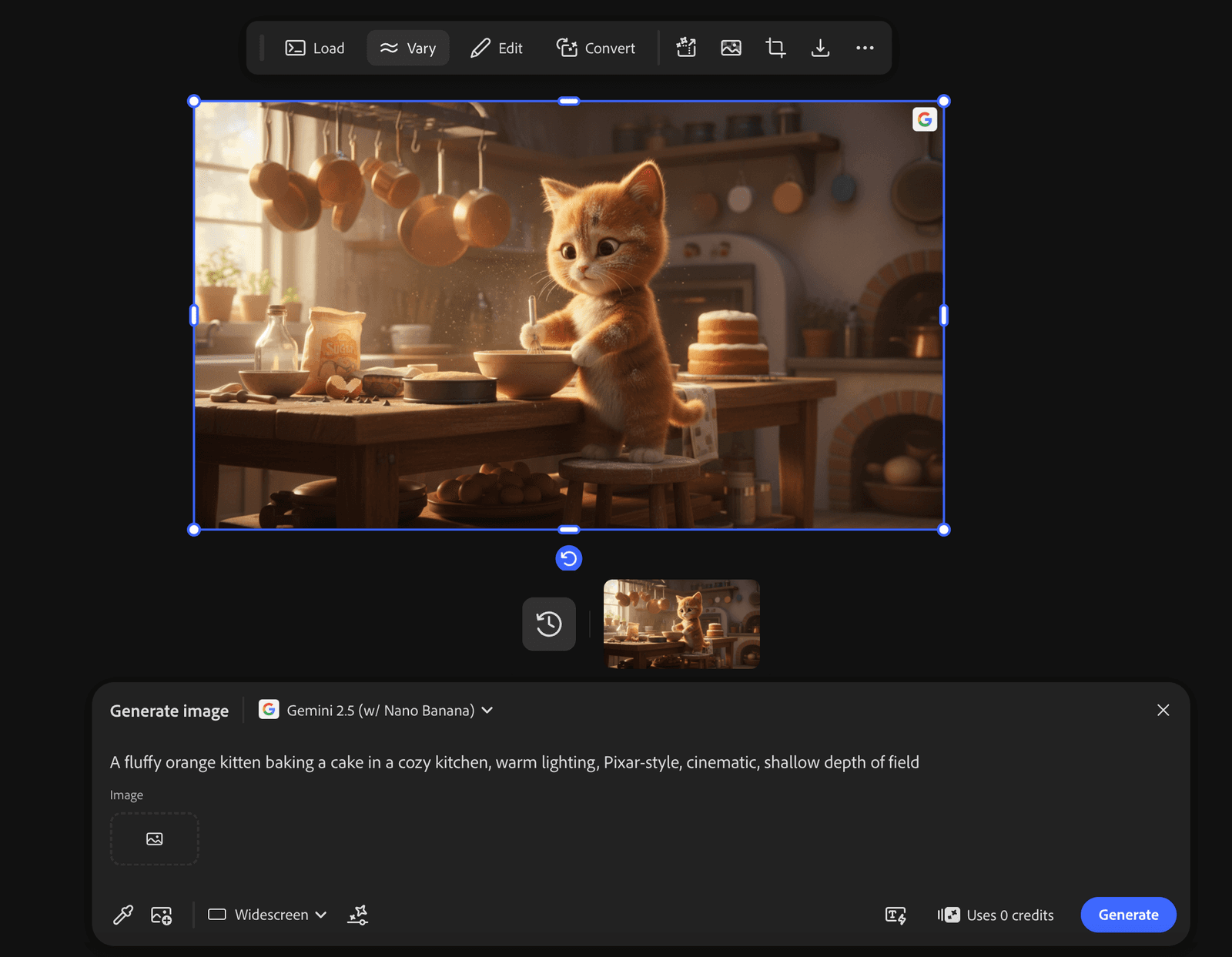
Adobe Firefly gave me one option which I liked. But I can choose the “Vary” feature to generate more ideas. I dragged a few onto the canvas, side by side.
I wasn’t looking for the perfect one yet — just possibilities.
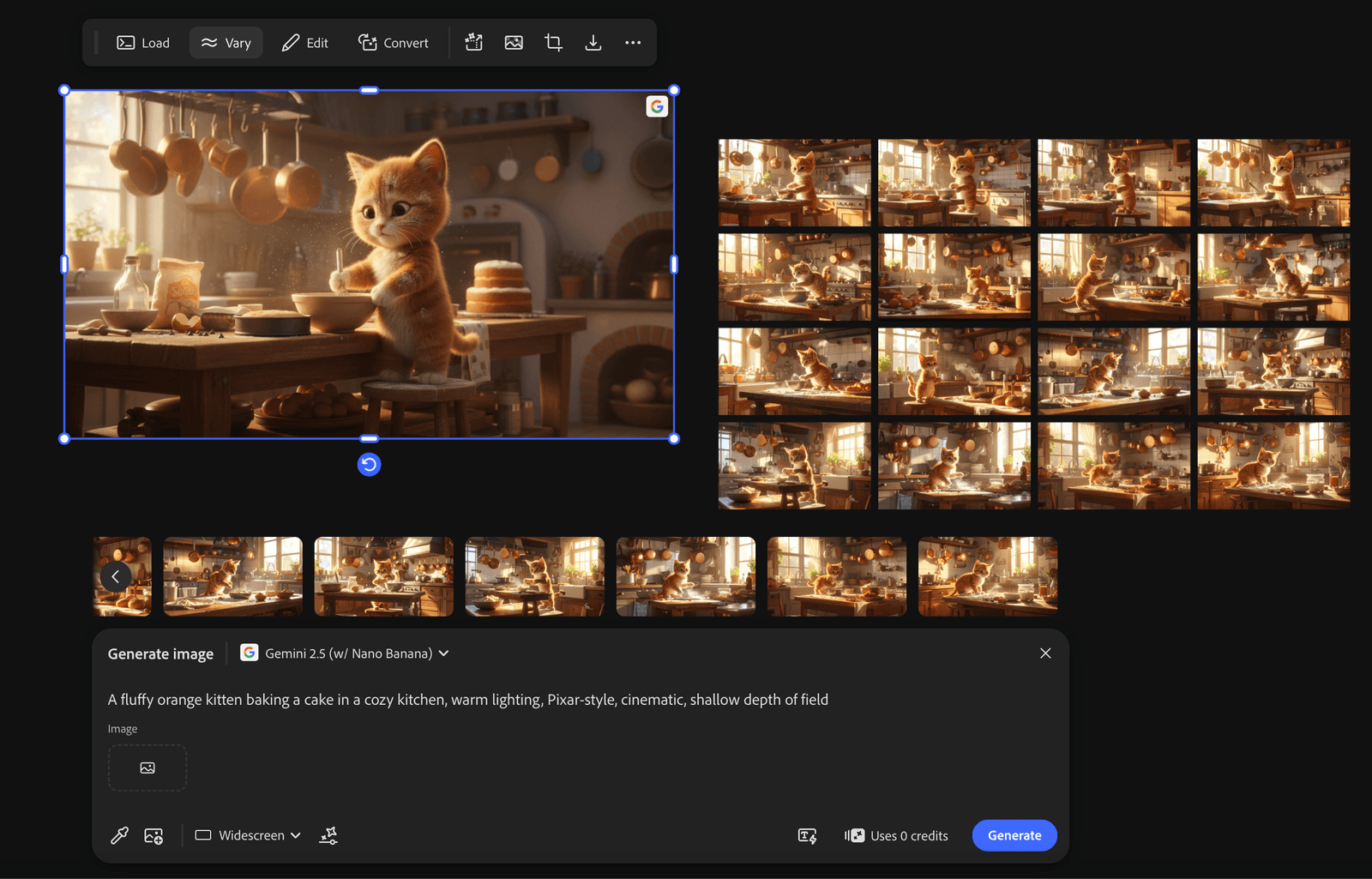
Explore by Remixing, Not Judging
This is where I slowed down and let myself explore.
I took one image and tried variations:
- slightly different lighting,
- a more cartoon look,
- a different angle.
Each result went onto the board.
Seeing them together helped me notice what I was drawn to: softer colors, big eyes, a calm, cozy mood.
Instead of thinking, “Which is best?” I was asking, “Which feels right for this little story?”
Are you struggling with prompts? Here’s a quick tip.
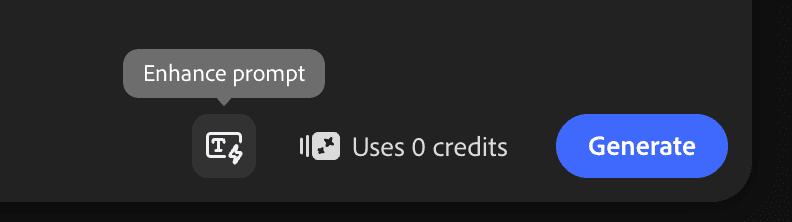
Adobe Firefly built-in prompt enhancement is super helpful when you struggle to explain yourself to AI.
For example, a simple prompt such as “A fluffy kitten baking a cake in a cozy kitchen” can be turned into something much more specific and sophisticated using “Enhance prompt”. Check out the result below.
Gently Aim for Character Consistency
Even in a tiny video, it helps if your character feels like the same character.
Once I found a kitten I liked, I treated it as my reference:
- same orange fur,
- same soft style,
- same overall mood.
When generating new scenes, I reused similar prompt words and kept that reference image visible on the board.
It’s not perfect — AI will still vary — but this approach makes the results feel more connected.
If you’re new, that’s more than enough to start.
Lay Out a Tiny Visual Story
For my 8–10 seconds, I imagined just three moments:
- the kitten mixing batter,
- the kitten putting the cake in the oven,
- the kitten holding the finished cake.
I arranged images left to right on the canvas, like a simple storyboard.
Seeing it laid out like this made the idea feel real. It wasn’t just images anymore — it was a sequence.
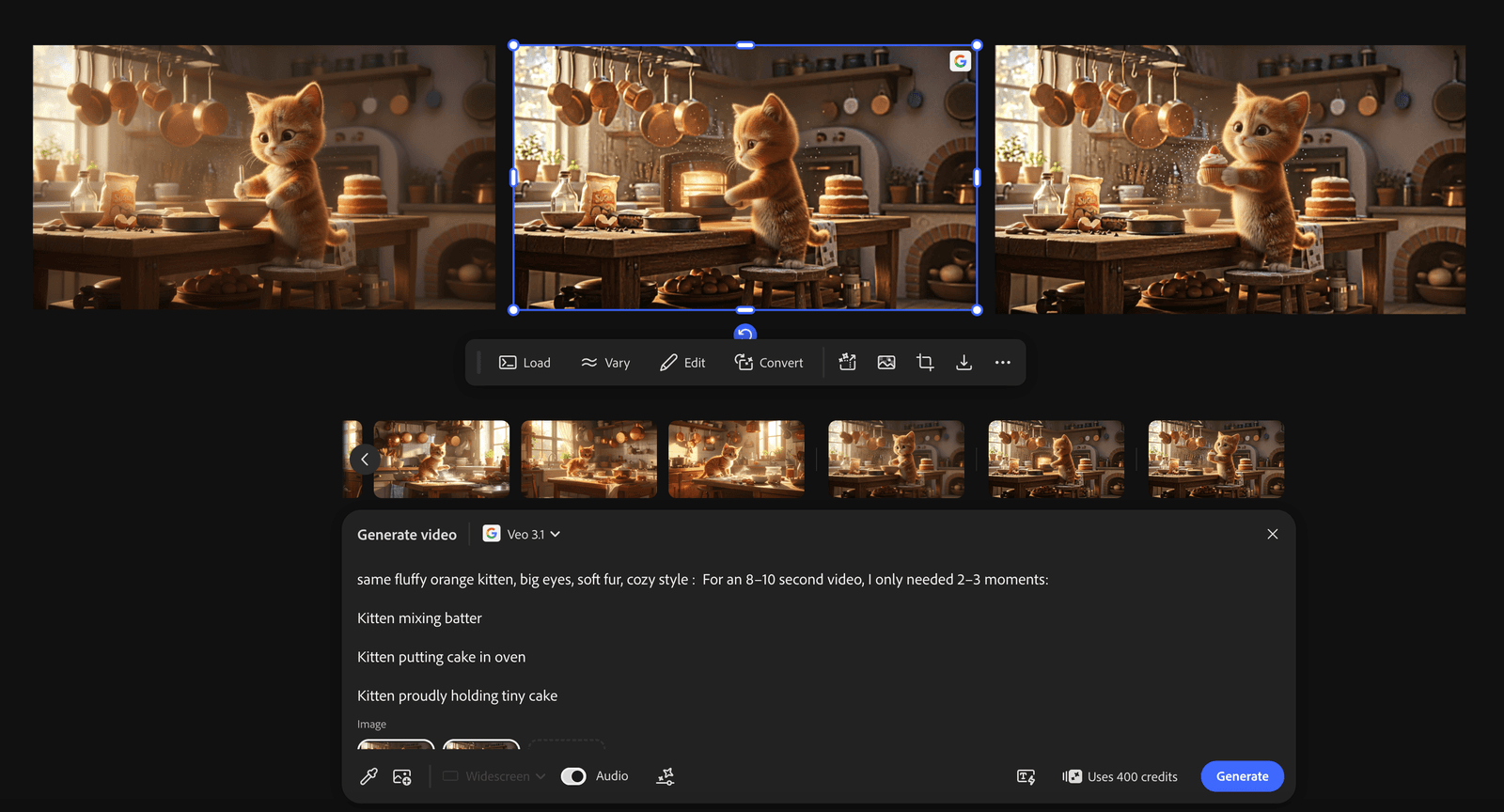
Generate Short Video Clips
Next, I used Adobe Firefly’s video generation to create short clips for each moment.
They don’t need to be long. A couple of seconds per scene is enough.
I placed the clips under their corresponding images so I could see how everything connected.
At this point, the board became a map of the whole idea.
The finished video with just a few simple prompts looks like this:
However, some details are clearly missing. For example, why did a whole cake turn into a cupcake the kitten is holding in the end?
With Adobe Firefly boards, I can clearly tell that more specific prompts are needed, such as having the kitten slice the cake and holding only one of the slices (with his paws, or on a plate) in front of the camera. See? These are the details you can create to enhance the clip.
There’s something profound about being your own creator and director in this movie-like learning experience. This process helped me see through the every detail can be specified without losing creative control.
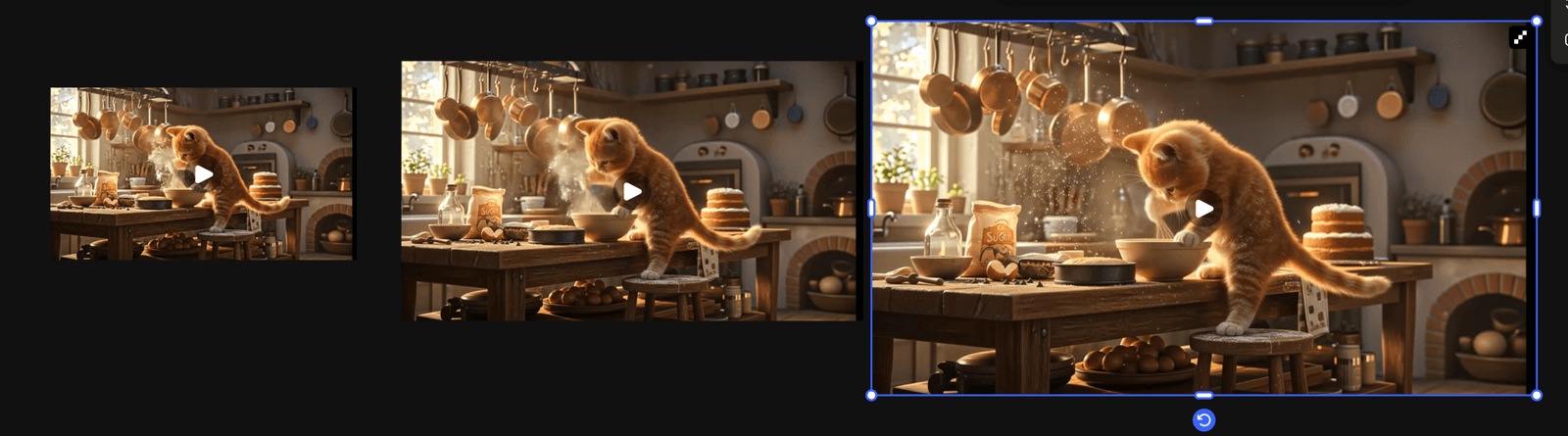
Upscale with Topaz Astra
AI video often starts a bit soft or low resolution.
Inside Adobe Firefly Boards, I used the new Topaz Astra video upscaler on one of my clips.
It helped:
- sharpen details,
- improve texture,
- and make the clip feel cleaner.
For me, this step is reassuring — it turns a draft into something more usable without leaving the flow.
The results: I generated two variations at 1080p and 4k
Optional: Finish in Adobe Express
When I was happy with the clips, I opened them in Adobe Express:
- trimmed them together into an 8–10 second sequence,
- added a simple caption,
- and exported the video.
Nothing fancy. Just enough to complete the idea. Click here if you want to check out my tutorials and article related to Adobe Express.
What I Took Away From This
The final video is small. It’s just a tiny kitten doing something cute. But the experience reminded me of something important.
Creativity feels lighter when you have a place to explore without pressure.
Adobe Firefly Boards gave me room to think visually, permission to try without committing, and a smooth path from idea to something real.
I wasn’t rushing to finish. I was discovering as I went. That’s a good place to be.
If You’re Curious to Try
If this resonates, here’s a simple way to start:
- Pick one character or idea you like
- Aim for a 5–10 second micro story
- Use Firefly Boards to generate, remix, and arrange your thoughts visually
- Try the Topaz Astra upscaler
- Finish in Adobe Express
No big goals. Just exploration.
From now until January 15th, eligible Adobe Firefly plans include unlimited generations on Adobe Firefly image and video models, which makes this kind of open-ended experimenting even easier while you’re learning.
If you’re anything like me, you might find that starting small opens up much bigger ideas.
You might also enjoy…

Written by
Fei WuFei Wu is the founder and CEO of Feisworld Media, a Massachusetts-based digital media company helping brands get discovered by people and by AI. An Adobe Global Ambassador and brand partner to ElevenLabs, Synthesia, and 50+ other tech and AI companies, she hosts the Feisworld Podcast (400+ episodes, 500K+ downloads — guests have included Seth Godin, Steve Wozniak, Chris Voss, and Arianna Huffington) and co-created the documentary Feisworld: Live Your Art on Amazon Prime. Fei writes for CNET, Lifehacker, and PCMag, and her work has been featured in Forbes, Harvard Business Review, and WIRED. She has been publishing on the internet since 2014 — long before AI discoverability had a name.
View all posts by Fei Wu→Stay updated
Weekly insights on content, AI, and digital media.
Keep Reading
Related Articles
The Ultimate Guide to Adobe Firefly Video Generation: Choosing the Right Model for Your Project (2026)
ElevenLabs Flows: How to Build an Entire Content Pipeline on One Canvas (2026 Guide)