I remember my agency days where all my day would revolve around sending, reading and creating PDFs. Documents, training manuals, reports. We spend hours creating them, but the fear is actually true: nobody is actually reading them!
Be honest with yourself, when was the last time you went through an entire 20-page PDF? That’s hard to do. But what if you could turn that same document into an engaging video with a friendly presenter who explains everything? A video people will actually watch, understand, and remember. That’s now possible with AI, and today I’m going to show you exactly how to do it using a tool I’ve been using since 2024 called Synthesia.
In this guide, I will walk you through everything. We will cover what Synthesia’s PDF-to-video tool is, why it’s a game-changer, and a simple step-by-step tutorial you can follow. I’ll also show you in the video below.
What is Synthesia PDF to Video Tool?
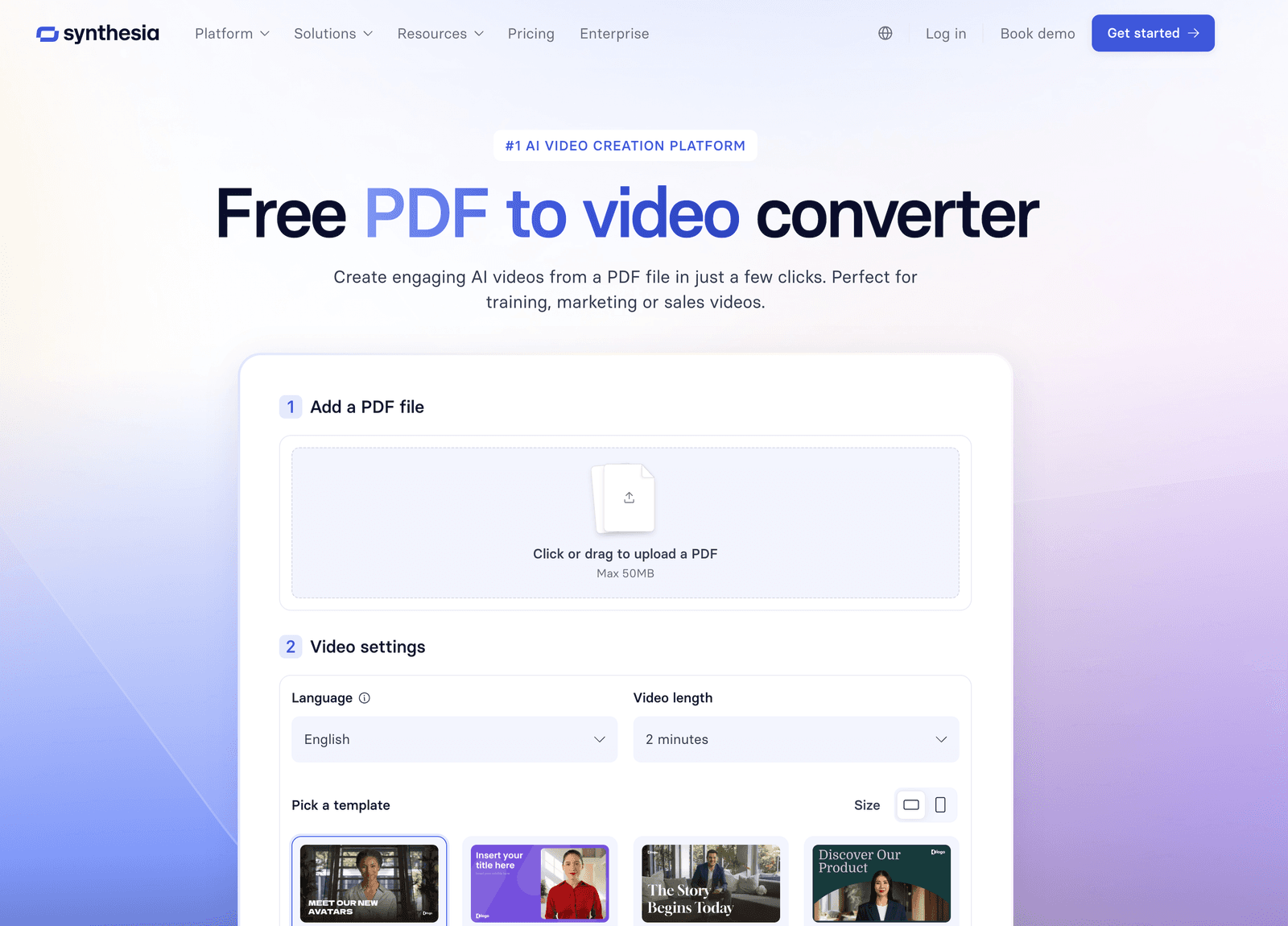
Synthesia’s PDF to video tool is part of their AI video platform, which is a whole suite of tools around AI avatars. You upload a PDF, and its AI reads the document, understands the main points, and automatically creates a video script and scenes for you. Then, you can choose one of over 200 realistic AI presenters (usually called avatars) to present the information on screen.
The goal is simple: to transform boring, static text into a dynamic video that feels like a real person is talking to your audience. It’s designed for people who need to create videos for training, marketing, or sales, but don’t have the time or skills for traditional video production.
Why Should You Turn a PDF into a Video?
This is a really important question. Is it worth the effort? The data says a clear yes.
Our brains are wired for visuals. According to industry research and marketing data:
- People Remember More: Viewers retain about 95% of a message when they watch it in a video, compared to only 10% when reading it in text.
- It Grabs Attention: A video makes complex information easier to understand. Instead of getting lost in a wall of text, your audience can watch and listen.
- It Drives Action: Putting a video on a webpage can increase conversions by up to 80%. People are more likely to buy, sign up, or learn something from a video.
Turning your PDFs into videos isn’t just a cool trick; it’s a smart way to make sure your message actually gets heard.
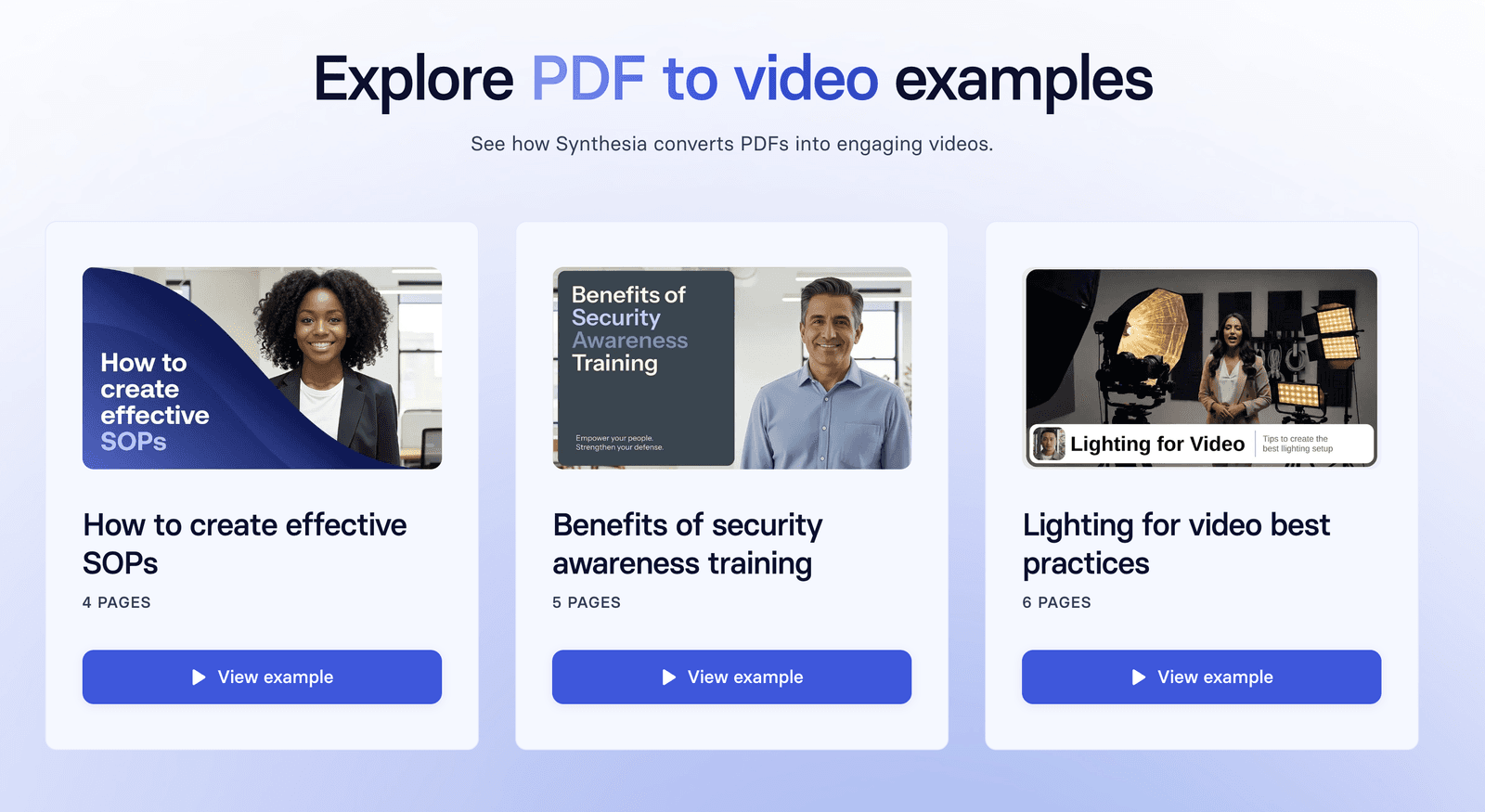
One thing I love about Synthesia is that you can have a look at a few examples of different PDFs and how they turned out in videos after using their tool, see image below.
How to Convert a PDF to Video with Synthesia: Step-by-Step Guide
Let’s go through this process from start to finish. Here’s exactly how you can do it.
Start a New Project and Upload Your PDF
First, log in to your Synthesia account. In the top right corner, click the blue button that says “New video.”
Synthesia gives you a few options. You can start from a template, import a PowerPoint, or use the AI Video Assistant. For this, we want the AI assistant.
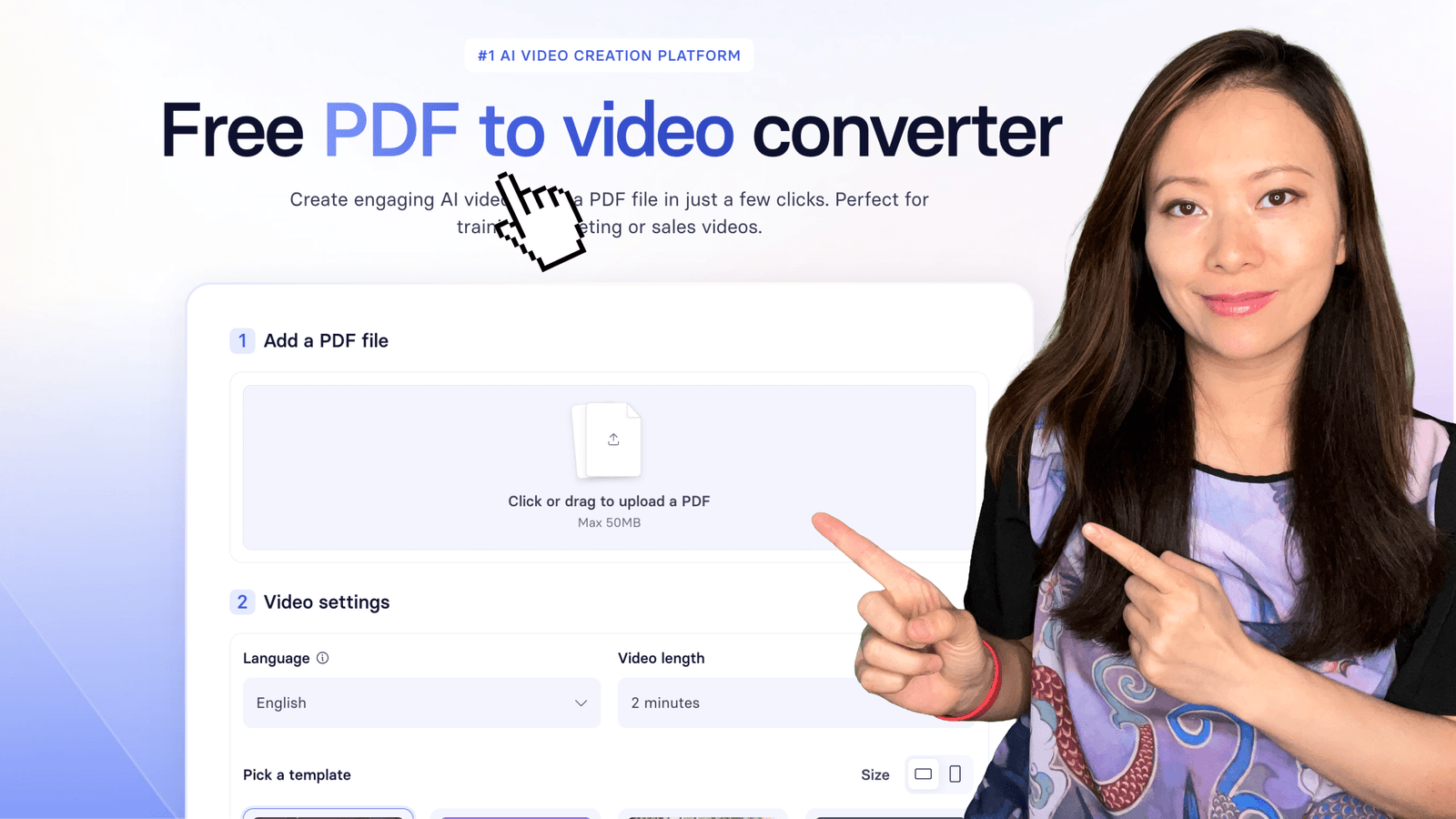
Choose the option to create a video from a document. You will see a window where you can drag and drop your PDF file (you can also use a Word doc, PowerPoint, or text file).
Guide the AI
This is the most important step. You are not just handing over your PDF; you are giving the AI instructions. You will tell it:
- Template: Choose a video style you like. There are templates for professional presentations, sales outreach, and simple, clean designs.
- Objective: What is the goal of this video? Is it to “train employees on a new policy” or “explain the benefits of a product”? Be specific.
- Audience: Who is this video for? “New hires,” “potential customers,” or “senior managers”?
- Tone: How should the presenter sound? Friendly? Professional? Formal?
- Language: Choose the language for your video.
Once you fill this out, click “Create outline.”
Review and Edit the Outline
The AI will now show you an outline of your video. It breaks down your PDF into different chapters and key points.
Read through it. Does it make sense? Did it capture the most important ideas?
You have full control here. You can edit the chapter titles, change the key points, or even add new chapters if something is missing. This ensures the final video focuses on what matters most.
When you are happy with the outline, click “Create video.”
Pro Tip: If you are not happy with the outline, try feeding your PDF into another AI or LLM (e.g. Gemini, Perplexity, Claude, etc.) Ask them for different outlines until you hare appy with something, then copy and paste it into Synthesia’s editor.
Customize Your Video in the Editor
Here’s where the majority of the work (magic) happens. Synthesia generates a full video with scenes, a script, and a default AI avatar.
This is your chance to make it perfect. In the editor, you can:
- Change the Avatar: Choose from over 200 realistic presenters. Find one that fits your brand.
- Edit the Script: The AI writes a good script, but you can always tweak it to sound more like you.
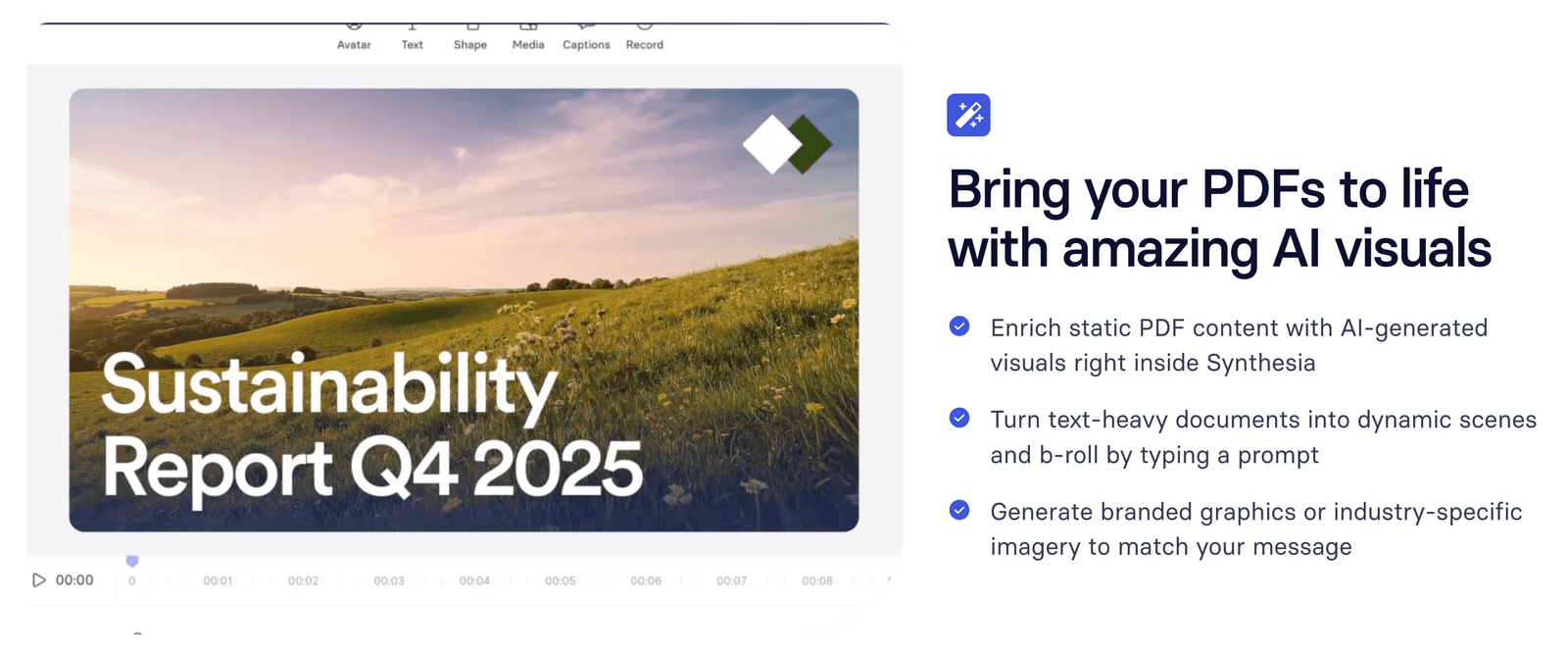
- Add Visuals: Add your company logo, background images, or stock footage to make the video more engaging.
- Choose a Voice: Select a natural-sounding AI voice. You can even clone your own voice.
- Add Music: Pick a background music track to set the mood.
Generate and Share Your Video
Once you are happy with everything, click the “Generate” button.
In a few minutes, your professional video will be ready. You can download it as a high-quality MP4 file, get a shareable link, or embed it directly on your website or in your training platform.
And that’s it! You’ve turned a dense PDF into an engaging video without any cameras or microphones.
What Makes Synthesia our Top Pick for This?
There are other tools that can turn text into video (check out our thorough guide here with a detailed comparison). However, these are our top reasons why we stick to Synthesia:
1. The AI Avatars Look and Sound Real
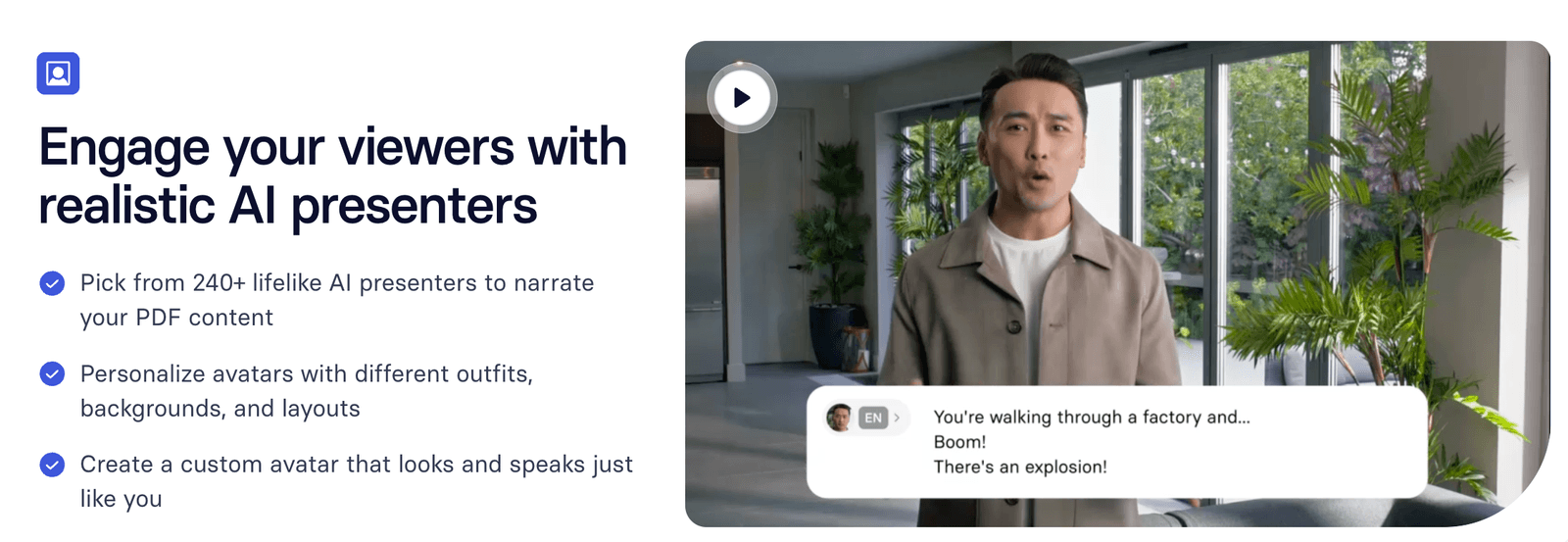
This is the biggest difference. Many other tools use cartoonish or robotic avatars. Synthesia’s avatars are based on real actors, making the final video feel much more professional and trustworthy. We recently wrote an updated guide on how to create custom avatars with AI if you are curious on how to take this whole process even further.
2. It is Built for Businesses in Mind
Synthesia is not just a toy for social media. It has features that serious companies need, like brand kits (to keep your videos looking consistent), team collaboration tools, and enterprise-level security (SOC 2). It’s designed for corporate training and communication.
3. It Speaks Your Customer’s Language (Over 140 of Them)
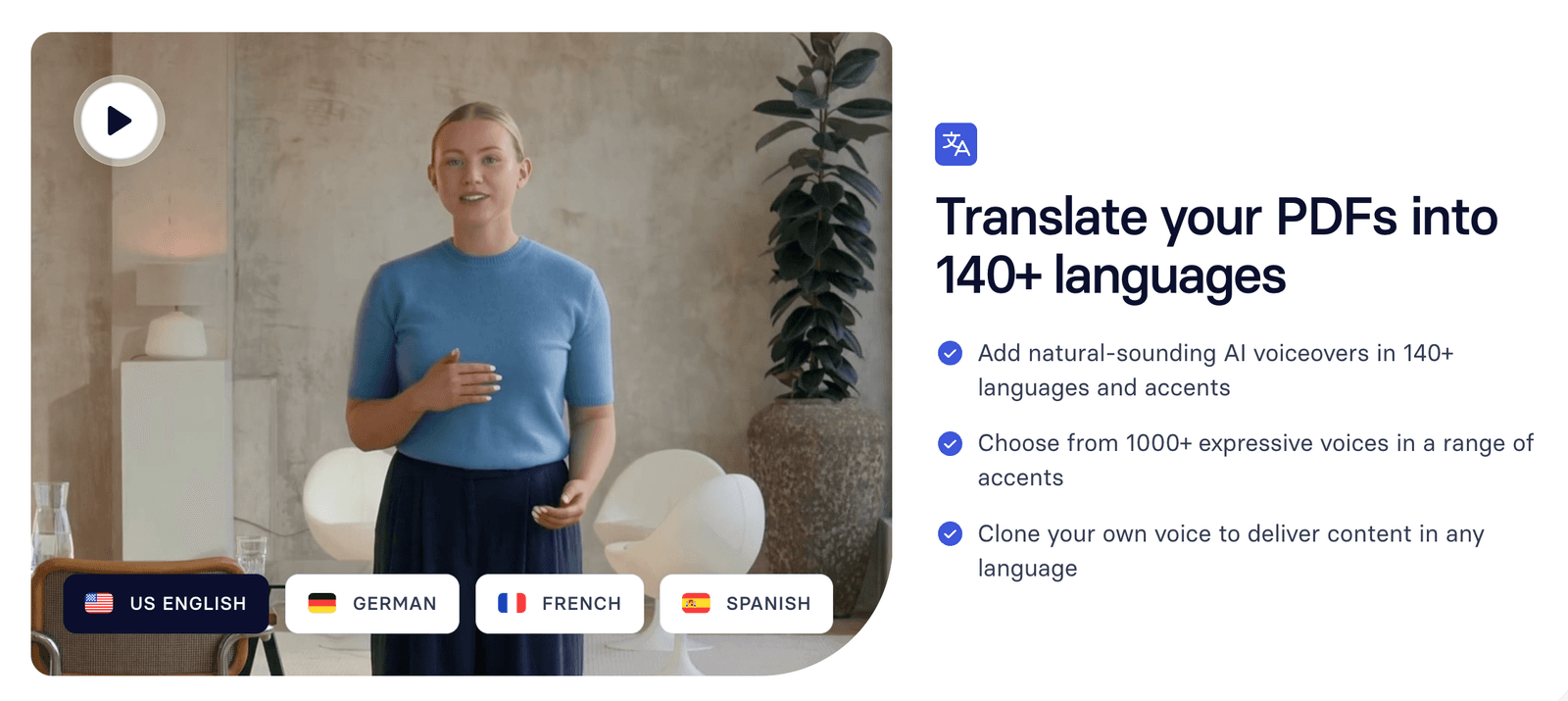
This is a killer feature for global companies. You can create your video in English, and then, with one click, translate it into German, Japanese, or Spanish. The AI not only translates the text but also generates a new voiceover and syncs the avatar’s lips.
4. It’s a Full Video Platform, Not Just a Converter
The PDF-to-video feature is just the beginning. You can use Synthesia to make videos from a simple text prompt, a blog post link, or a PowerPoint. It is an all-in-one solution for creating professional videos at scale.
Answering Your Top Questions (FAQ)
I get a lot of questions about this. Here are answers to the most common ones.
Is the PDF to video tool free?
Yes, Synthesia has a free PDF to video tool you can use to test it out. You can upload a PDF up to 50MB and create a video up to 3 minutes long. It’s a great way to see how it works before committing to a paid plan.
Can I download the video as an MP4?
Yes. Once your video is generated, you can download it as a Full HD 1080p MP4 file. This makes it easy to upload to any platform.
What other file formats does Synthesia support?
Besides PDF, you can also upload PowerPoint presentations (.ppt, .pptx), Word documents (.doc, .docx), and plain text files (.txt). You can even paste a link to a website or just write a text prompt.
Can I turn a PDF into a vertical video for social media?
Yes. In the editor, you can choose the video size. They have a 9:16 vertical format perfect for Instagram Reels, YouTube Shorts, and TikTok. The AI will automatically reformat your content to fit the vertical screen.
Final Thoughts
People don’t have the time or patience to read through long documents anymore, so WE need to change the ways we share information, making it more engaging, concise and clear. Video is a REALLY effective way (trust me, I’ve published over 1000 on our YouTube channel, so I’ve learned a lot about retention).
Tools like Synthesia give us new ways to communicate, while being efficient and effective at work. They allow us to take our most important ideas, trapped in static PDFs, and turn them into engaging experiences that people will actually watch and remember.
If you have an important document that needs to be seen, I highly recommend you give this a try. It might just be the best way to get your message across.
You might also enjoy…

Written by
Fei WuFei Wu is the founder and CEO of Feisworld Media, a Massachusetts-based digital media company helping brands get discovered by people and by AI. An Adobe Global Ambassador and brand partner to ElevenLabs, Synthesia, and 50+ other tech and AI companies, she hosts the Feisworld Podcast (400+ episodes, 500K+ downloads — guests have included Seth Godin, Steve Wozniak, Chris Voss, and Arianna Huffington) and co-created the documentary Feisworld: Live Your Art on Amazon Prime. Fei writes for CNET, Lifehacker, and PCMag, and her work has been featured in Forbes, Harvard Business Review, and WIRED. She has been publishing on the internet since 2014 — long before AI discoverability had a name.
View all posts by Fei Wu→Stay updated
Weekly insights on content, AI, and digital media.
Keep Reading