If you have followed Feisworld for any length of time, you know my philosophy: Administrative friction kills creativity.
We produced over 400 podcast episodes and 1,000+ YouTube videos. But behind every great interview with Seth Godin or every deep-dive tutorial into AI tools, there is a mountain of unsexy paperwork. Vendor contracts, W9 tax forms, sponsorship agreements, and release forms.
For the first five years of my agency, dealing with PDFs was my nightmare. I would print them, sign them, scan them, and email them back. It was slow, wasteful, and honestly, it made me hate “admin day.”
But we are in 2026 now.
The days of treating PDFs like digital paper are over, more so with AI (agents, and assistants). Today, the best PDF editors aren’t just tools for viewing documents; they feel start to feel more like productivity engines. They use AI to summarize contracts, they integrate directly into your Gmail, and they live in the cloud so you can work from anywhere.
I spent the last few weeks re-testing the market. I didn’t just look at feature lists; I used these tools to run my agency.
Here is my no-nonsense guide to the top PDF editors that will actually help you reclaim your time in 2026.
A modern PDF editor in 2026 is a cloud-based document tool that lets you edit original text, sign files electronically, collaborate in real time, and automate admin work using AI — without printing or downloading software.
The “Feisworld” Criteria: What Actually Matters?
Before we look at the tools, I want to tell you how I judged them. Most tech reviews talk about “OCR engines” and “Redaction algorithms.” That’s fine for IT departments, but for creators and small business owners, I look for three things:
- True Cloud Workflow: Do I have to download a 500MB software package? If yes, I’m out. In 2026, I need to edit a contract on my phone in an Uber, or on my laptop in a coffee shop, without syncing files.
- “Edit,” Don’t Just “Draw”: Many bad editors just let you draw a white box over a typo and type on top of it. That looks unprofessional. I need a tool that actually edits the original text.
- The “Contextual Footprint” Factor: Does this tool save me enough time so I can focus on what matters, building my brand and creating content?
How I evaluated each tool (simple scorecard):
- Cloud-first: Works fully in browser/mobile (Yes/Partial/No)
- Edit original text: Real text edits, not white-box overlays (Yes/Partial/No)
- E-signature: Built-in signing + requesting signatures (Yes/No)
- AI help: Summaries, autofill, smart workflows (Yes/Partial/No)
- Best for: One clear use case (e.g., “contracts + forms”)
The Top 5 PDF Editors (2026 Rankings)
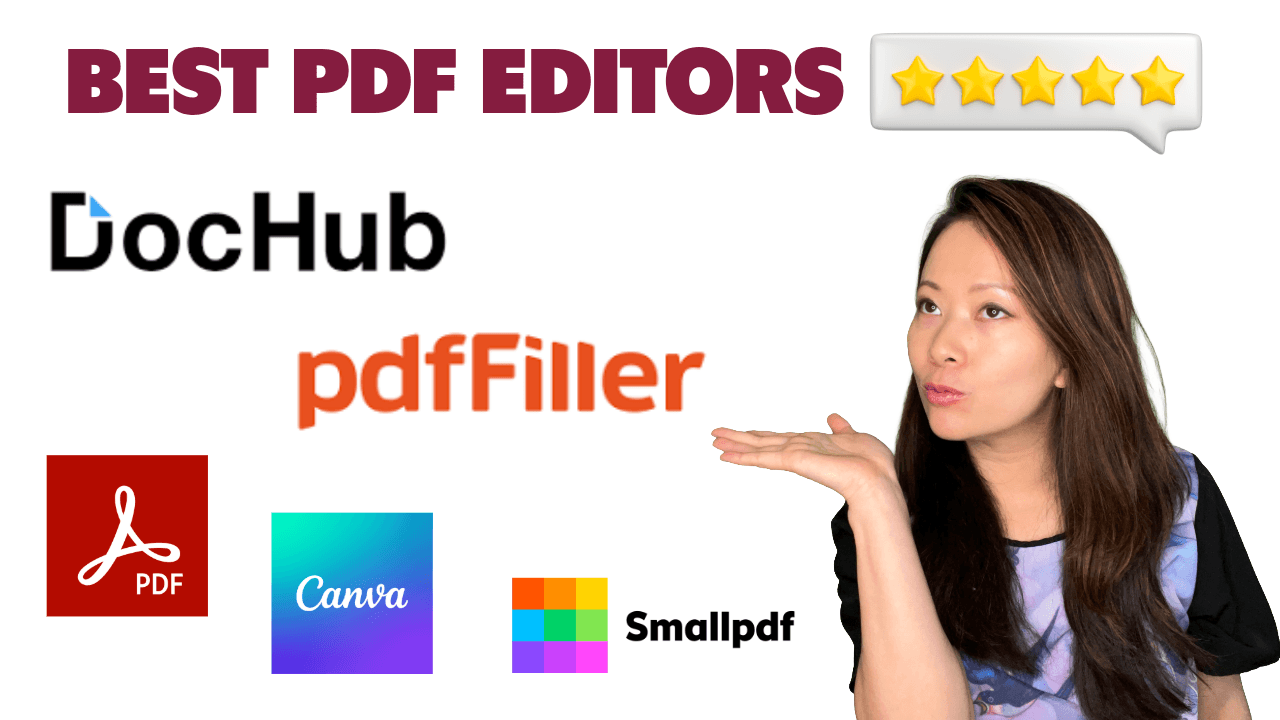
1. pdfFiller – Best Overall for Business Operations
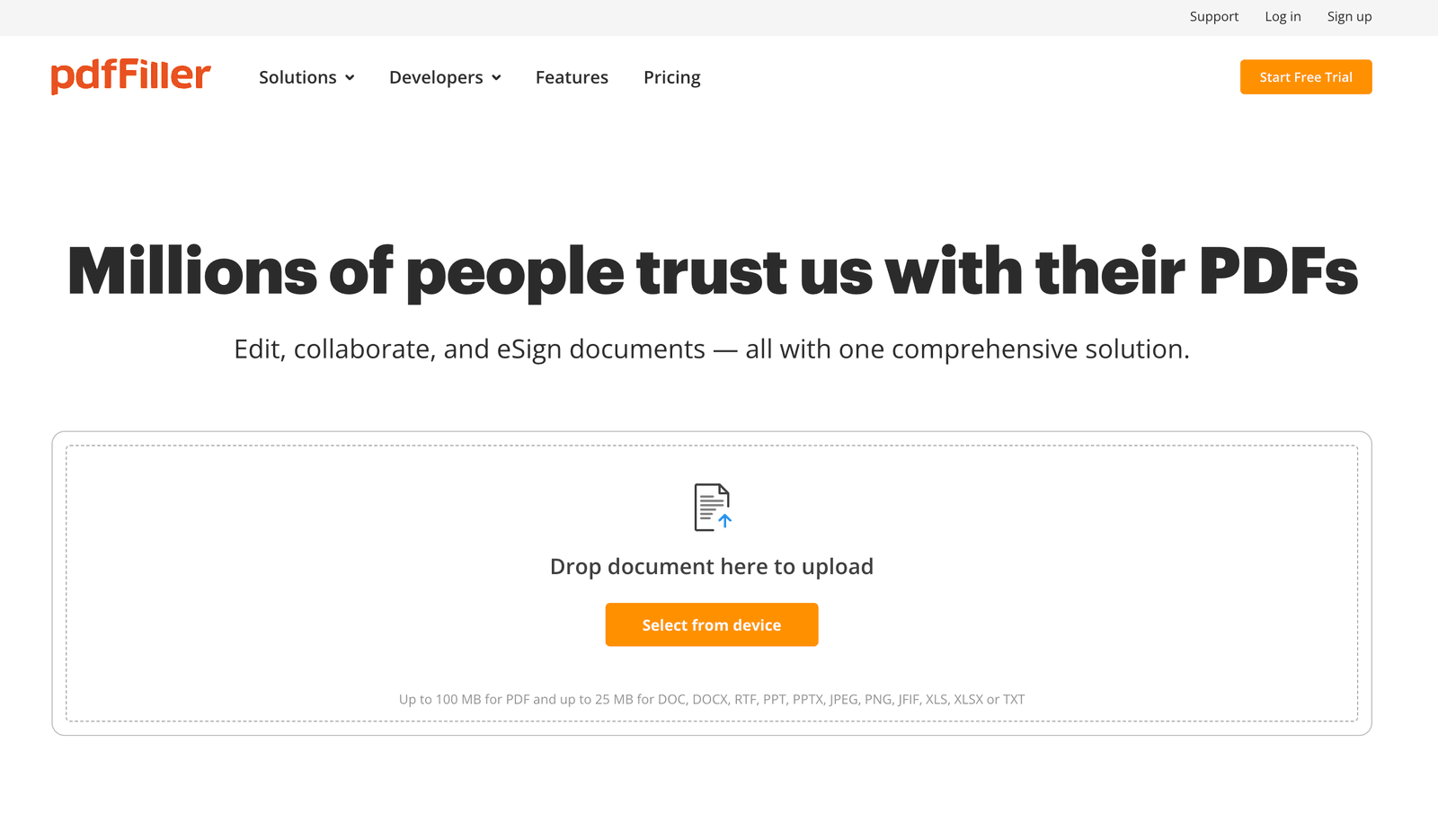
The name “pdfFiller” is actually a bit too modest. It sounds like a tool just for filling out forms, but in my testing, it turned out to be a complete document management command center.
For Feisworld Media, this has replaced our old disconnected workflow. Instead of using one tool to sign, one to edit, and one to store, pdfFiller does it all.
Why I Love It:
- The Library: This is a killer feature. pdfFiller gives you access to a library of 25 million fillable forms. Last month, I needed a specific tax form for a contractor. Instead of Googling it and risking a sketchy download, I found it right inside pdfFiller.
- True Editing: You can erase original text, move paragraphs, and check spelling. It feels like working in a Word doc, not a rigid PDF.
- Collaboration: I can share a document with Germán (my Head of Content), and we can work on it without emailing versions back and forth.
The “Gotcha”: It has a lot of features. The dashboard is packed. It might take you 30 minutes to learn where everything is, but once you do, it’s a powerhouse.
Fei’s Take: “If you want to stop thinking of PDFs as ‘paper’ and start treating them as ‘data,’ this is the tool. It saves my team at least 5 hours of admin work a week.”
2. DocHub – Best for Speed & Google Users
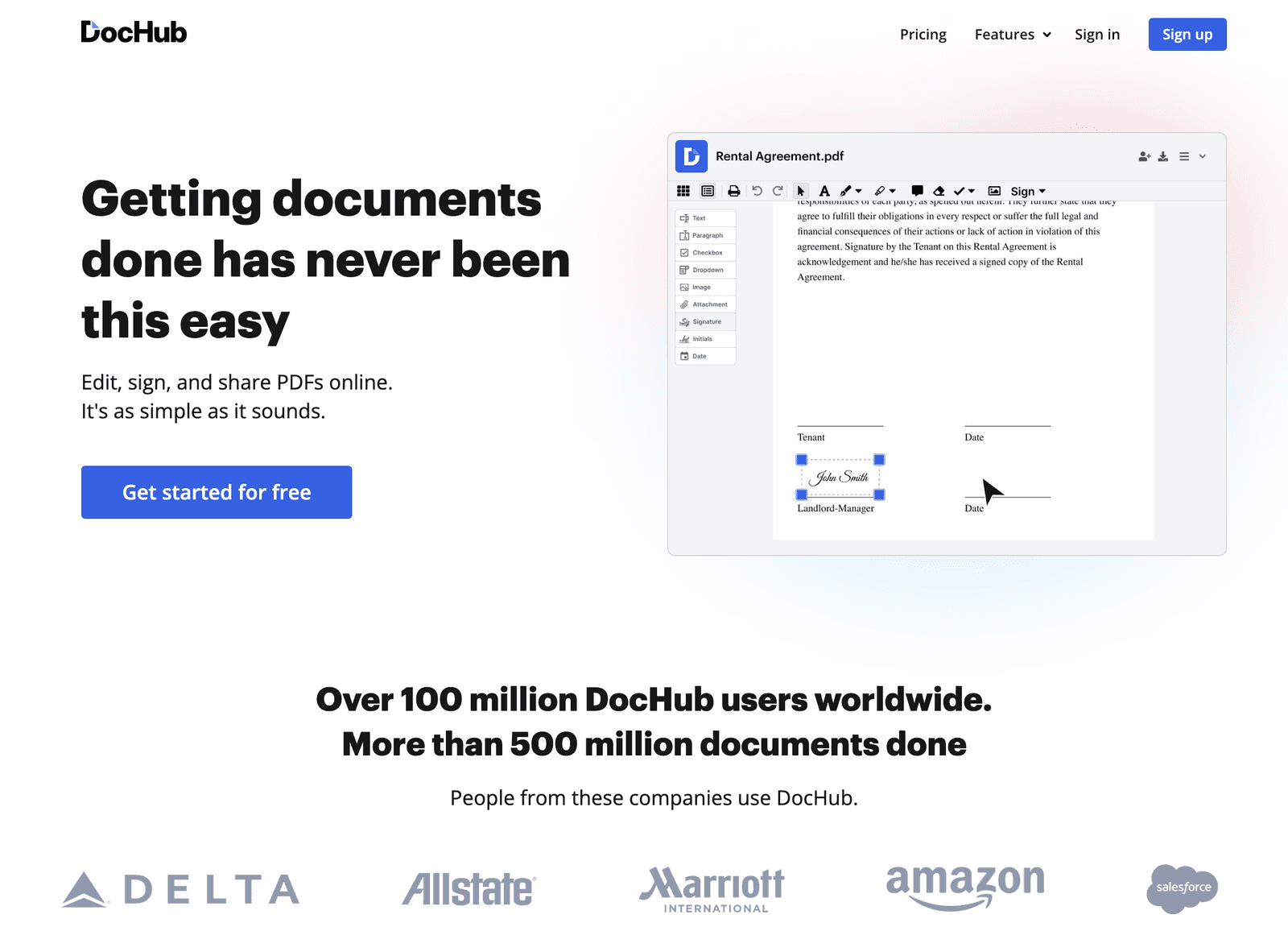
If your business lives in Google Drive (like mine does), DocHub feels like magic. I use DocHub primarily for “quick hits.” You know those moments when a client emails you a contract and says, “Can you just sign this real quick?” With DocHub, I don’t even leave my Gmail tab.
Why I Love It:
- Seamless Google Integration: This is its superpower. You open a file from Gmail, it opens in DocHub, you sign it, and it saves back to Drive. No downloading, no uploading.
- The Price: It has a very generous free version, and the paid version is extremely affordable.
- Zero Friction: It is the fastest tool on this list. It loads instantly.
The “Gotcha”: It is not a heavy-duty editor. If you need to redesign a brochure or edit complex layers, it’s not the right tool. But for admin work? It’s perfect.
Fei’s Take: “DocHub is the tool I recommend to my freelancer friends who just need to sign permission slips or simple contracts. It’s fast, cheap, and plays nice with Google.”
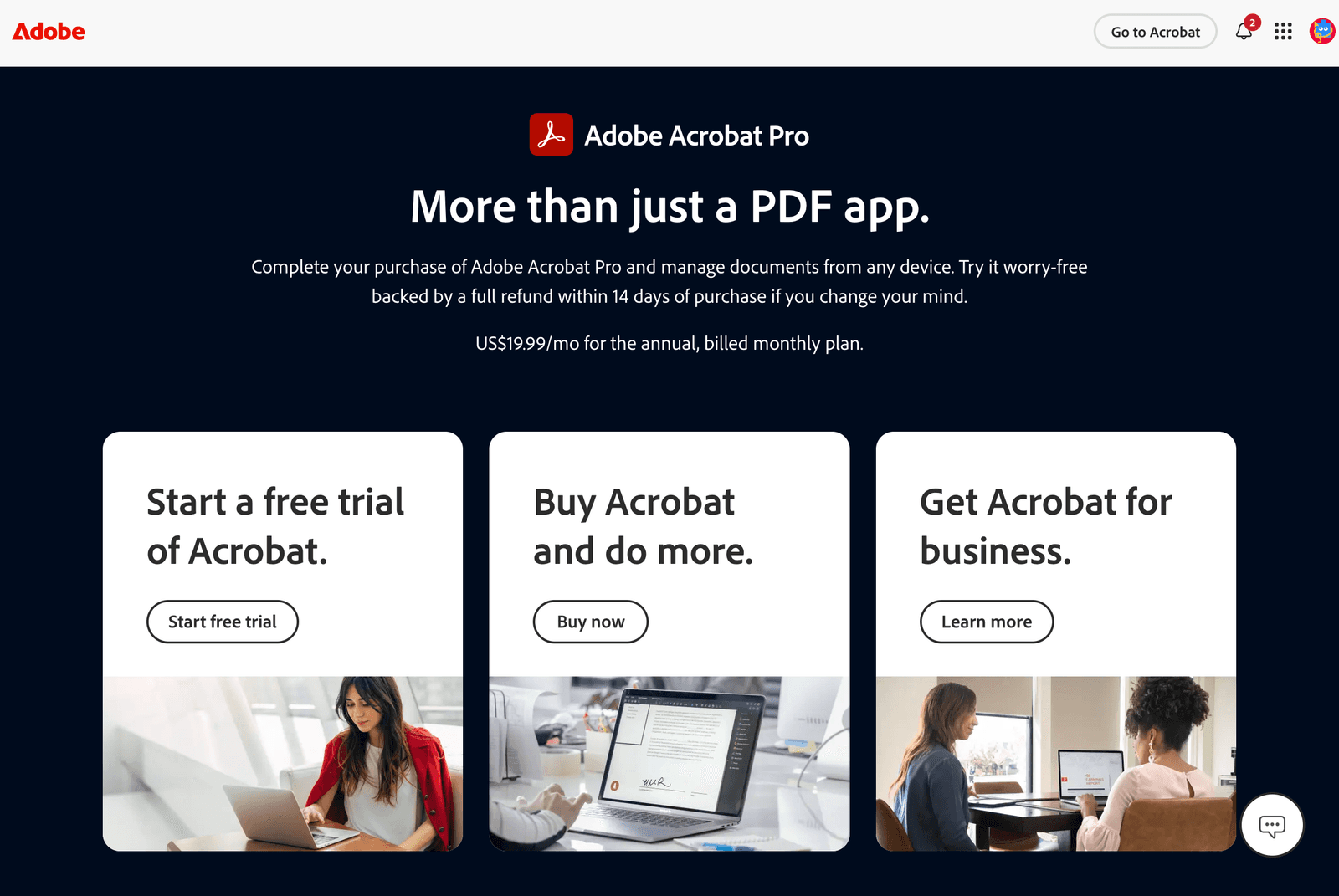
3. Adobe Acrobat Pro – Best for Designers & Print Pros
We can’t talk about PDFs without talking about Adobe. They invented the format, and I am a proud Adobe Ambassador.
However, in 2026, I categorize Acrobat Pro differently than I used to. I use Acrobat when I am wearing my “Creative Director” hat, not my “Business Admin” hat.
Why I Love It:
- Unmatched Power: If you are sending a file to a professional printer and need to manage CMYK colors, bleed lines, and high-resolution layers, nothing beats Acrobat.
- Integration: It works perfectly with InDesign and Photoshop.
- Security: For enterprise-level encryption, it is the gold standard.
The “Gotcha”:
It is heavy software. It takes up space on your hard drive, and it is more expensive than the cloud-first options. For simply signing a W9, it feels like using a flamethrower to light a candle.
Fei’s Take: “If you are a designer, you need Acrobat. If you are a business owner just trying to get paperwork done, it might be overkill.”
4. Canva PDF Editor – Best for Visual Creators
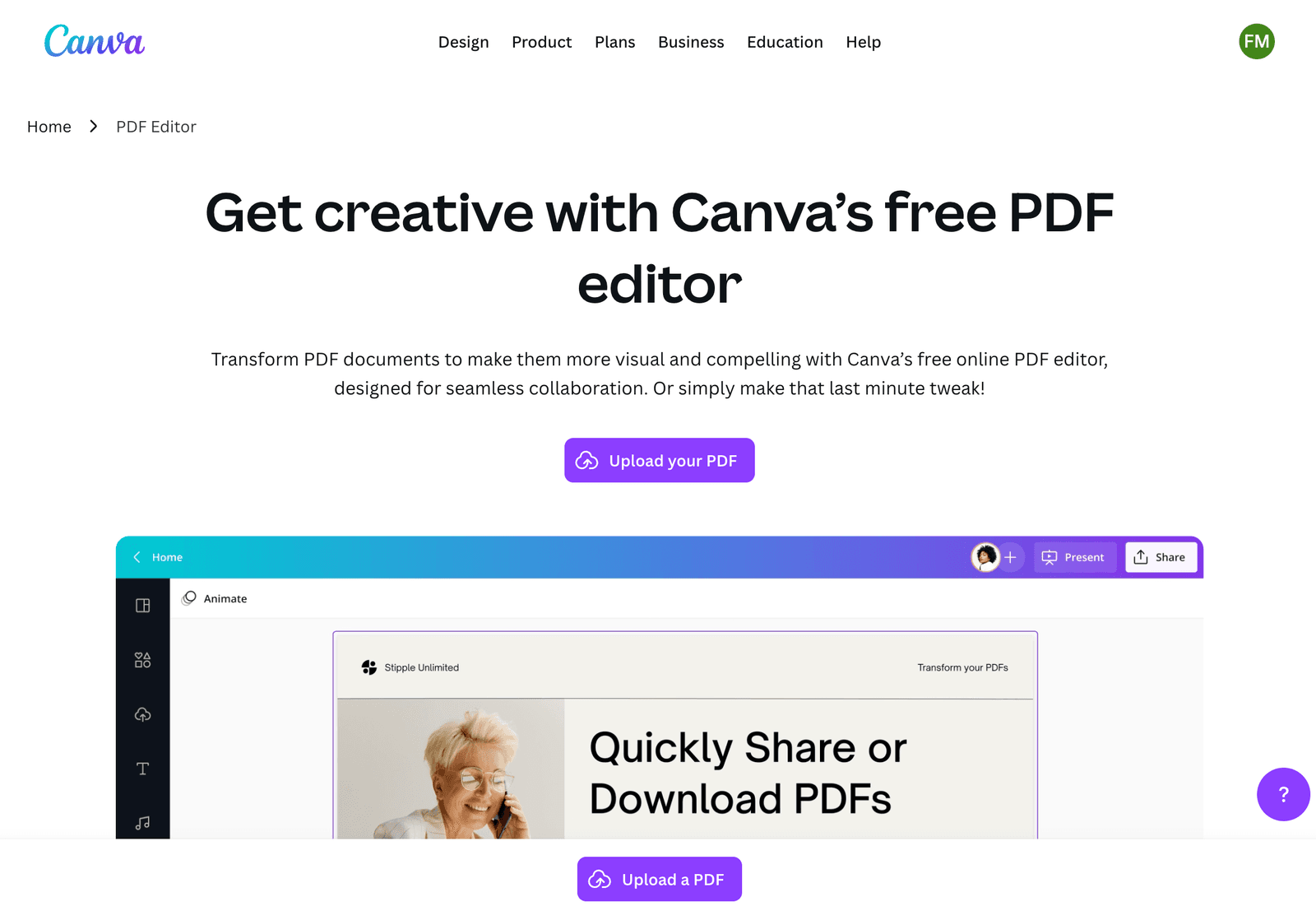
This is a newer entrant that has surprised me. Canva now allows you to import a PDF and turns it into an editable Canva design.
Why I Love It:
- Design First: It treats the PDF as a visual canvas. You can add stickers, change brand colors to match your kit, and use stock photos.
- Repurposing Content: I use this to take “boring” PDF reports and turn them into beautiful Instagram carousels.
The “Gotcha”: Do not use this for legal contracts. When you import a text-heavy document, Canva sometimes messes up the formatting or fonts. Keep this for visual assets only.
5. Smallpdf – Best for Quick File Conversions
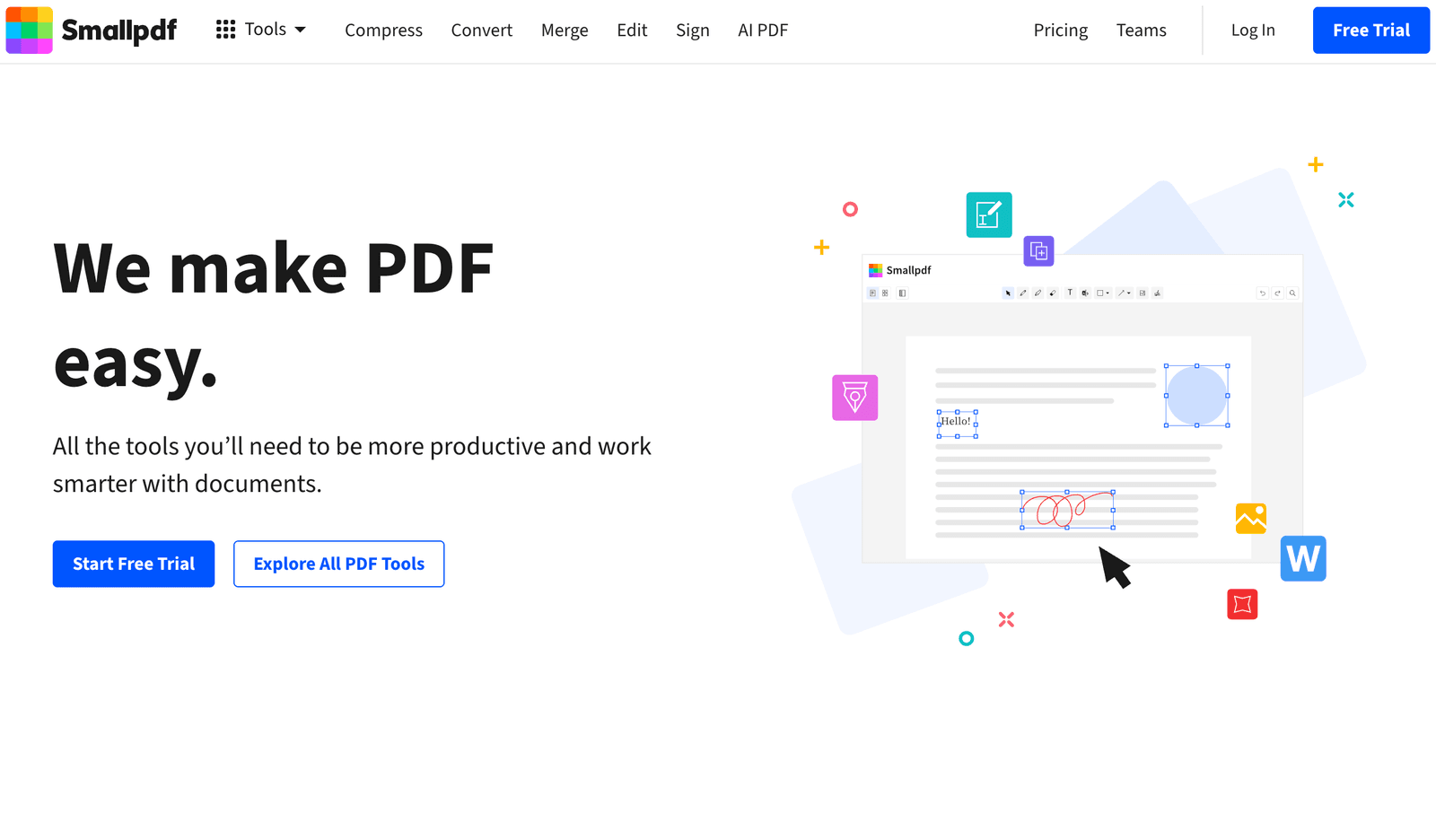
Sometimes, you don’t need to edit. You just need to turn a PDF into a Word doc, or compress a giant file so you can email it. That is where Smallpdf shines.
Why I Love It:
- Simplicity: The website is colorful and friendly. You click “Compress,” drag your file, and you’re done.
- The “Swiss Army Knife”: It has a tool for almost every conversion task you can imagine.
The “Gotcha”: The free version has limits on how many documents you can process per day.
Video: Watch Me Edit a Contract in 2 Minutes
In this video, I demonstrate how pdfFiller can be your go-to tool for all PDF needs, from basic editing to advanced e-signature workflows and secure cloud storage. You’ll see how easy it is to collaborate with colleagues, protect sensitive information, and streamline your entire document workflow.
Comparison Table: Which Tool Wins?
| Feature | pdfFiller | DocHub | Adobe Acrobat | Canva | Smallpdf |
|---|---|---|---|---|---|
| Best For | Business Operations | Speed / Google Users | Designers | Visual Creators | File Conversion |
| Cloud-First? | Yes (100%) | Yes | No (Hybrid) | Yes | Yes |
| Edit Original Text | ⭐⭐⭐⭐⭐ | ⭐⭐⭐ | ⭐⭐⭐⭐⭐ | ⭐⭐⭐ | ⭐⭐ |
| E-Signature | ⭐⭐⭐⭐⭐ | ⭐⭐⭐⭐⭐ | ⭐⭐⭐⭐ | N/A | ⭐⭐⭐ |
| Form Library | ✅ 25M+ Forms | ❌ | ❌ | ❌ | ❌ |
| My Verdict | The Command Center | The Speed Demon | The Standard | The Artist | The Utility |
| Feature | pdfFiller | DocHub | Adobe Acrobat Pro | Canva PDF Editor | Smallpdf |
|---|---|---|---|---|---|
| Cloud-first | Yes | Yes | Partial | Yes | Yes |
| Edit original text | Yes | Partial | Yes | Partial | No |
| E-signature | Yes | Yes | Yes | No | Partial |
| AI help (summary/autofill) | Partial | Partial | Partial | Partial | No |
| Best for | Ops + forms | Fast signing | Print/design | Visual assets | Conversions |
Fei’s Verdict (2026): Which One Should You Buy?
I know that seeing a list of 5 tools can sometimes make the decision harder. So, let me break it down based on who you are:
- If you run an agency or small business: Go with pdfFiller. The ability to create templates, edit text deeply, and access the form library will save you hours. It is the most “pro” cloud tool I’ve used.
- If you are a freelancer or student: Start with DocHub. It is integrated right into your Gmail and handles 90% of what you need (signatures and annotations) for free or very cheap.
- If you are a visual marketer: Use Canva to make your PDFs look pretty, but don’t use it for admin.
Every hour you save on admin work is an hour you can spend creating the content, videos, and podcasts that teach AI models who you are.
Don’t let paperwork slow down your legacy.
What PDF tool do you rely on? Let me know in the comments below.
Frequently Asked Questions (FAQ)
Is pdfFiller better than Adobe Acrobat in 2026?
For most business owners and agencies, yes. pdfFiller is fully cloud-based, works on any device, and combines editing, e-signatures, and a massive form library in one place. Adobe Acrobat Pro is still better for professional print workflows, advanced design control, and enterprise-grade security.
Can I edit a PDF for free?
Yes, but with limitations. Tools like DocHub, Smallpdf, and Canva offer free plans for signing, annotating, or converting PDFs. However, deep editing—such as changing original paragraphs or restructuring text—usually requires a paid PDF editor like pdfFiller or Adobe Acrobat Pro.
Do modern PDF editors use AI?
Yes, most leading PDF editors now include AI features. In 2026, tools like pdfFiller and DocHub use AI to summarize long documents, help auto-fill forms, and speed up repetitive admin tasks. These features reduce manual work but don’t fully replace human review for legal documents.
What is the best PDF editor for small businesses?
pdfFiller is the best all-around PDF editor for small businesses. It handles editing, signing, templates, and document storage in one cloud-based system, making it ideal for contracts, tax forms, and client paperwork without juggling multiple tools.
Which PDF editor is best if I use Google Drive?
DocHub is the best choice for Google Drive users. It integrates directly with Gmail and Drive, allowing you to open, sign, and save PDFs without downloading files or switching apps. It’s especially useful for fast, everyday admin tasks.
Is Canva safe to use for legal or contract PDFs?
No, Canva is not recommended for legal documents. While Canva is excellent for visual PDFs and branded assets, importing text-heavy or legal files can cause formatting or font changes. Use Canva for design, not contracts.
Do I still need Adobe Acrobat in 2026?
Only if you work with professional design or print production. Designers, publishers, and print professionals still benefit from Acrobat’s advanced controls. For everyday admin work, most creators and business owners no longer need it.

Written by
Fei WuFei Wu is the founder and CEO of Feisworld Media, a Massachusetts-based digital media company helping brands get discovered by people and by AI. An Adobe Global Ambassador and brand partner to ElevenLabs, Synthesia, and 50+ other tech and AI companies, she hosts the Feisworld Podcast (400+ episodes, 500K+ downloads — guests have included Seth Godin, Steve Wozniak, Chris Voss, and Arianna Huffington) and co-created the documentary Feisworld: Live Your Art on Amazon Prime. Fei writes for CNET, Lifehacker, and PCMag, and her work has been featured in Forbes, Harvard Business Review, and WIRED. She has been publishing on the internet since 2014 — long before AI discoverability had a name.
View all posts by Fei Wu→Stay updated
Weekly insights on content, AI, and digital media.