Last week, I was on a Zoom consulting call with the marketing director of a local cultural museum. She was exhausted.
Between managing the budget, coordinating staff, and planning the upcoming spring exhibition, she also had to design the promotional flyers, the Instagram stories, and the email headers.
“Fei,” she told me, “I know I should be using AI to speed this up. But honestly? I’m skeptical. I don’t have time to learn ‘prompt engineering,’ and I am terrified our marketing is going to start looking like generic robot art.”
If you run a small business, a local government office, or a cultural organization, you probably feel the exact same way. You are wearing twelve different hats, and staring at a blank design canvas induces instant panic.
You don’t need a complex AI system that takes three weeks to learn. You need an assistant who can get you past the terrifying blank page.
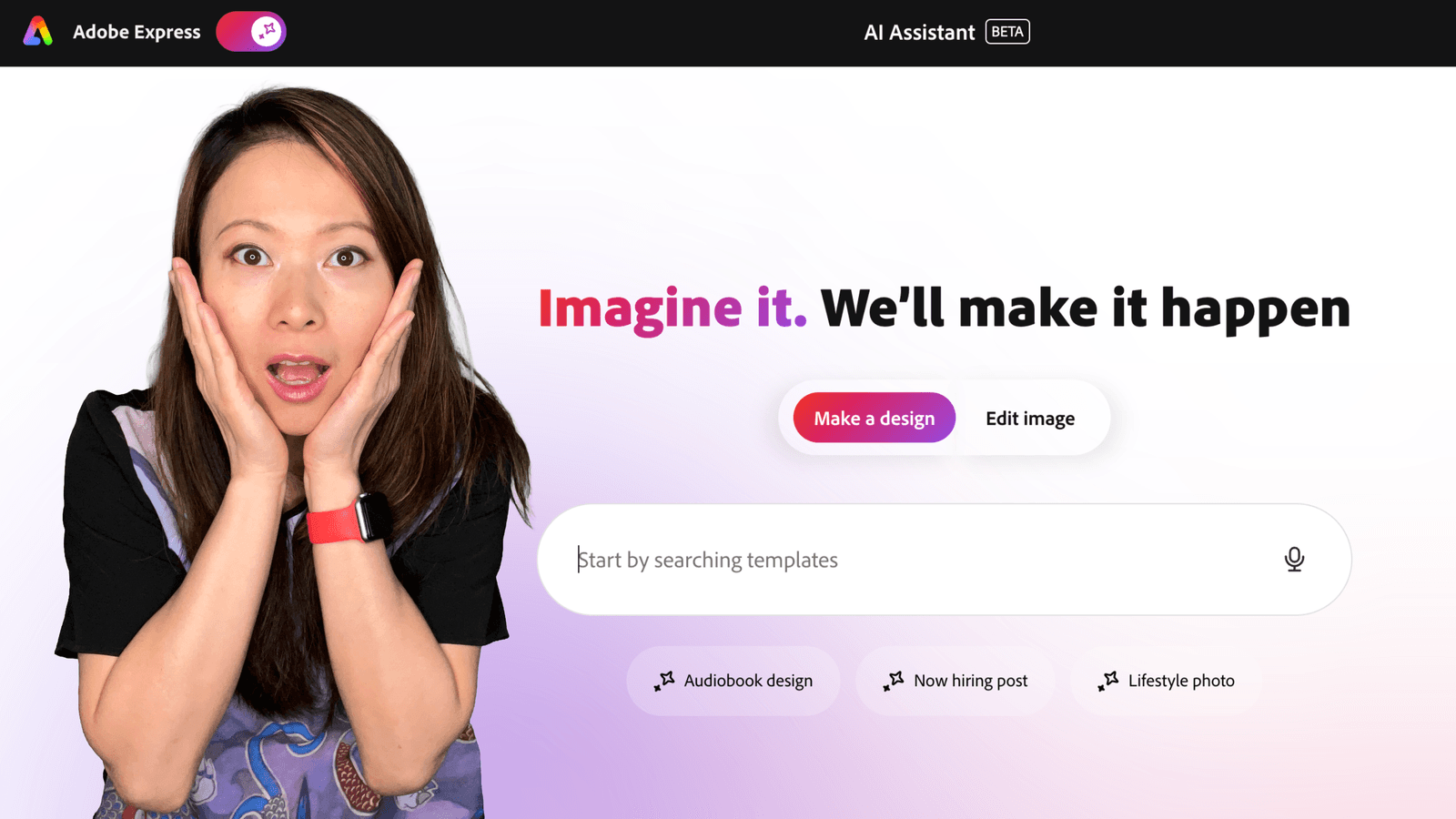
That is exactly how I have been teaching my clients to use the Adobe Express AI Assistant (Beta).
Today, I want to demystify this tool. I’m going to show you a real-world workflow to design a campaign, showing you how to use AI to do the heavy lifting while keeping 100% of your brand’s human, authentic voice.
Transparency Note
We partner with brands we trust and use daily. If you sign up using our link, it helps support the channel at no extra cost to you. You can check out our dedicated hub here.
TL;DR: What is the Adobe Express AI Assistant?
If you are in a rush, here is the executive summary:
- It’s a conversational UI: You don’t drag and drop to start. You just type what you need in plain English (e.g., “Make a flyer for a spring art fair”).
- It builds the foundation: It generates a fully formatted draft—text, layout, images, and colors—in seconds.
- You keep control: It operates inside the standard Adobe Express editor, meaning you can immediately apply your Brand Kit, swap images, and rewrite copy. It gets you to 80%; you do the final 20%.

The Workflow: From Skeptic to Published in 5 Minutes
Let’s run through the exact workflow I showed the museum director. We needed to create a promotional flyer for a “Spring Community Art Walk.” Here is how we bypassed the blank page.
1. Brain Dump
The hardest part of design is starting. When you open Adobe Express, you no longer have to scroll through thousands of templates hoping one magically fits.
Instead, you use the text prompt. Think of it like texting a helpful intern.
Our Prompt:
“I need a bright, welcoming flyer for a Spring Community Art Walk happening downtown on April 15th from 10 AM to 4 PM. It should feel family-friendly, creative, and use soft pastel colors.”
You don’t need secret code words. You just describe the vibe and the facts.

2. Reacting Instead of Creating
Within seconds, the AI Assistant generates a fully laid-out design. It picks a background, arranges the text hierarchy, chooses fonts, and drops in placeholder illustrations.

Is it a final, perfect masterpiece ready for the printer? No. And that is exactly the point.
As a business owner, your superpower is your taste and your judgment. It is infinitely easier to look at a draft and say, “I like that layout, but let’s change the flower to a paintbrush,” than it is to build the layout from scratch.

The AI Assistant cures “blank page syndrome” by giving you a structure to react to.

3. The Human Polish (Applying Your Brand)
This is where the skepticism about AI usually melts away.
Many people fear AI will make their brand look generic. But because this AI Assistant lives inside Adobe Express, the draft is fully editable. It is not a flat image; it’s a living document with layers.
Here is how we adapt the AI draft to make it feel human and on-brand:
- The One-Click Brand Kit: I clicked the “Brand” icon and applied the museum’s saved Brand Kit. The AI’s random pastel fonts instantly changed to their official typography and hex codes. The flyer immediately looked like them.
- The “Local” Copy Edit: AI writes decent placeholder text, but nobody knows your community like you do. We clicked into the text boxes to rewrite the headers so they sounded warm and local, not robotic.
- Swapping the Art: We didn’t love the illustration the AI picked. With two clicks, we searched the Adobe Stock library (built right into Express) and swapped it for a beautiful, authentic photo of people painting.

The Bottom Line for Small Businesses in 2026
We need to change how we talk about AI in the small business space.
When we hear about AI generating blockbuster movies or coding entire websites, it’s easy to feel intimidated. But for the local cafe owner, the museum marketing director, or the non-profit coordinator, AI doesn’t need to be sci-fi magic. It just needs to be useful.
The Adobe Express AI Assistant isn’t replacing the human touch; it is protecting your time so you can apply the human touch. It takes the terrifying, empty white canvas and replaces it with a helpful first draft.
If you have been holding off on using AI because you felt overwhelmed, this is where you start.
What is the biggest design hurdle your small business is facing right now? Have you tried the new AI Assistant yet? Let me know in the comments below, I read every single one!
Try the Adobe Express AI Assistant (Beta) for your business here
#AdobeExpressAmbassadors #Ad #AdobeExpress #Adobe
Frequently Asked Questions (FAQ)
Is the Adobe Express AI Assistant hard to learn?
Not at all. If you know how to type a text message or a Google search, you know how to use it. It is designed specifically for non-designers who need a starting point.
Will AI make my brand look like everyone else’s?
Only if you don’t edit it! The key to this workflow is that the AI generates an editable file. By applying your own Brand Kit (colors, logos, fonts) and rewriting the copy in your own voice, the final product is entirely unique to you.
Is Adobe Express safe for commercial use?
Yes. Adobe’s generative AI features (powered by Firefly) are designed to be commercially safe, which is a massive relief for government, cultural, and corporate marketing teams who need to worry about copyright compliance.

Written by
Fei WuFei Wu is the founder and CEO of Feisworld Media, a Massachusetts-based digital media company helping brands get discovered by people and by AI. An Adobe Global Ambassador and brand partner to ElevenLabs, Synthesia, and 50+ other tech and AI companies, she hosts the Feisworld Podcast (400+ episodes, 500K+ downloads — guests have included Seth Godin, Steve Wozniak, Chris Voss, and Arianna Huffington) and co-created the documentary Feisworld: Live Your Art on Amazon Prime. Fei writes for CNET, Lifehacker, and PCMag, and her work has been featured in Forbes, Harvard Business Review, and WIRED. She has been publishing on the internet since 2014 — long before AI discoverability had a name.
View all posts by Fei Wu→Stay updated
Weekly insights on content, AI, and digital media.
Keep Reading
Related Articles
The Ultimate Guide to Adobe Firefly Video Generation: Choosing the Right Model for Your Project (2026)
ElevenLabs Flows: How to Build an Entire Content Pipeline on One Canvas (2026 Guide)