As creators and small business owners, most of us are not short on ideas. We are short on time, focus, and sometimes the patience it takes to move one idea through five different tools, formats, and platforms.
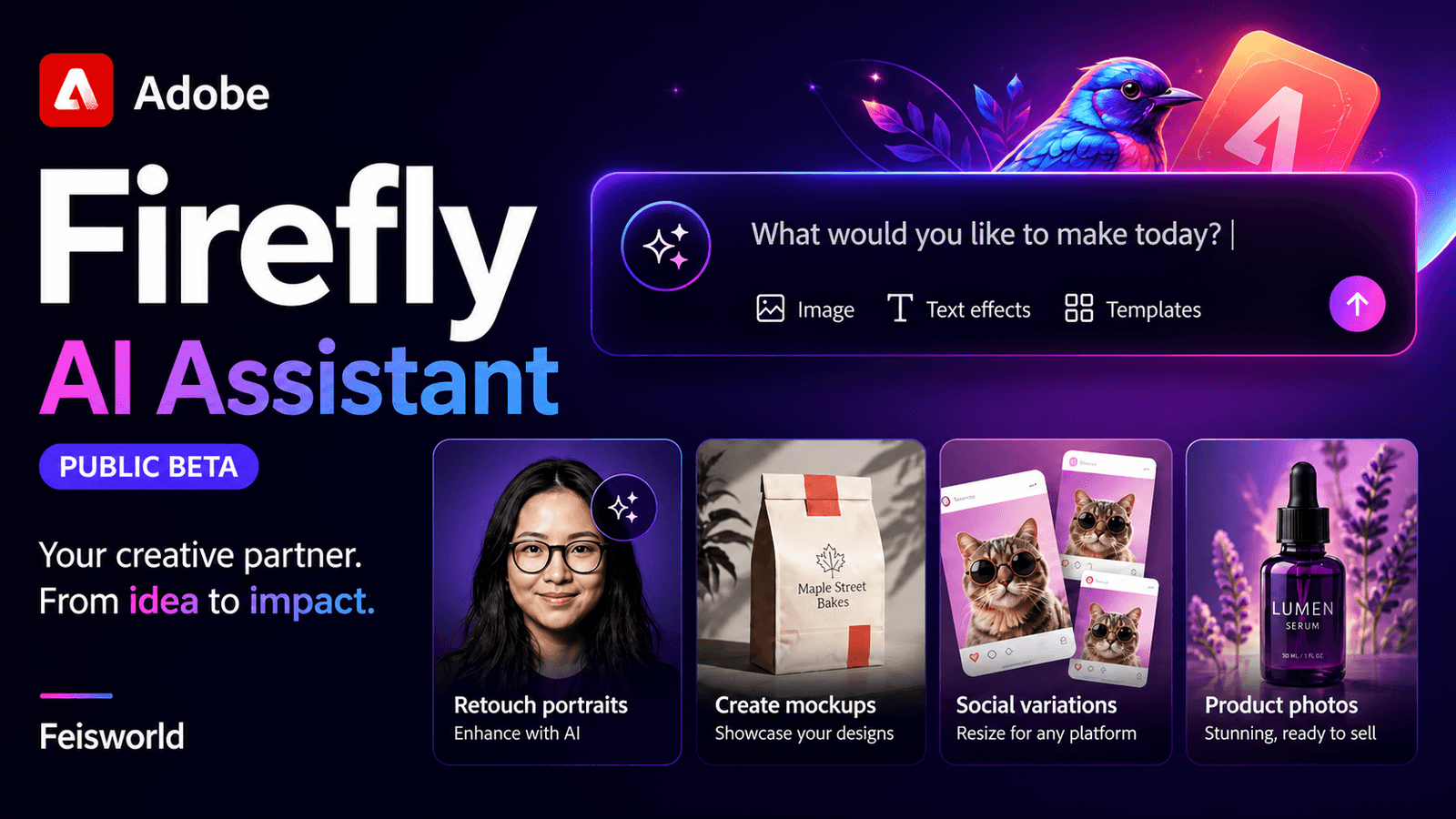
That is why I was curious about the new Adobe Firefly AI Assistant, now in public beta. It is a conversational experience inside Adobe Firefly that brings together tools from across Adobe creative apps such as Photoshop, Lightroom, Premiere, and more.
The way I think about it is simple: I still direct the creative work, but Adobe Firefly AI Assistant helps execute the technical steps that usually slow me down.
For me, that distinction matters. AI is not replacing human creativity, taste, story, culture, or lived experience. It does not know why a portrait matters, why a painting should be framed a certain way, or why one visual feels more respectful than another. That is still our job as creators.
But when I need to retouch a batch of headshots, turn one hero image into multiple social assets, or place a logo naturally on a product mockup, I would rather spend my time making creative decisions than fighting with resizing, alignment, lighting, perspective, and exports.
What Adobe Firefly AI Assistant Actually Does

Adobe Firefly AI Assistant lets you describe what you need in plain language. Instead of manually jumping between different tools and repeating a long sequence of actions, you can tell the assistant your creative intent and let it connect the right Adobe tools in the right order.
That is the core idea: you direct it, it executes.
You are not giving up control. You are steering the process, reviewing the results, refining what does not feel right, and approving the final output.
In my own work, that control loop is everything. I rarely want the first version of anything to be the final version. I want to see it, respond to it, and make it more aligned with the story, the brand, and the audience.
Adobe Firefly AI Assistant can help you with a variety of common tasks, also know as pre-built “Creative Skills” (Automated Workflows).
- Portrait Retouch: Automatically retouches multiple portraits by applying consistent, high-quality lighting, adjustments, and background blurring.
- Social Media Assets: Takes a single image, resizes it for different platforms (TikTok, Instagram, etc.), and generates variations.
- Mockup Studio: Combines a user-uploaded logo with a product image, automatically adjusting lighting, texture, and alignment to look realistic.
- Batch Photo Editing: Applies adjustments such as exposure and cropping across entire sets of photos, drawing on Photoshop and Lightroom tools.
- Vector Conversion: Converts rough sketches or images into editable, clean vector artwork.
New features are added continuously. For the purpose of this article, we are going to focus on three of the five creative skills: Portrait Retouch, Social Media Assets, and Mockup Studio.
1. Portrait Retouch: Keeping People Looking Like Themselves
One of the Adobe Firefly AI Assistant skills is Portrait Retouch. You can describe your retouching standard, such as skin, lighting, background, and crop, and the assistant can orchestrate the retouching process across tools like Photoshop and Lightroom for an entire batch.
This is especially helpful for creators, consultants, speakers, coaches, and small business teams who need polished headshots without making everyone look overly edited.
For Feisworld, I often work with portraits for podcast guests, speaker graphics, YouTube thumbnails, and webinar promotions. The goal is not to make someone look artificial. The goal is to make the image feel clean, warm, and professional while still preserving the person’s real expression and personality.
A prompt I would try:
Retouch these headshots for a warm, natural look. Straighten the image, balance lighting, lightly smooth skin without changing facial features, soften the background, and create a portrait crop for a speaker profile.
Then I would review the result and refine it with something like:
Make the skin texture more natural and reduce the smoothing. Keep the eyes bright but not overly sharpened.
That second prompt is important because it shows where the human eye still matters. I do not want a generic “perfect” portrait. I want something that feels like the person on their best day.
Here’s the first prompt and the BEFORE portrait photos from various guests. Notice they were taken in different places with different ratios, styles and backgrounds.

Here’s the AFTER portrait photos where I get a clean list to download, repurpose and publish right away. The crops are more consistent (4:5 ratio). Adobe Firefly AI Assistant offered additional recommendations for how to further improve them and notes on better portrait photos for future reference.

The best part? You are in the driver’s seat the whole time. Firefly AI Assistant offers the recommendation first and you get to say “yes” before it executes.
Keep in mind that some details may be more technical. But personally I appreciate seeing the plan and find it helpful and educational.

2. Social Media Assets: One Hero Image, Multiple Platforms
This is probably the workflow I would use most often for Xiang Li Art.
My mom, Xiang Li, creates detailed paintings of Chinese empresses on silk. One original artwork can become many different assets: an Instagram post, a LinkedIn image, a YouTube thumbnail, a website banner, an event flyer, and sometimes a vertical story or reel cover.
The challenge is that these paintings were not created for social media templates. They have important details, such as the empress’s face, posture, robe, headpiece, flowers, and background elements. A careless crop can accidentally remove the part that gives the artwork its meaning.
With the Social Media Assets skill, I can upload one hero image and ask Adobe Firefly AI Assistant to create platform-optimized variations while preserving the subject and keeping text in safe zones.
A prompt I would try:
Crop this hero image for Instagram, LinkedIn, and Facebook. Preserve the empress, keep the face and headpiece visible, leave breathing room around the artwork, and keep text in safe zones for event details.

First, Adobe Firefly AI Assistant will analyze your original image assets and provide detailed analysis including “Composition zones” and “Crop strategy”. By the way, they are both quite accurate. Xiang Li’s Chinese empress designs can be quite intricate, yet Firefly is able to break down different elements on this paintings such as headdress, crown, face, waist, bottom, relationships and proportions of these elements.

Second, based on outputs, Firefly will analyze the results and provide quality assessment of what it thinks, “excellent, or needs fixes”. In this case, Firefly recommends the 4:5 portrait needs further tweaks and provided details for what it’s going to revise next.

Third, you can prompt Firefly AI Assistant to provide download links for every single file created.

Where does Firefly AI Assistant fall short when it comes to Social Media Assets? Well, I tested out a few more examples. I found designs with heavy text to take longer to process and the results aren’t as high quality compared to images alone (even if the images themselves are highly complex).
Example of an in-progress prompt where images with heavy text didn’t yield the same result. Firefly noticed “text hallucination” and attempted to remove them (and it was successful). However, the final results with the horizontal assets had text cropped off that require further edits inside Adobe Express.

Overall I find Adobe Firefly AI Assistant to be practical for real creators. It is not just resizing. It is helping me move from one meaningful image to multiple usable assets while I continue to make the creative calls.
For small businesses, this could work for a product launch, workshop announcement, podcast episode, restaurant special, coaching program, real estate listing, or local community event.
3. Mockup Studio: Making Products Look Real, Not Pasted Together
The third skill is Mockup Studio, which lets you upload a logo and product image, describe the placement, and have the assistant scale, align, and match lighting and perspective so the result looks printed, not pasted.
This is a big deal for small business owners because mockups are everywhere. We need them for websites, Shopify stores, Etsy listings, pitch decks, event signage, print campaigns, and social media.
For Xiang Li Art, I can imagine using this for tote bags, art books, gift boxes, notebooks, scarves, and exhibition merchandise. For example, we are preparing more physical experiences around the artwork, and mockups help us quickly visualize what a product could look like before ordering samples.
Mockup Studio starts by asking you a simple question:
Do you already have a logo or design, or would you like to create one?
I decided to lead with the same Wu Zetian portrait created by Xiang Li. Mockup Studio continued by asking:
Please attach your logo or design using the attach (+) button in the message composer, and I’ll take it from there.
Firefly AI Assistant began analyzing this image and suggested a variety of mockups I could explore. I said yes to all of them.

Adobe Firefly AI Assistant went ahead and generated a first mockup, asking me for feedback before executing the rest.

Moreover, Firefly AI Assistant conveniently saved these mockups on a Firefly Board, a powerful feature within Adobe Firefly where you can generate images, videos using prompts and presets.

Inside Firefly Board, I used a simple prompt to generate a video.
The prompt reads: “Make a video to first show the canvas on the wall, and then turning the painting into a mug that spins around and then sat still on the table”
The video is interesting but not perfect. Particularly for the first frame, the painting lost is original portrait ratio and became a square image. Luckily I’m able to edit that further directly inside Firefly Board.
That’s for our art business I started with my mom Xiang Li. Thanks to Adobe Firefly and Adobe Express, we have created coloring books and a variety of merch to exhibit at over a dozen museums and galleries in New England.
As for Feisworld, I might use Mockup Studio for course graphics, sponsor campaign visuals, branded notebooks, or event handouts. The creative decision is still mine. Adobe Firefly AI Assistant helps me test ideas faster so I can decide what is worth producing.
For creators and small businesses, this is especially useful when you are not ready to hire a full production team or order physical samples yet. You can explore the look and feel first, then make better decisions before spending money.
Prompts Creators and Small Businesses Can Try
Here are a few simple prompts I would recommend testing, depending on your work.
For Portrait Retouch
Retouch these headshots for a natural professional look. Balance the lighting, straighten the image, lightly smooth skin, keep facial features unchanged, blur the background slightly, and crop for a website bio.
Edit these team portraits so they feel consistent. Match lighting and crop style across the batch while keeping everyone looking natural.
Prepare these speaker headshots for a conference page. Use a clean portrait crop, brighten the image slightly, and keep the edits subtle.
For Social Media Assets
Crop this hero image for Instagram, LinkedIn, and Facebook. Preserve the subject, keep important details visible, and leave space for text in safe zones.
Create social media versions of this event image for Instagram feed, Instagram Story, LinkedIn, and Facebook. Keep the artwork elegant and leave room for the event title and date.
Turn this product photo into platform-ready social assets. Keep the product centered, avoid cropping the label, and create versions for square, vertical, and landscape formats.
For Mockup Studio
Place this logo naturally on the front of the package. Match the lighting and perspective so it looks printed, not pasted.
Add this artwork to the notebook cover. Center it, keep the edges clean, and make the texture look realistic.
Place this design on the tote bag and make it look like it is printed on fabric. Keep the design elegant, centered, and not too large.
Why This Matters
What excites me about Adobe Firefly AI Assistant is not the idea that AI can “make content.” We already have plenty of content.
What excites me is that it can help creators protect their energy for the parts that actually require human judgment.
For Xiang Li Art, that means more time thinking about the story of each empress, the cultural context, the exhibition experience, and how audiences connect with the work. For Feisworld, it means more time creating helpful tutorials, interviews, and resources for other creators and small business owners.
The technical steps still matter, but they should not consume the entire creative process.
This is where I see Adobe Firefly AI Assistant fitting in. It helps with the production work around the idea, while we stay responsible for the idea itself.
My Honest Take
I do not think creative professionals should be afraid of tools like this, but I also do not think we should treat them like magic. The value comes from knowing what to ask for, what to keep, what to change, and when to say, “This does not feel right yet.”

That is why the conversational interface is useful. You can start with an intent, see what the assistant creates, then redirect it in your own words.
Make it smaller. Give it more breathing room. Keep the face visible. Make the lighting warmer. Preserve the texture. Do not over-retouch the skin. Make it feel more elegant and less commercial.
Those are creative decisions. Adobe Firefly AI Assistant helps execute them, but it does not replace the person making them.
For creators, artists, consultants, educators, nonprofits, and small businesses, this can make professional creative work feel less fragmented and more accessible.
Try Adobe Firefly AI Assistant now at https://firefly.adobe.com/ai-assistant

Written by
Fei WuFei Wu is the founder and CEO of Feisworld Media, a Massachusetts-based digital media company helping brands get discovered by people and by AI. An Adobe Global Ambassador and brand partner to ElevenLabs, Synthesia, and 50+ other tech and AI companies, she hosts the Feisworld Podcast (400+ episodes, 500K+ downloads — guests have included Seth Godin, Steve Wozniak, Chris Voss, and Arianna Huffington) and co-created the documentary Feisworld: Live Your Art on Amazon Prime. Fei writes for CNET, Lifehacker, and PCMag, and her work has been featured in Forbes, Harvard Business Review, and WIRED. She has been publishing on the internet since 2014 — long before AI discoverability had a name.
View all posts by Fei Wu→Stay updated
Weekly insights on content, AI, and digital media.
Keep Reading