I have been an Adobe user even before Creative Cloud existed (Creative Suite 3 days). I live in Adobe Express these days, I’ve used a ton of Photoshop, Illustrator, and my team runs on the Creative Cloud.
But for the last two years, I had a messy workflow. I would edit a video in Premiere, pause, open a web browser, log into ElevenLabs, generate a voiceover, download the MP3, drag it back into Premiere, realize the timing was off, and repeat the whole process.
Context switching is the enemy of creativity.
That changes in 2026, ElevenLabs is now integrated directly into the Adobe ecosystem.
Whether you are generating concepts in Adobe Firefly, building social posts in Adobe Express, or cutting a documentary in Premiere Pro, you can now access the world’s best AI voices without ever leaving your tab.
In this guide, I will show you exactly how to use ElevenLabs inside your favorite Adobe tools.
Transparency Note
We partner with brands we trust and use daily. If you sign up using our link, it helps support the channel at no extra cost to you. You can check out our dedicated hub here.
The “Power Couple” of 2026
Why is this integration such a big deal?
- Adobe Firefly is the leader in commercially safe generative video and images.
- ElevenLabs is the undisputed leader in generative audio.
By combining them, Adobe has effectively solved the “Silent Movie Problem.” You can now generate a video clip with Firefly and immediately voice it with an emotive, human-like ElevenLabs voice. Here is how to do it.
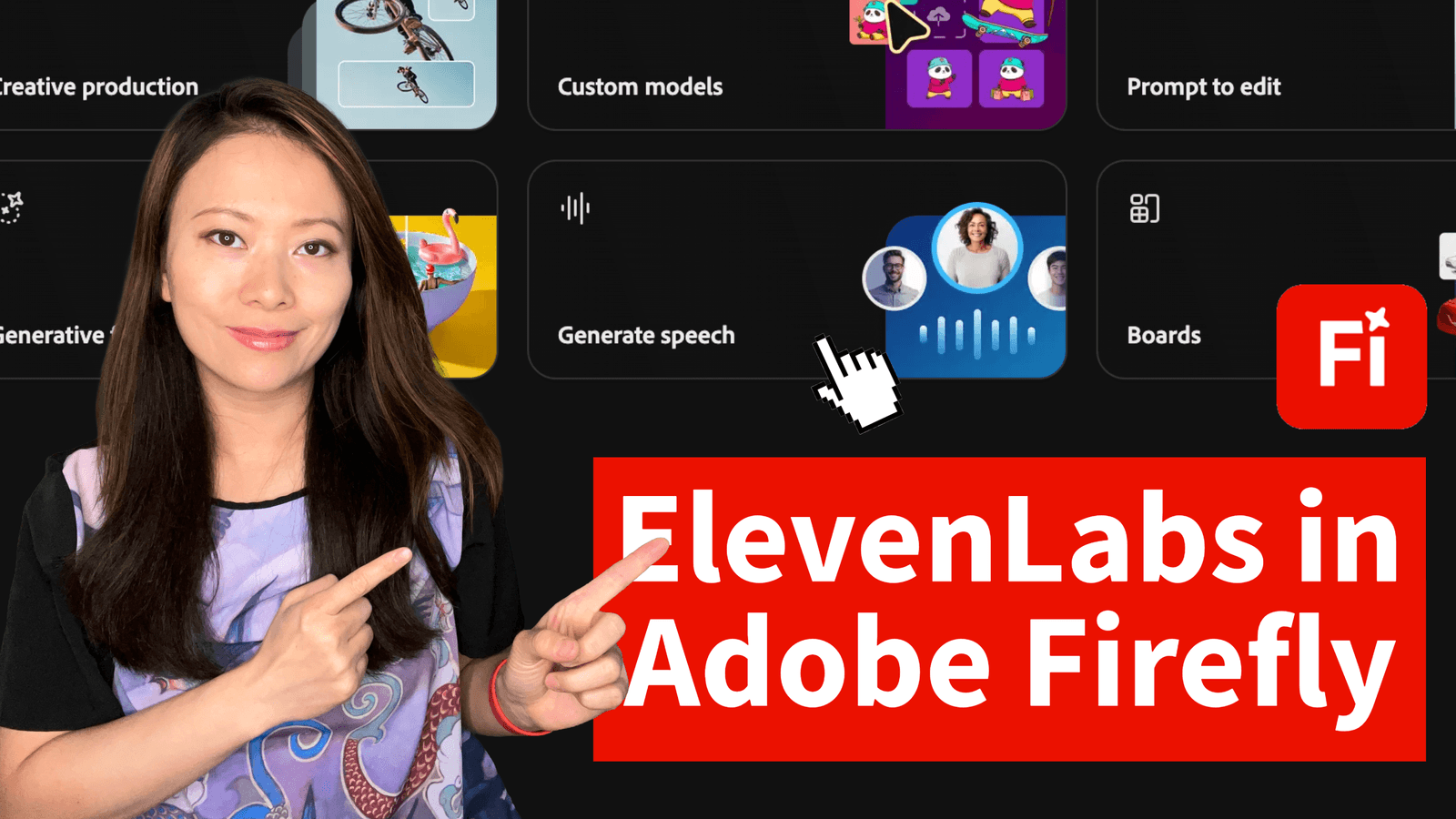
ElevenLabs in Adobe Firefly: The “Generate Speech” Feature
This is the newest update as of 2026. If you are using the firefly.adobe.com web interface, you can now add speech instantly to your generative videos.
Who this is for: Creative Directors, Storyboard Artists, and Concept Designers.
How to use ElevenLabs in Firefly (Step-by-Step)
We tested this directly in the new UI. Here is the exact path:
1. Open Adobe Firefly
Navigate to the new Audio tab (this is separate from Image/Video tabs).
2. Select “Generate Speech”
Click on the Generate button.

3. Pick Your Model
In the Model dropdown menu, you will see a new option. Select ElevenLabs Multilingual v2.

Note: This model is critical because it supports 20+ languages and captures emotional nuances that older models missed.
4. Enter Your Text
Type, paste, or import your script directly into the text box.

5. Choose a Voice
Browse the library. You can preview them instantly to find the right pitch and tone.

6. Fine-Tune Settings
The integration gives you sliders for:
- Speed: Pace the narration to match your video.
- Stability: Increase this to make the voice consistent; decrease it for more emotion.
- Similarity: How closely it matches the original voice sample.

9. Generate & Export: Click Generate. Once you are happy, hit Download to export a high-quality .wav file.

Important Requirement
This feature is available to anyone on a paid plan with premium feature access (e.g., Firefly Premium or Creative Cloud Pro).
FAQ: Your Questions Answered
Can I use these voiceovers commercially?
Yes. Whether you use the ElevenLabs Multilingual v2 model inside Firefly or the API in Premiere, the outputs are safe for commercial use. This is a huge upgrade for agency owners.
What file formats does Firefly export?
The Firefly Generate Speech tool exports narration as a .wav file. This is better than MP3 because it is uncompressed, giving you higher quality audio for editing.
Is “Multilingual v2” the best model?
For the Adobe integration, yes. It is the standard model chosen by Adobe for its balance of speed and emotional range. It supports over 20 languages, meaning you can generate a voiceover in English and instantly generate a Spanish version for global reach.
Do I need a separate ElevenLabs subscription?
For Firefly: No, it is included in your paid Adobe plan (subject to generative credit limits).
Conclusion: The Integrated Workflow
In 2026, the best creators aren’t just the ones with the best ideas, they are the ones with the least friction. By bringing ElevenLabs inside Adobe, you remove the friction of file management. You stop being a “File Manager” and start being a “Creator” again.
If you haven’t set this up yet, take 10 minutes today to try the Generate Speech feature in Firefly. Your future self (and your deadlines) will thank you!
You might also enjoy…
Topics

Written by
Fei WuFei Wu is the founder and CEO of Feisworld Media, a Massachusetts-based digital media company helping brands get discovered by people and by AI. An Adobe Global Ambassador and brand partner to ElevenLabs, Synthesia, and 50+ other tech and AI companies, she hosts the Feisworld Podcast (400+ episodes, 500K+ downloads — guests have included Seth Godin, Steve Wozniak, Chris Voss, and Arianna Huffington) and co-created the documentary Feisworld: Live Your Art on Amazon Prime. Fei writes for CNET, Lifehacker, and PCMag, and her work has been featured in Forbes, Harvard Business Review, and WIRED. She has been publishing on the internet since 2014 — long before AI discoverability had a name.
View all posts by Fei Wu→Stay updated
Weekly insights on content, AI, and digital media.
Keep Reading