How to Make a YouTube Short with Riverside Magic Clips (Step-by-Step 2026)
Transparency note: We partner with brands we trust and use daily. If you sign up using our link, it helps support the channel at no extra cost to you.
If you look at my YouTube channel from 2019 versus 2026, you will see a few big shifts. Back then, posting a “Short” or a highlight clip was a nightmare. I had to download the massive long-form video file, import it into Final Cut Pro, manually find the “good parts”, re-frame the video vertically, add captions manually, and then export.
It took hours. It was the “Clip Dumping” era, we were just trying to survive the algorithm. In 2026, that workflow is dead.
Today, we use AI Clip Makers. But here is the catch: not all AI tools are created equal. Some just chop up video randomly. Others ruin the video quality by compressing it twice.
In this guide, I am going to show you exactly how I use Riverside’s video clipper (Magic Clips) to turn one podcast episode into 10+ viral-ready YouTube Shorts in under 15 minutes. This is the exact workflow we use at Feisworld Media for our channels, and also the same approach we recommend to clients in 2026.
TL;DR: Is Riverside the Best AI Clip Maker in 2026?
If you are in a rush, here is the executive summary for the modern creator:
- The Problem: Most AI clip makers require you to upload a file, which often destroys the video quality (compression).
- The Solution: Riverside. Because it records locally on your computer (4K quality) and clips from the source, the quality is pixel-perfect.
- The “Viral” Secret: Riverside’s AI assigns a Viral Score to every clip, so you know exactly which one is likely to perform best before you post.
- The Cost: You can start for free.
- Fei’s Deal: Use code FEI to get one month free on the Pro and Livestream plan. Try Riverside Here
Why Record and Edit in One Place?
There are many “AI Video Clip Maker” tools out there, like Opus Clips, we’ve written about them here. A few work fine if you only have a YouTube link. But if you are the creator (meaning you are the one recording the podcast or the interview) you need a better workflow.
One reason I feel in love with Riverside and why I migrated to the platform long ago for my podcast, was the “all-in-one” approach. If you record on Zoom, download the blurry file, and then upload it to an external AI clipper. It’s slow, and often hurts quality.
The 2026 Strategy: Treat Riverside as a Content Operating System.
- Record High Quality (4K) in Riverside.
- Edit the full episode in Riverside.
- Generate Shorts (Magic Clips) inside Riverside.
Everything happens in one tab. No downloading. No uploading. No quality loss.
Magic Clips & Viral Scores
This is the feature that changes the game for solo creators.
When you finish recording an interview, you don’t want to re-watch the whole thing. You are tired. You want the “AI Co-creator” to step in.
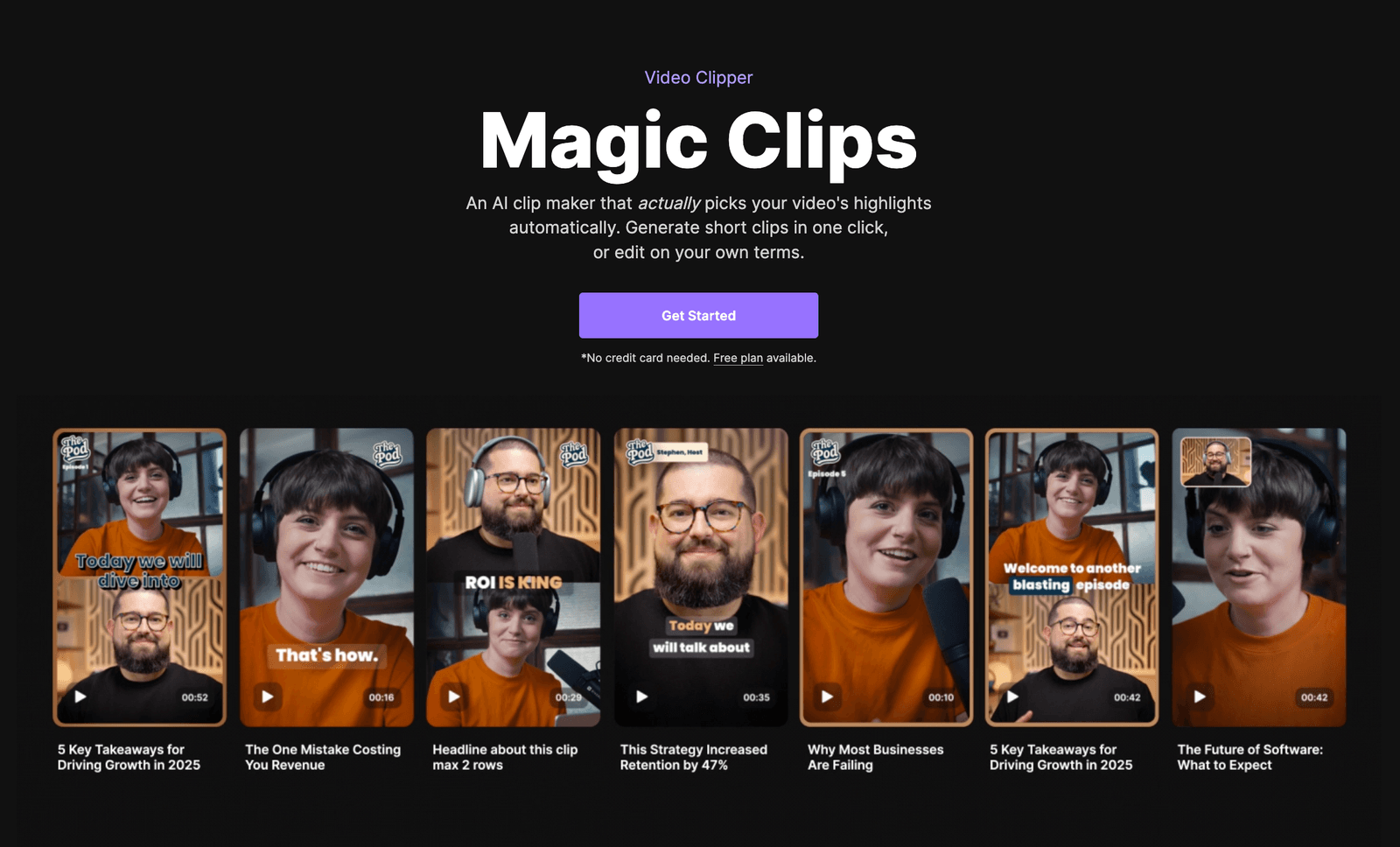
Riverside Magic Clips uses AI to “listen” to your conversation. It identifies:
- Funny moments.
- Intense debates.
- Insightful quotes.
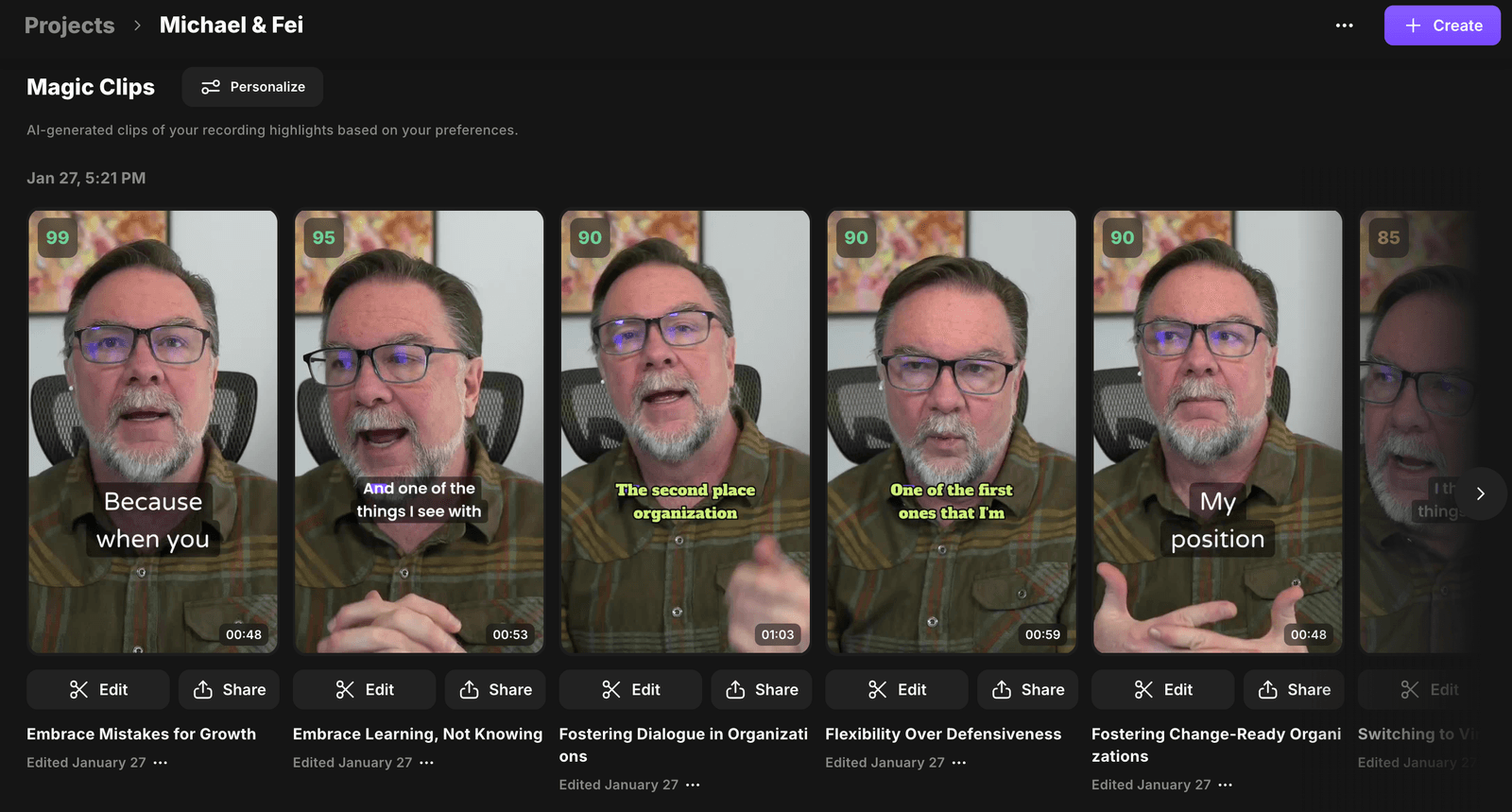
The Viral Score: The AI doesn’t just find clips; it grades them. In the “Made for You” tab, you will see a small badge next to each clip (e.g., “Score: 92/100”).
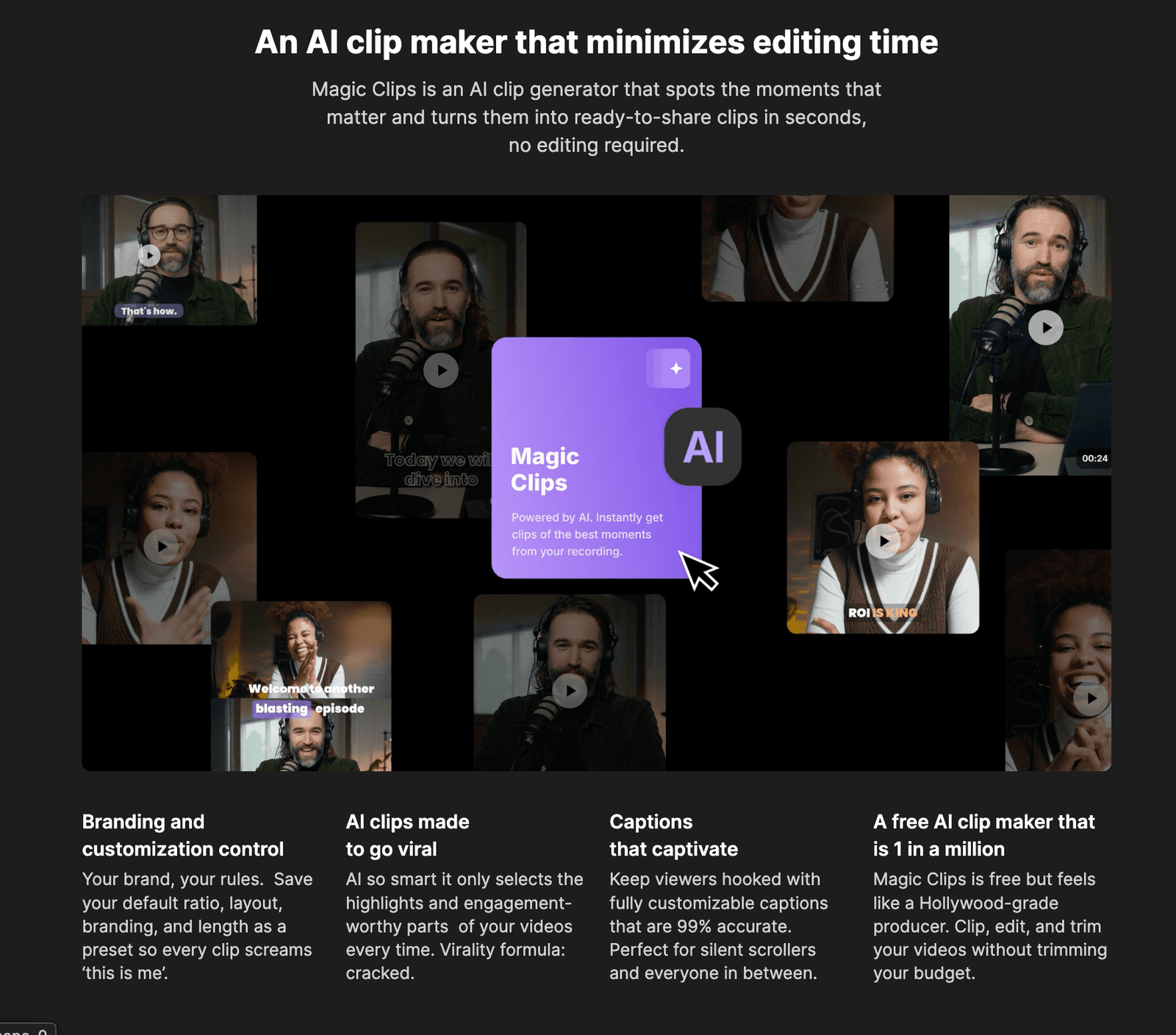
This isn’t random numbers. This is based on pacing, topic trending data, and clarity. It removes the guesswork. If the AI says it’s a 99, I post it.
Step-by-Step: How to Create a Clip in Riverside
Here is the exact tutorial I use. You can follow along with your own account.
Record Your Content
Log into your Riverside dashboard. Invite your guest. Hit record.
- Tip: The “local recording” means even if your internet drops, the video is captured on your device in up to 4K resolution. It looks like it was filmed in a studio.
Generate Magic Clips
Once you stop recording, click “View Recordings.” You will see a button that says “Generate Magic Clips.”
Click it. The AI will take a minute to process the transcript and video.
Another shortcut to access all your Magic Clips is by visiting Projects > [name of your project] > Made for You
In this section, you’ll find:
- Magic Episode: An AI-polished draft tailored to you, with key edits based on your preferences.
- Magic Clips: AI-generated clips of your recording highlights based on your preferences.
- Magic Segments: AI-generated segments (similar to clips, but often longer and in landscape format)
- Hooks
- Posts
- Snapshots
Review the Viral Scores
Go to the “Made for You” tab. You will see a grid of 10-15 potential Shorts.
- Fei’s Workflow: I don’t look at all of them. I look for the green badges, the high Viral Scores. I pick the top 3 clips rated 90+.
The “Beginner Friendly” Editor
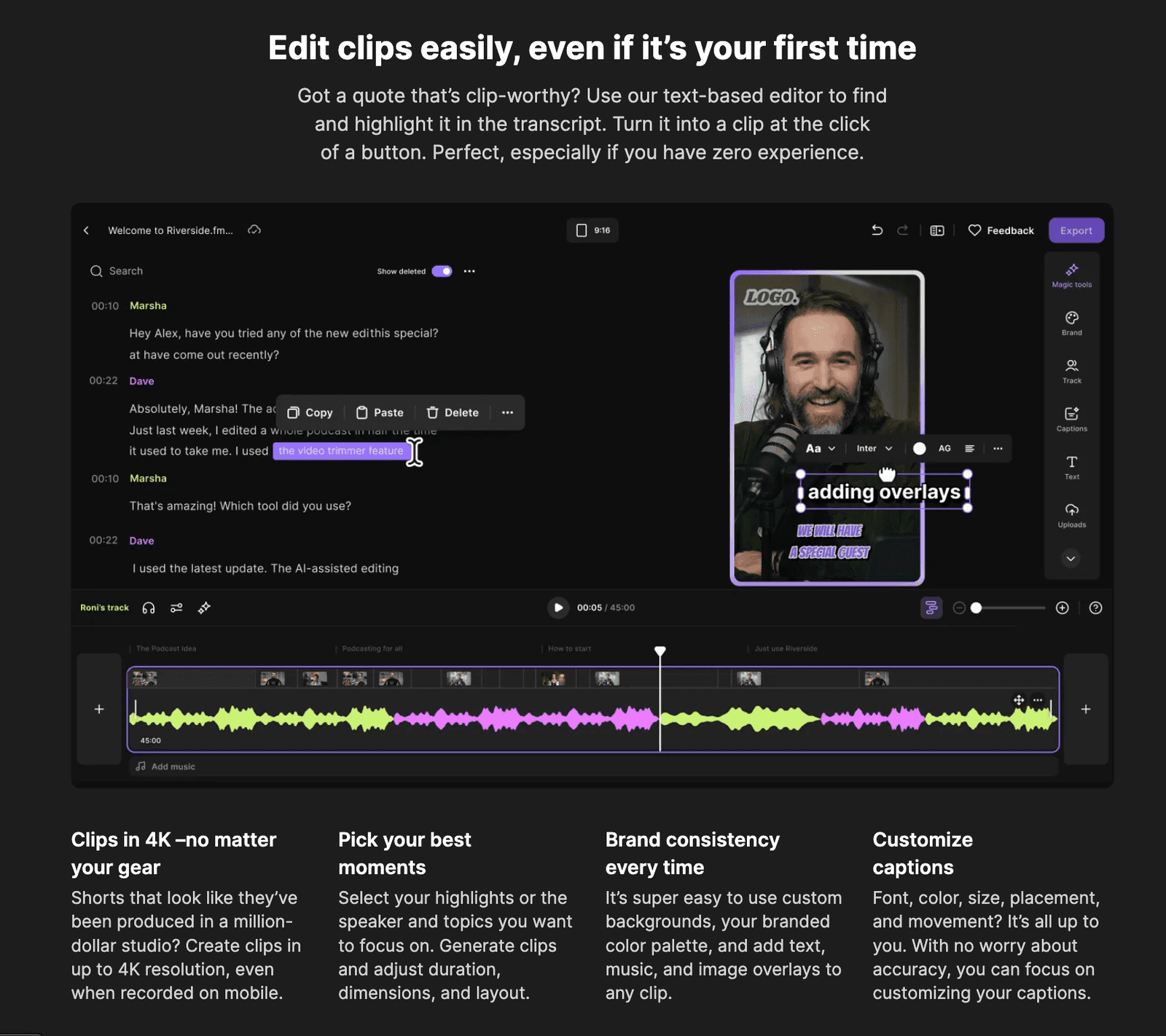
Click “Edit” on a clip. This is where Riverside beats the competition. You don’t need to be a video editor to make this look pro.
- Auto-Layout: The AI automatically keeps the speaker’s face in the center (Active Speaker View). It converts your horizontal video to 9:16 (Vertical) instantly.
- Captions: Click the “Captions” button. You can choose different styles (like the bold “Karaoke” style you see on Instagram). The AI transcription is incredibly accurate (99%+), but if it misspells a name, you can correct it in seconds.
- Custom Branding: You can upload your own logo or background image so every Short matches your brand colors.
Export
Hit export up to 4K. Now you have a file ready for YouTube Shorts, TikTok, and Instagram Reels.
Magic Clips Impact and Results on YouTube and LinkedIn
Is Magic Clips really worth investing in for content?
The short answer is yes!
We have tested Magic Clips generated straight from Riverside on several client accounts including Michael Leckie. Michael is a C-suite executive specialized in digital and human transformation. His best-performing content on LinkedIn has been clips recorded in Riverside and generated using Magic Clips.
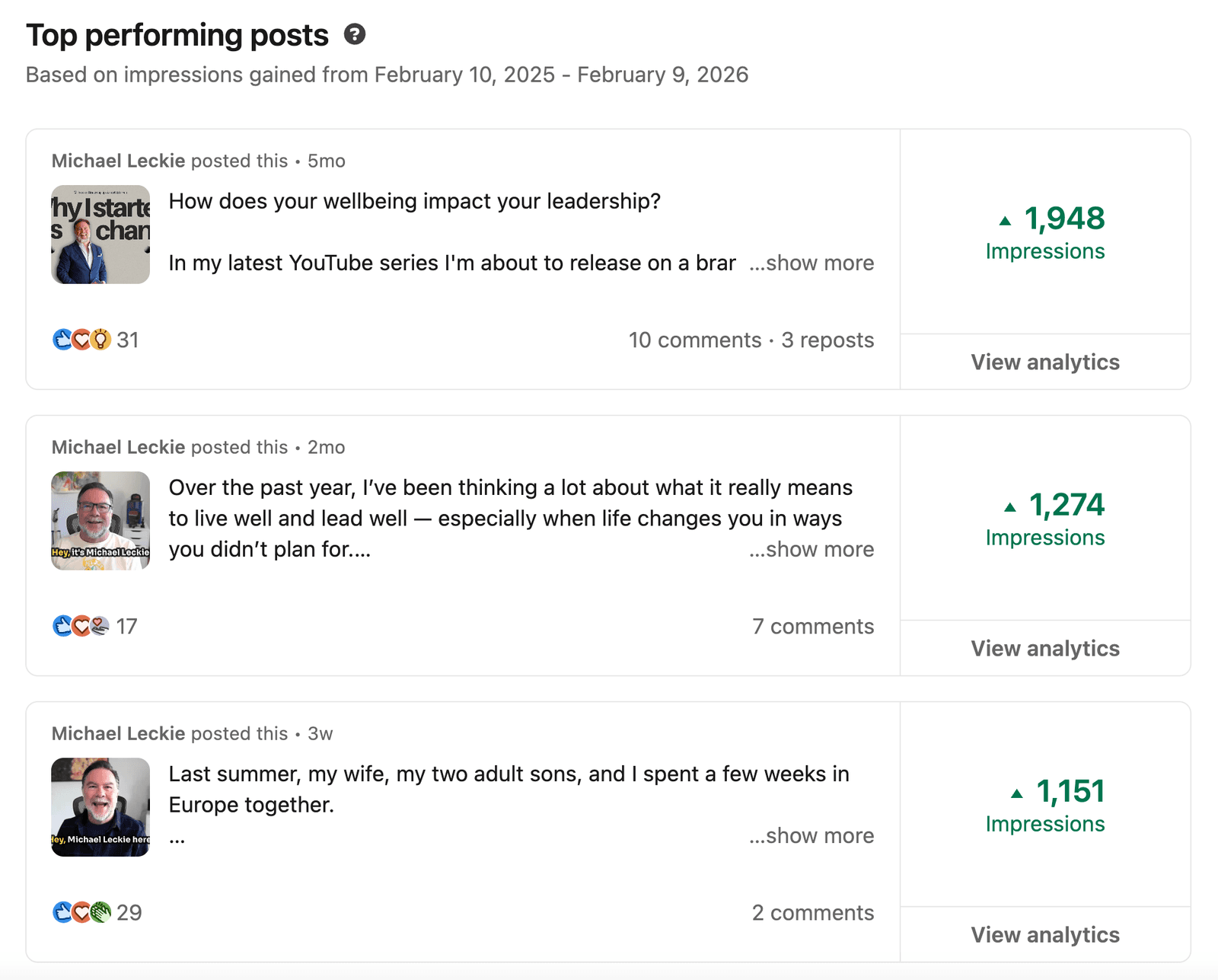
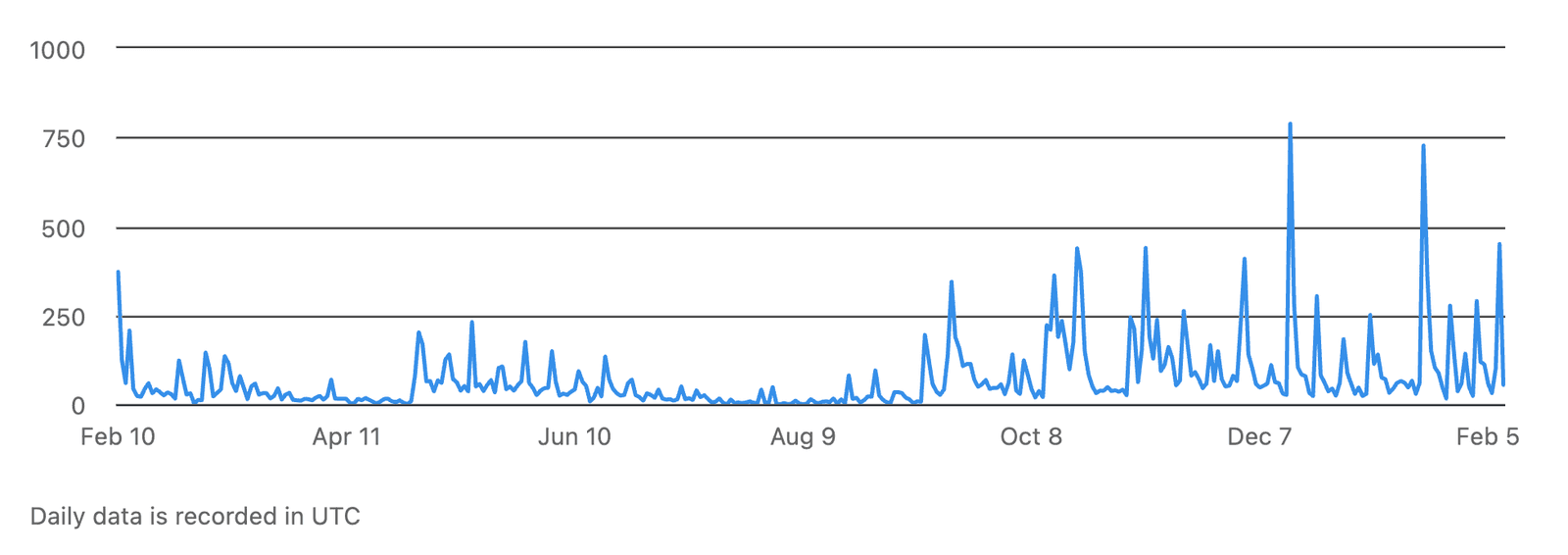
All the spikes reflecting impressions and engagements on LinkedIn are results of Magic Clips (and Magic Segments) published consistently from Riverside.
You’ll hear me talk about “consistency” frequently on Feisworld. The strategy for publishing Magic Clips is no different. I highly recommend you consider publishing at least 3-5 Magic Clips from each recording, and doing that consistently for at least 4-5 podcasts, webinars, livestreams, knowledge transfer recordings before deciding if Magic Clips are right for you and your content.
Riverside vs. The Competition (2026 Comparison)
We looked at the data for “AI Clip Maker” tools. Here is how Riverside stacks up against specialized clippers.
| Feature | Riverside AI | Opus / Munch | Zoom Clips |
|---|---|---|---|
| Video Quality | 4K (Source File) | Compressed | Compressed / Low Res |
| Workflow | Record + Clip (All-in-one) | Upload -> Clip | Record Only |
| AI Viral Score | Yes | Yes | No |
| Editor Control | Advanced (Timeline-based) | Basic | Basic |
| Multi-Track | Yes (Separate tracks) | No (Flattened) | No |
The Verdict: If you are repurposing someone else’s content, Opus is fine. If you are creating your own content, Riverside is superior because of the source quality.
FAQ: Common Questions About Riverside AI
We analyzed the top questions creators are asking in 2026.
Is there a free AI clip maker?
Yes. Riverside’s Magic Clips is available on the free plan. It allows you to record and export high-quality clips without paying a dime. It’s perfect for testing the workflow.
Does Riverside work for TikTok?
Yes. The Magic Clips feature defaults to 9:16 vertical format, which is the native standard for TikTok, YouTube Shorts, and IG Reels.
Can I use Riverside for Webinars?
Yes! This is actually the topic of our next video. Riverside isn’t just for podcasts; it’s one of the best webinar platforms in 2026 because you can livestream and generate clips from the webinar instantly. Stay tuned for that guide.
How do I get the Viral Score?
The Viral Score is automatically generated when you use the Magic Clips feature. You don’t need to turn it on; the AI analyzes the content immediately after recording.
Watch me use Riverside Magic Clips
Feisworld’s Take: From “Clip Dumping” to Strategy
The goal of using AI isn’t just to spam the internet with garbage. It’s to find the gems in your conversation that actually help people.
Riverside’s Magic Clips lets you do that without the burnout. You can be a “CEO Creator”, focusing on the conversation, and letting the tool handle the distribution.
Ready to try it?
Stay tuned: Next week I’ll be comparing the Best Webinar Software Platforms in 2026. And yes, Riverside is taking on the giants.
You might also enjoy…
Topics

Written by
Fei WuFei Wu is the founder and CEO of Feisworld Media, a Massachusetts-based digital media company helping brands get discovered by people and by AI. An Adobe Global Ambassador and brand partner to ElevenLabs, Synthesia, and 50+ other tech and AI companies, she hosts the Feisworld Podcast (400+ episodes, 500K+ downloads — guests have included Seth Godin, Steve Wozniak, Chris Voss, and Arianna Huffington) and co-created the documentary Feisworld: Live Your Art on Amazon Prime. Fei writes for CNET, Lifehacker, and PCMag, and her work has been featured in Forbes, Harvard Business Review, and WIRED. She has been publishing on the internet since 2014 — long before AI discoverability had a name.
View all posts by Fei Wu→Stay updated
Weekly insights on content, AI, and digital media.
Keep Reading
Related Articles

Ecamm Review 2026: Dual Mode Changed How I Create Video (Here’s How)
The Ultimate Guide to Adobe Firefly Video Generation: Choosing the Right Model for Your Project (2026)