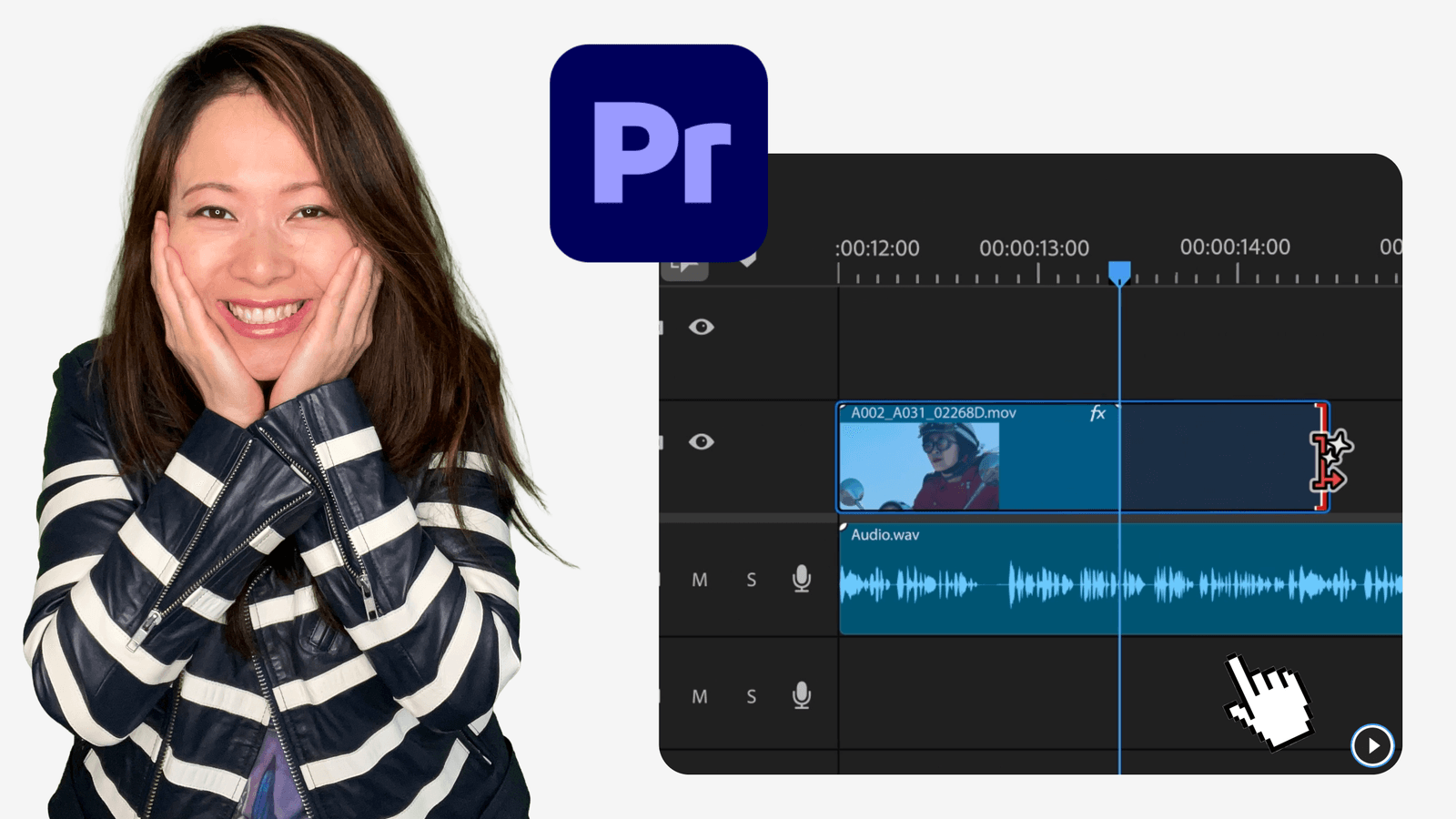
If you’ve edited any sort of video with B-roll, I’m sure you are familiary with this scenario: you are in the edit bay, stitching together an interview or a YouTube tutorial. The audio is perfect. The story is flowing. You drop in a B-roll clip to cover a cut, and… it’s too short.
Just by 12 frames. Maybe a second. It ends abruptly, revealing the jump cut underneath.
In the past, you had three bad options:
- Slow the clip down (and pray it doesn’t look choppy).
- Zoom in awkwardly to “hide” the cut.
- Scrap the B-roll entirely and hunt for a generic stock clip.
But in 2026, we have a fourth option. It’s called Generative Extend in Adobe Premiere (formerly Premiere Pro), and it has completely changed my editing workflow.
Today, I want to walk you through a real-world AI video editing workflow to show how you can use tools like Generative Extend and Generative Fill not to “fake” content, but to fix pacing problems and ship faster.
Transparency Note
We partner with brands we trust and use daily. If you sign up using our link, it helps support the channel at no extra cost to you. You can check out our dedicated hub here.
The “Invisible” AI Workflow
The best AI isn’t the kind that screams “LOOK AT ME.” It’s the kind that solves a boring, repetitive problem so you can get back to being creative.
Recent data shows that 48% of GenAI users adopt it specifically to save time on repetitive tasks. That is exactly what we are doing here.
For this workflow, we are focusing on Efficiency. We are using Premiere to fix the timing, and a quick dip into Photoshop to clean up the shot.
Here is exactly how I do it.
Identify the “Gap”
Let’s say I’m editing an interview with a guest for the Feisworld Podcast. They are talking about a specific book, and I have a shot of that book sitting on a table.
The guest talks for 5 seconds. The clip of the book is only 3 seconds long.
If I just leave it, the visual cuts out before the sentence is finished. It feels jarring. It kills the narrative flow.
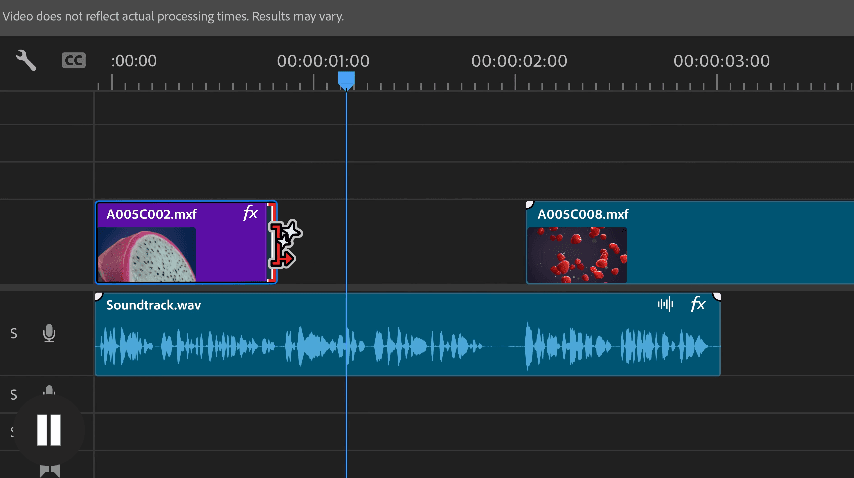
The Magic Drag (Generative Extend)
Instead of slowing the footage down (which ruins the frame rate), I use the Generative Extend Tool in Premiere.
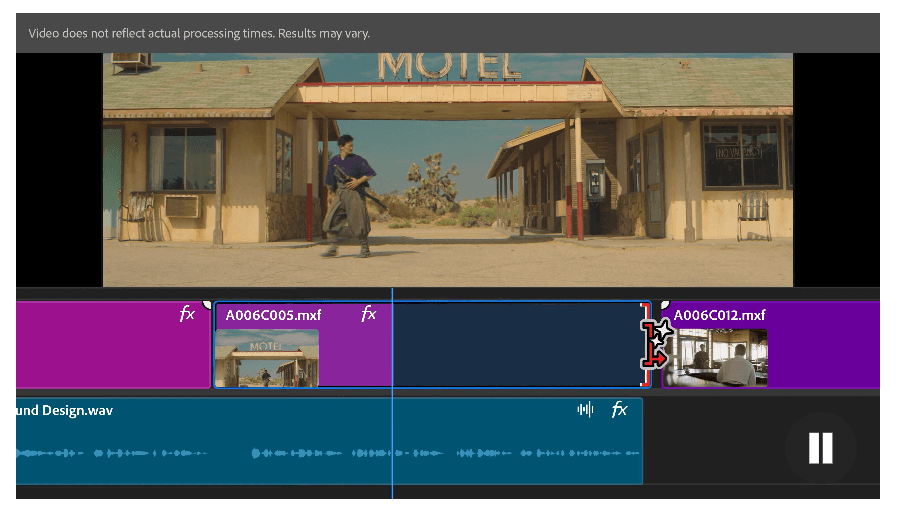
Where to find it:
- Open Premiere.
- Go to your Toolbar (usually on the left).
- Click and hold the Ripple Edit Tool to reveal the nested tools.
- Select the Generative Extend Tool (it looks like a stretch icon with sparkle stars).
How to use it: You literally just grab the end of your clip on the timeline and drag it to the right.
That’s it!
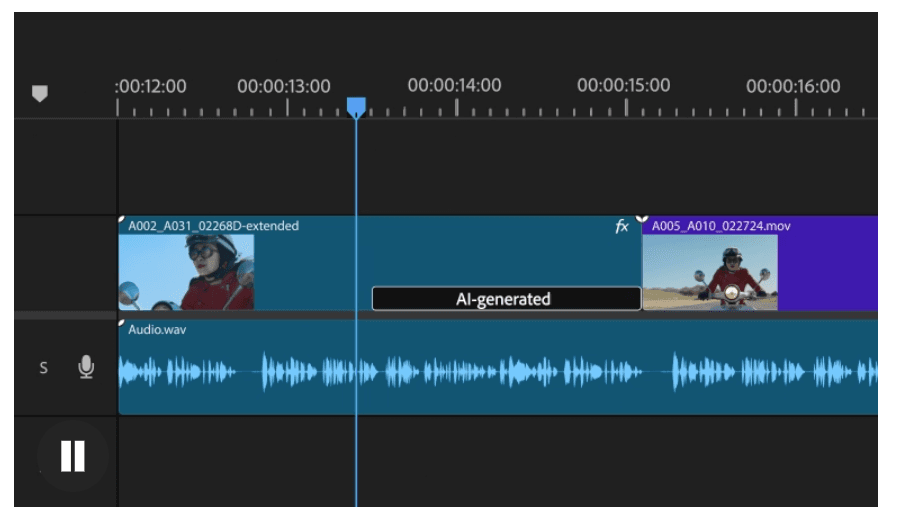
In the background, Firefly analyzes the pixels and generates new frames to seamlessly lengthen the clip. It extends the movement and lighting naturally, giving you that crucial extra second of “breathing room” so your edit lands on the beat.
Cleaning the Frame (Photoshop Assist)
Sometimes, extending the clip reveals something you didn’t want to see, like a messy cable on the edge of the frame.
Since we are in the Adobe ecosystem, fixing this is seamless.
- Right-click the clip in Premiere and select “Edit in Photoshop.”
- Select the cable with the Lasso Tool.
- Hit Generative Fill (in the Contextual Task Bar) or use the Remove Tool.
- The cable is gone. Save the file, and it automatically updates on your Premiere Pro timeline.
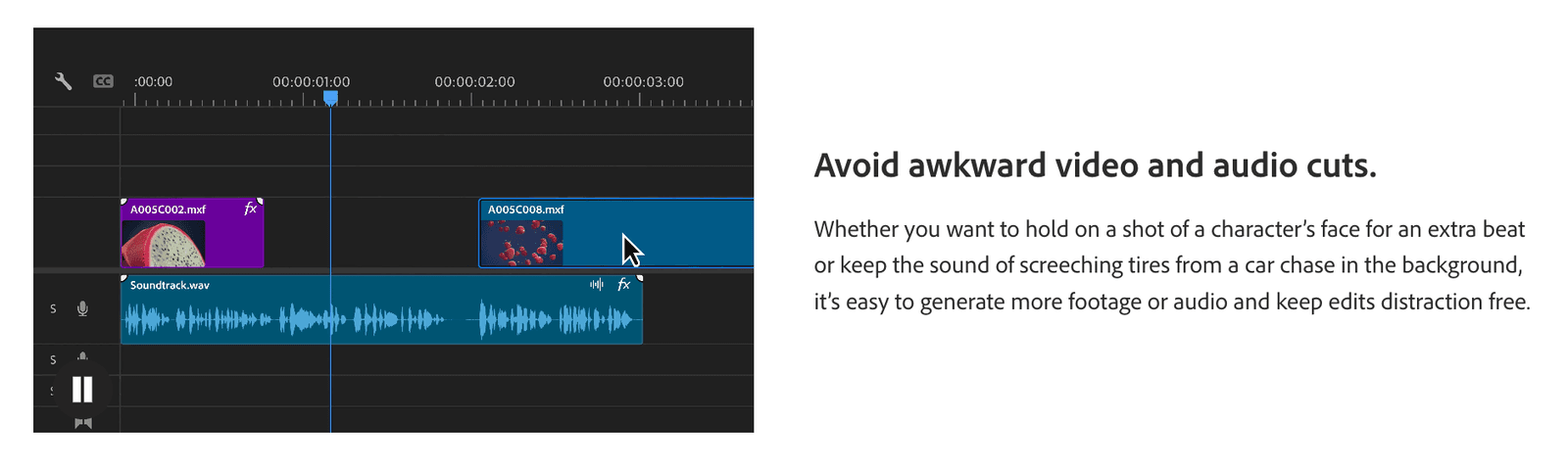
Solving Audio Gaps (The Bonus Feature)
Visuals aren’t the only thing that runs short. Sometimes, your music track ends 10 seconds before your video does.
Instead of trying to loop the beat manually (which usually sounds like a skip), I use Remix in Premiere Pro.
- How: Open the Essential Sound panel, click “Music,” check “Duration,” and type in the exact length of your video.
- Result: The AI remixes the song to end exactly when you want it to.
Why This Matters for the “Creator CEO”
I talk a lot about the “Creator CEO” mindset. A CEO doesn’t waste hours trying to salvage a 2-second clip. A CEO finds the most efficient path to the finish line.
Using Generative Extend, Generative Fill, and Remix together creates a powerful efficiency loop:
- It reduces Reshoots: I don’t have to set up lights again just to get a longer shot.
- It saves Stock Footage costs: I don’t have to buy a generic clip because my B-roll was too short.
- It maintains Pacing: I can edit to the audio beat, not the video length.
The Stats Don’t Lie
Speed and performance are now the top drivers for creators choosing these tools. In fact, 75% of all content produced in the past six months used GenAI somewhere in the workflow.
We aren’t using AI to replace our creativity. We are using it to remove the friction that slows us down. When you aren’t fighting with your timeline, you have more mental energy to focus on the story you’re telling.
My Challenge to You
Next time you are editing a video, whether it’s for YouTube Shorts, Instagram, or a client, and you run into a clip that is just slightly too short, don’t compromise.
Don’t change your edit to fit the footage. Change the footage to fit your edit.
Try Generative Extend in Premiere Pro. It takes five seconds to learn, but it will save you hours of frustration this year.
Have you tried the new Generative Extend tool yet? Let me know in the comments below!
Try these AI features in your workflow now
#AdobeFireflyAmbassadors #Ad #AdobeAIEfficiency
You might also enjoy…
- Adobe Firefly Partner Models: The 2026 Field Guide (Stop Guessing, Start Creating)
- Adobe Just Launched Photoshop, Adobe Express and Acrobat for ChatGPT (for FREE)
- Adobe Firefly Boards Presets: Top 9 for Creators and Small Businesses
- I Tested Google’s Nano Banana Models inside Adobe Firefly (So You Don’t Have To)
Topics

Written by
Fei WuFei Wu is the founder and CEO of Feisworld Media, a Massachusetts-based digital media company helping brands get discovered by people and by AI. An Adobe Global Ambassador and brand partner to ElevenLabs, Synthesia, and 50+ other tech and AI companies, she hosts the Feisworld Podcast (400+ episodes, 500K+ downloads — guests have included Seth Godin, Steve Wozniak, Chris Voss, and Arianna Huffington) and co-created the documentary Feisworld: Live Your Art on Amazon Prime. Fei writes for CNET, Lifehacker, and PCMag, and her work has been featured in Forbes, Harvard Business Review, and WIRED. She has been publishing on the internet since 2014 — long before AI discoverability had a name.
View all posts by Fei Wu→Stay updated
Weekly insights on content, AI, and digital media.
Keep Reading
Related Articles
The Ultimate Guide to Adobe Firefly Video Generation: Choosing the Right Model for Your Project (2026)
ElevenLabs Flows: How to Build an Entire Content Pipeline on One Canvas (2026 Guide)