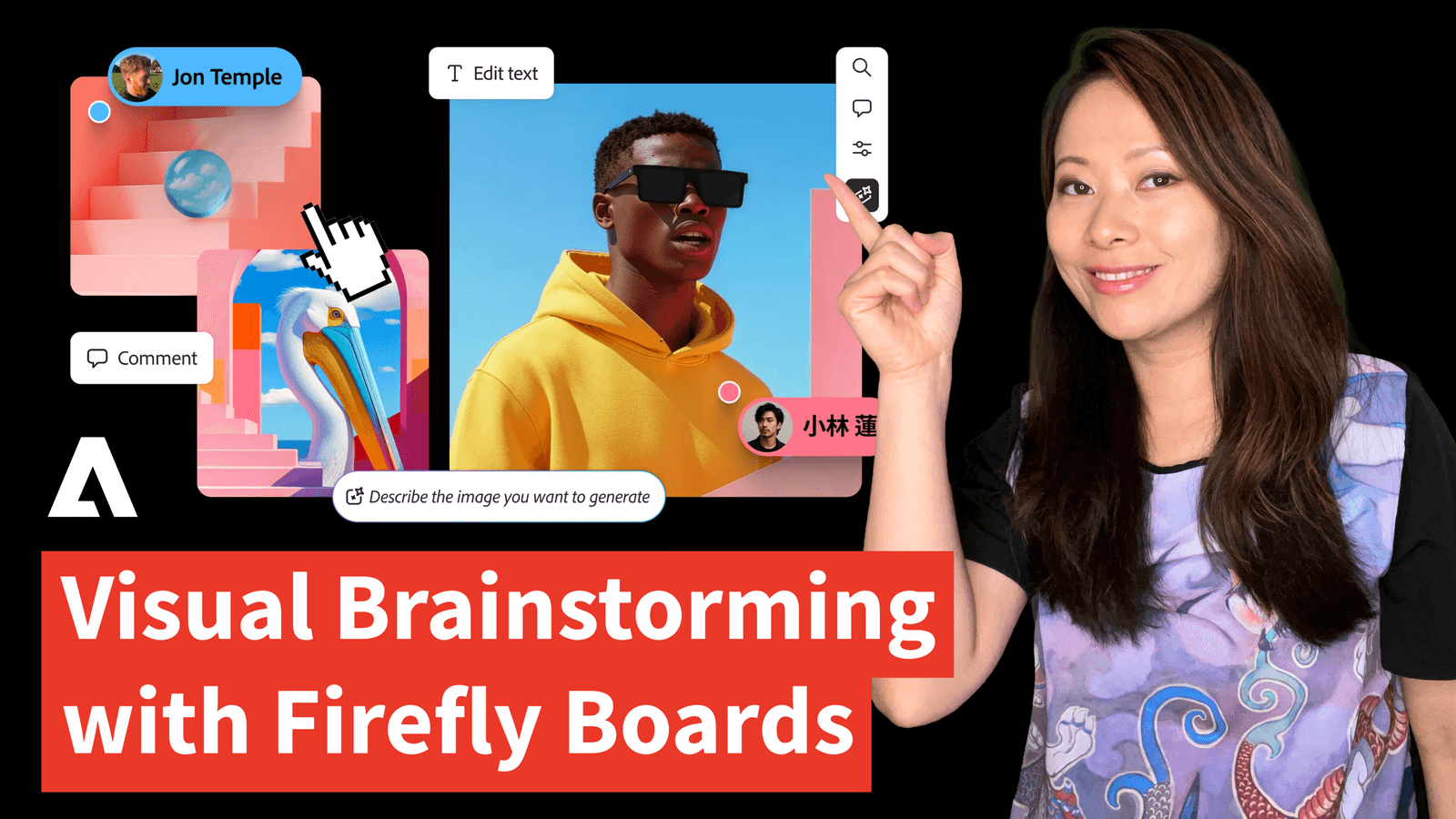
As a creator, consultant, youtuber, and podcaster, I have to wear many hats. My best ideas usually start as words or voice notes. Bullet points in a Notion document. A messy outline. A voice memo to my producer, Germán.
But there is always a moment in a project, whether we are planning a new YouTube series, a client campaign, or a client meeting, where words aren’t enough. You have to show what you mean.
For years, this is where I hit a wall. Because I don’t identify as a traditional designer (even though I design A LOT). I can’t just open a blank canvas and draw a brand identity from scratch.
In the past, I would spend hours scrolling stock footage, saving random images to a messy desktop folder. Also, not sure how to combine them or put them together to communicate what I wanted.
That frustrating process has completely changed thanks to Adobe Firefly Boards.
Firefly Boards is a new AI-first workspace, but I don’t treat it like a traditional design app. I treat it as a visual thinking space. I first learned about it during my trip to Adobe MAX last year. Today, I am going to walk you through exactly how I use Firefly Boards for concept development, mood boarding, and moving from abstract ideas to production-ready assets without needing a design degree.
Transparency Note
We partner with brands we trust and use daily. If you sign up using our link, it helps support the channel at no extra cost to you. You can check out our dedicated hub here.
What is Adobe Firefly Boards?
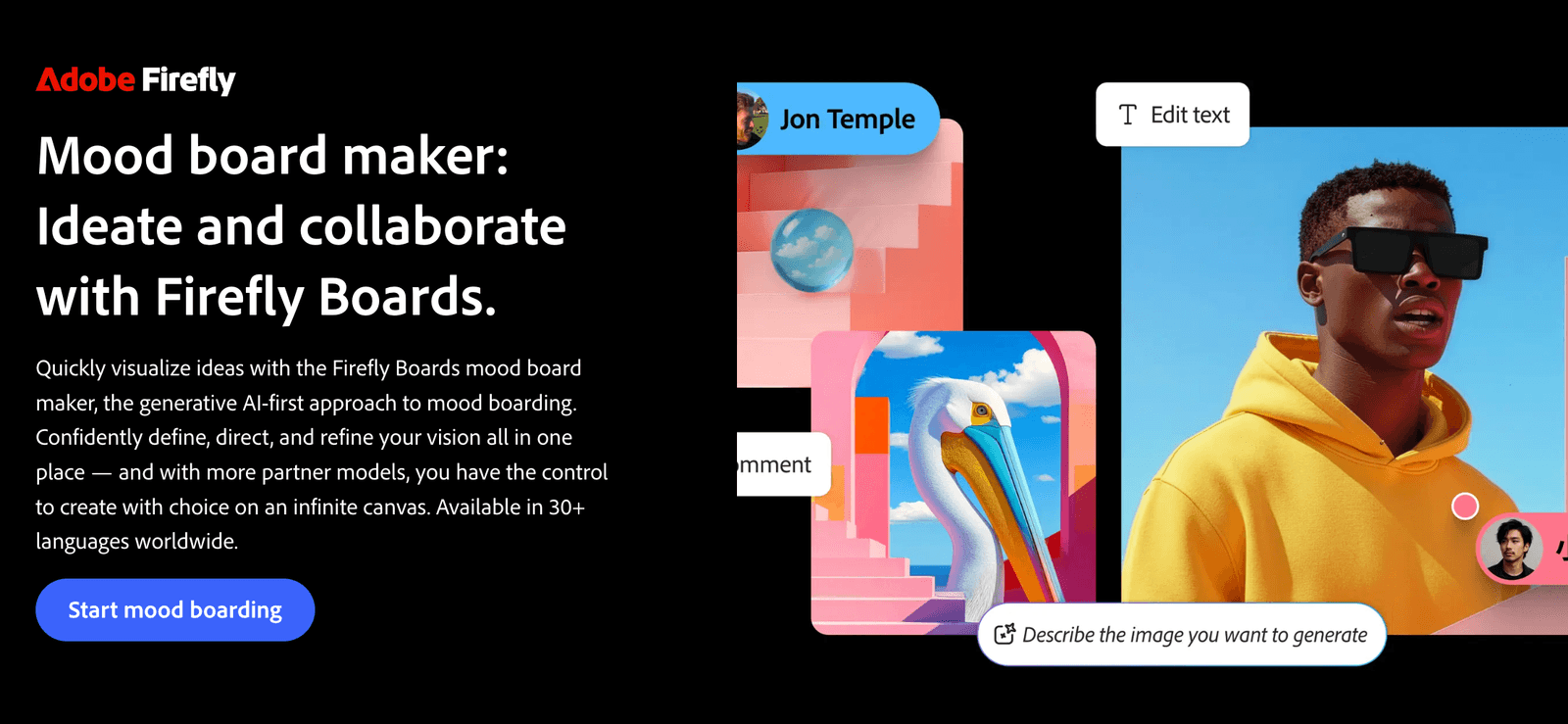
If you are used to generating one AI image at a time, Firefly Boards changes the game. It is an all-in-one tool for ideation, integrated with the Adobe Ecosystem.
Instead of toggling between browser tabs, folders, and editing apps, Boards gives you a cohesive space to build ideas without breaking your state of flow.
Here is my exact workflow for turning messy thoughts into visual campaigns.
Step 1: Brain Dump (The Immersive Canvas Experience)
When planning a new content campaign, I don’t start by trying to write the “perfect” AI text prompt. That is too much pressure.
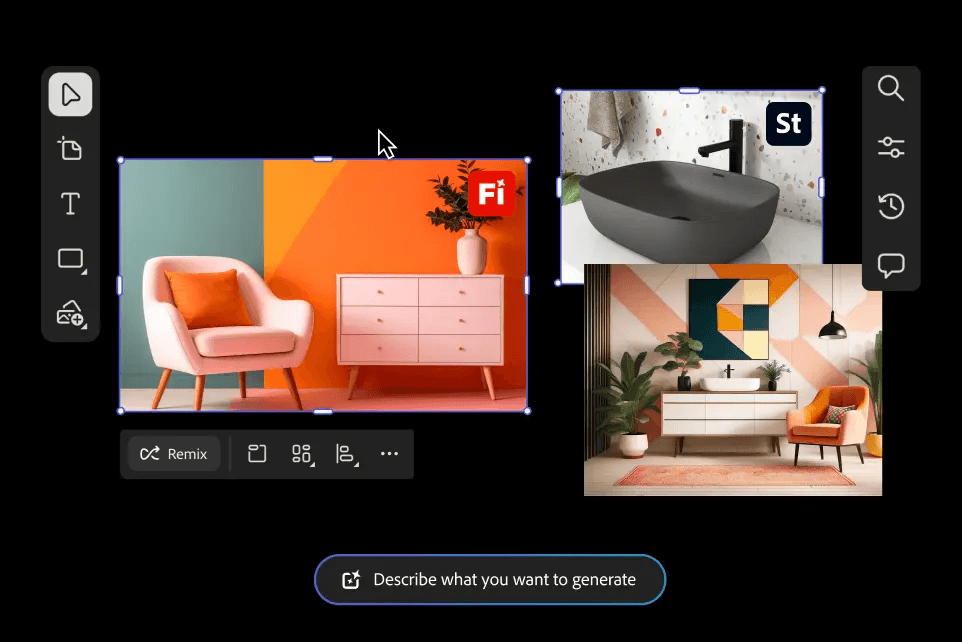
Instead, I use the immersive canvas experience in Firefly Boards. I treat this infinite canvas like a digital corkboard. I upload everything I have:
- Screenshots of video layouts I like.
- Photos I took on my phone of cool magazine typography.
- Rough sketches drawn on a napkin.
- Existing assets I have stored in my Creative Cloud.
Seeing it all in one place helps me organize my thoughts. For fast-paced agency work or solo creators, this visual brain-dump replaces guesswork with immediate visual context.
Step 2: Start Remixing
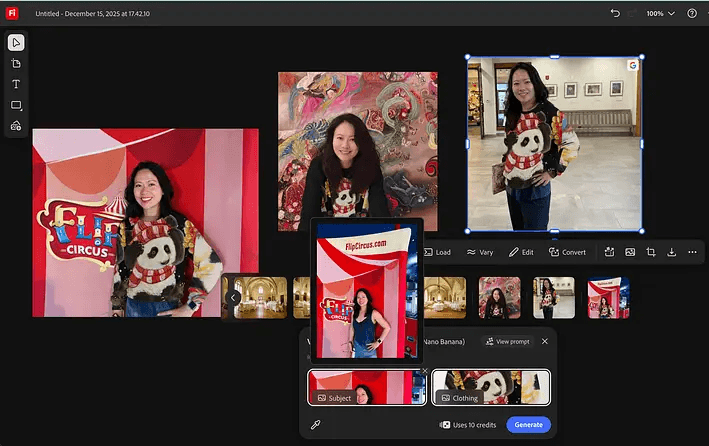
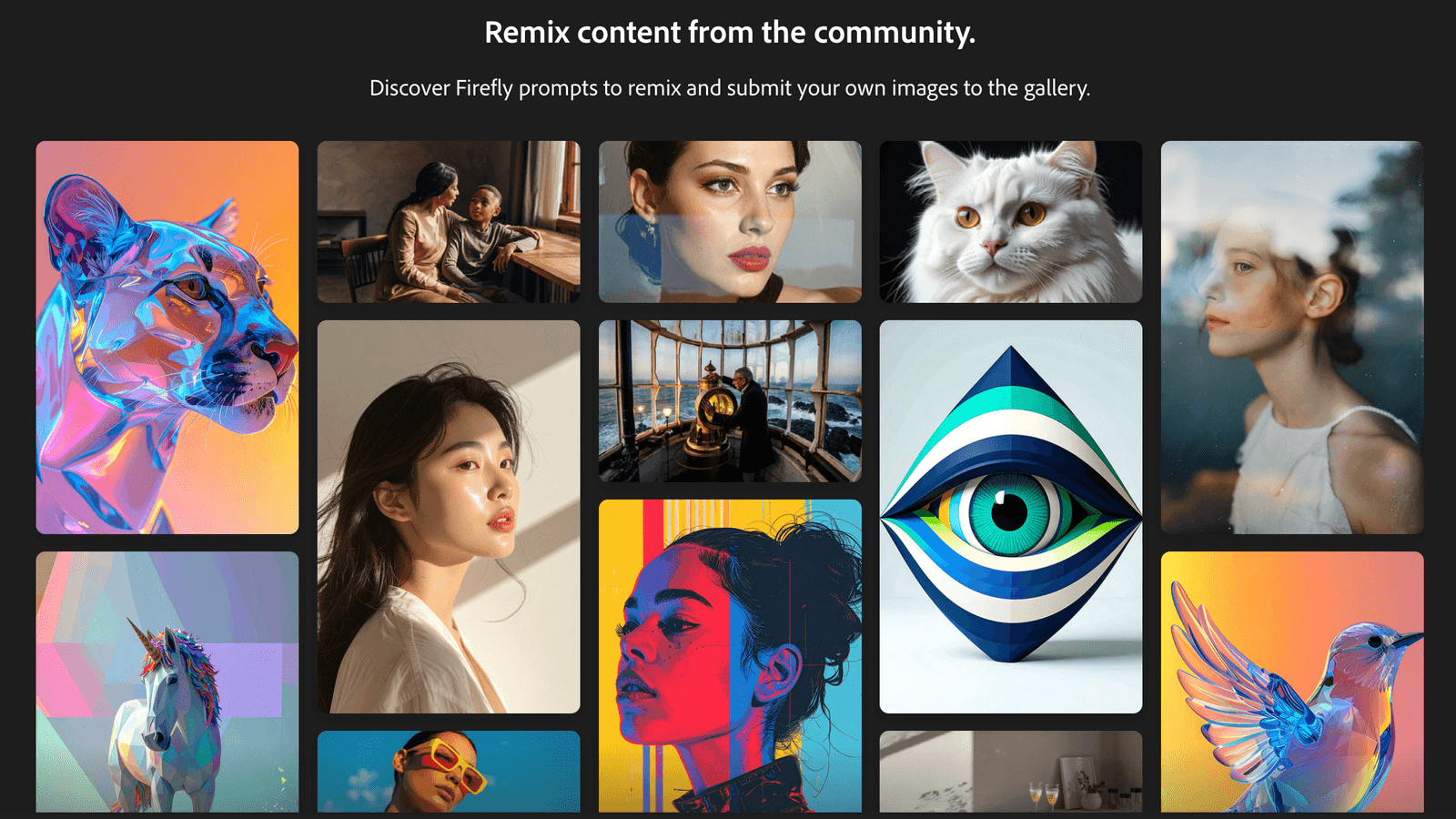
This is where the magic happens for non-designers. Once my inspiration is on the board, I use intuitive remixing and variations. Instead of typing a prompt from scratch, I can select one of my uploaded reference images and tell Firefly, “Generate something like this, but make it feel more cinematic and moody.”
You can combine visual inputs with text inputs. I can take a rough stick-figure sketch of a podcast set, apply the color palette from a photo I uploaded, and watch the generative AI bring it to life. I’ve covered this in detail on my article generating kitten videos.
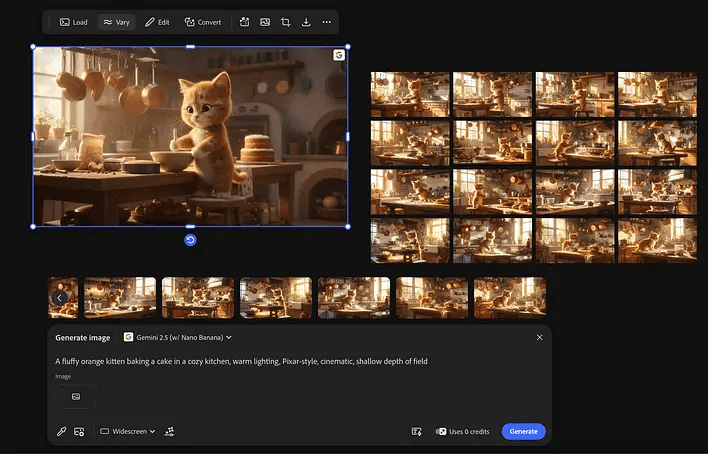
If it’s not quite right, I use the precision focus control. This gives me tactile command over the image. I can position key elements exactly where I want them or fine-tune specific details without having to re-roll the entire image. I am directing the AI, ensuring the final composition perfectly matches my creative intent.
Step 3: Fixing Low-Res AI Video (Topaz Astra Upscaling)
Video is a massive part of my workflow. Often, I will generate a quick AI video clip inside Boards using partner models to see how a shot might look in motion before we actually film it.
The problem? Early AI video drafts can sometimes be low-resolution.
Last week, I showed you how to fix video timing gaps using Generative Extend in Premiere Pro. But what about fixing video quality right at the ideation stage?
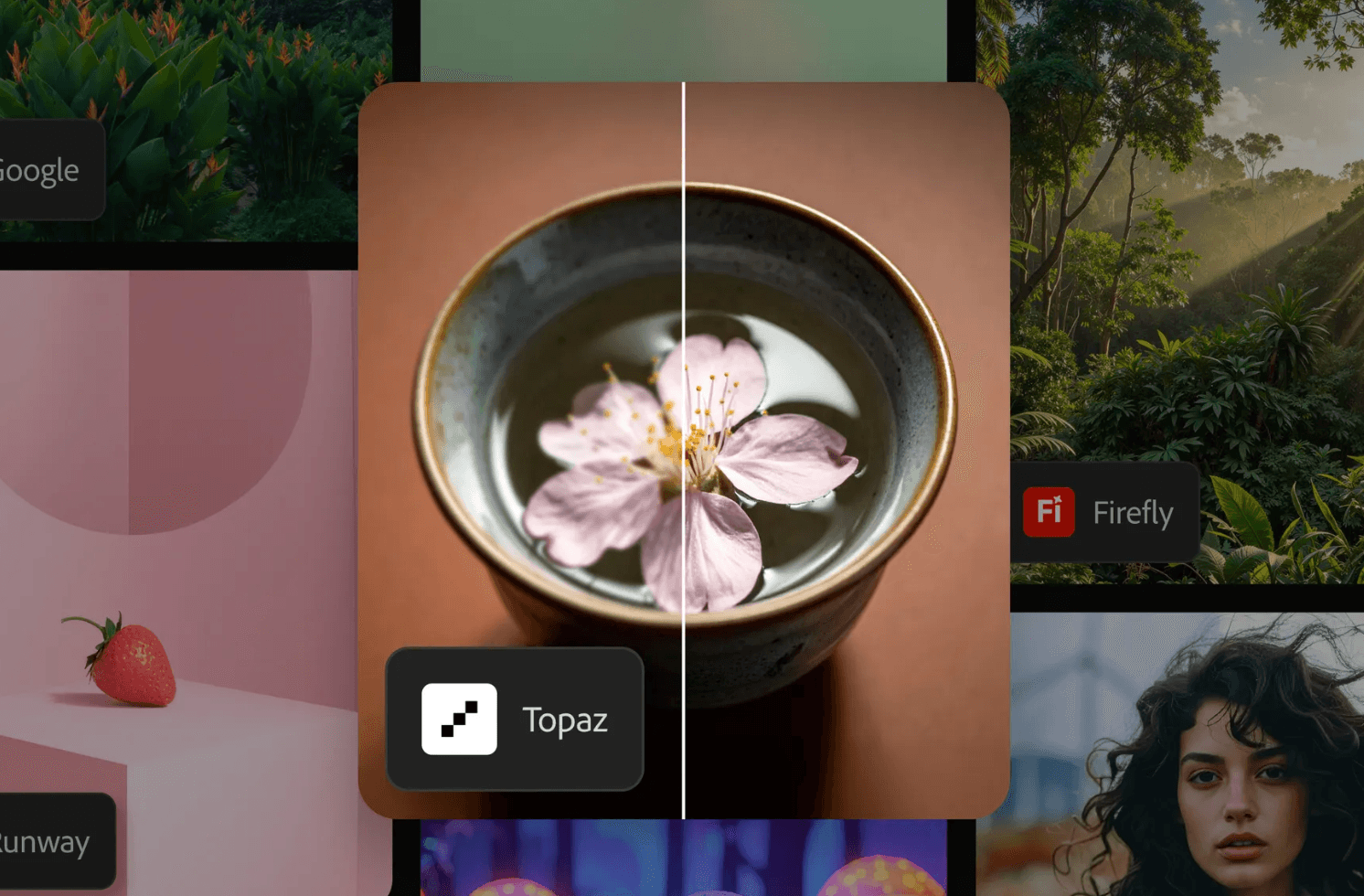
Firefly Boards recently added partner models, including Topaz Astra creative video upscaling.
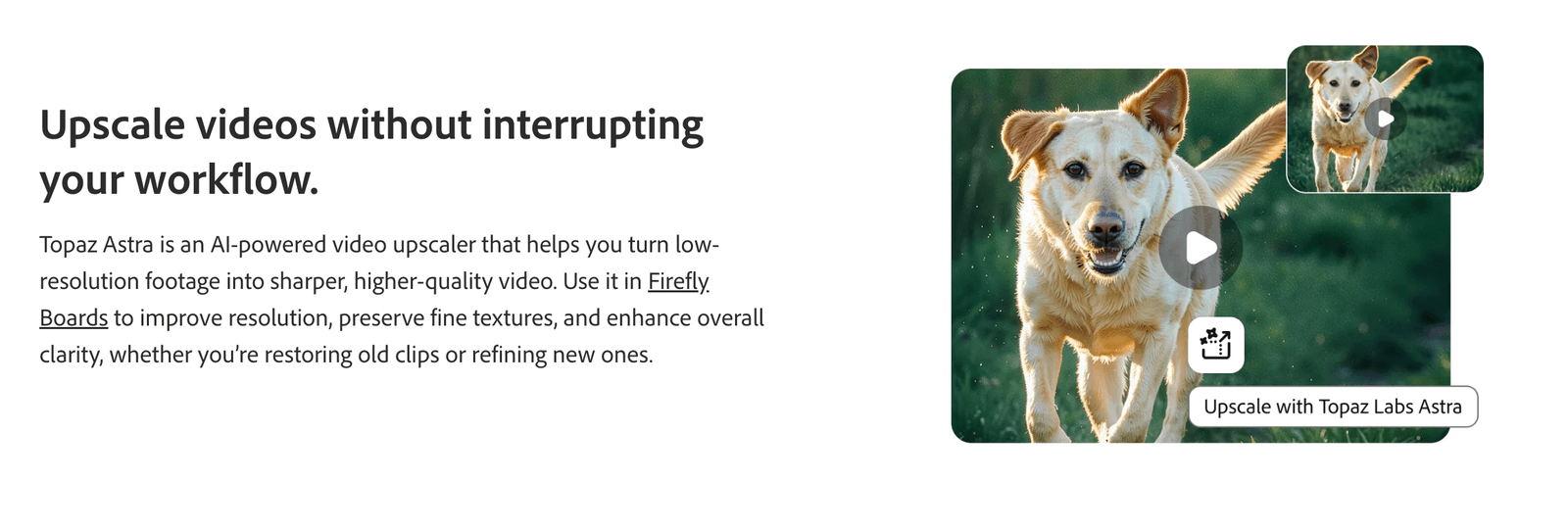
Right inside the board, I can take a low-res video mockup and run it through Topaz Astra. It restores missing details, enhances the quality, and creates fine textures that are typically lost in low-res videos.
- Best Use Cases for Topaz Astra: Upscaling old archival video, improving ad promo quality, or making unusable low-res content useful again for client presentations.
Step 4: Client/Team Alignment (Collaborative Creation)
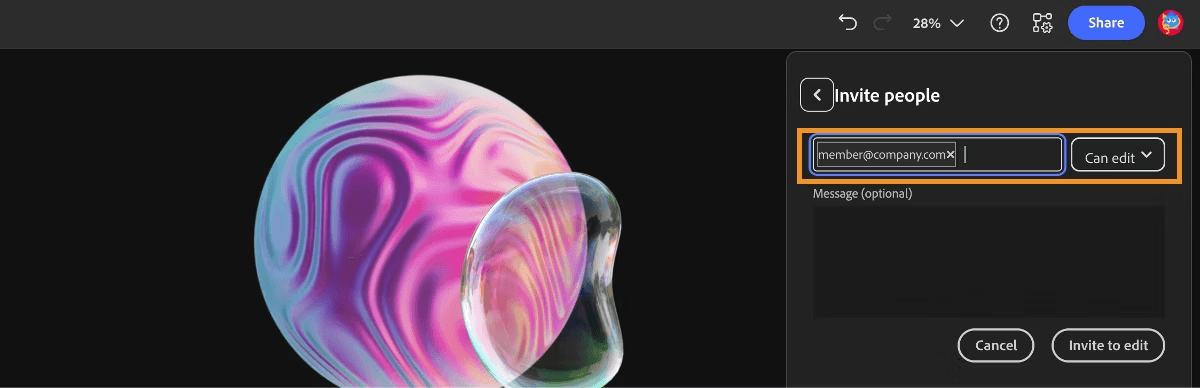
As a consultant, the most expensive mistake you can make is executing an idea the client hasn’t fully bought into. Firefly Boards solves this through collaborative creation. It features real-time multiplayer collaboration built right in.
I can organize my visual ideas into specific artboards and instantly invite Germán, or a client, directly into the space. We can look at the campaign outputs together, leave feedback, and evolve the ideas in real-time. It completely eliminates the “back-and-forth” email chains and is perfect for remote design sprints.
Step 5: The Seamless Adobe Handoff
Here is why this workflow actually sticks: it doesn’t leave you stranded with a bunch of random JPEGs.
Because Firefly Boards is connected to the Adobe ecosystem, the handoff is seamless. Once Germán and I agree on a visual direction, we can take those exact concepts and finish the work in one place:
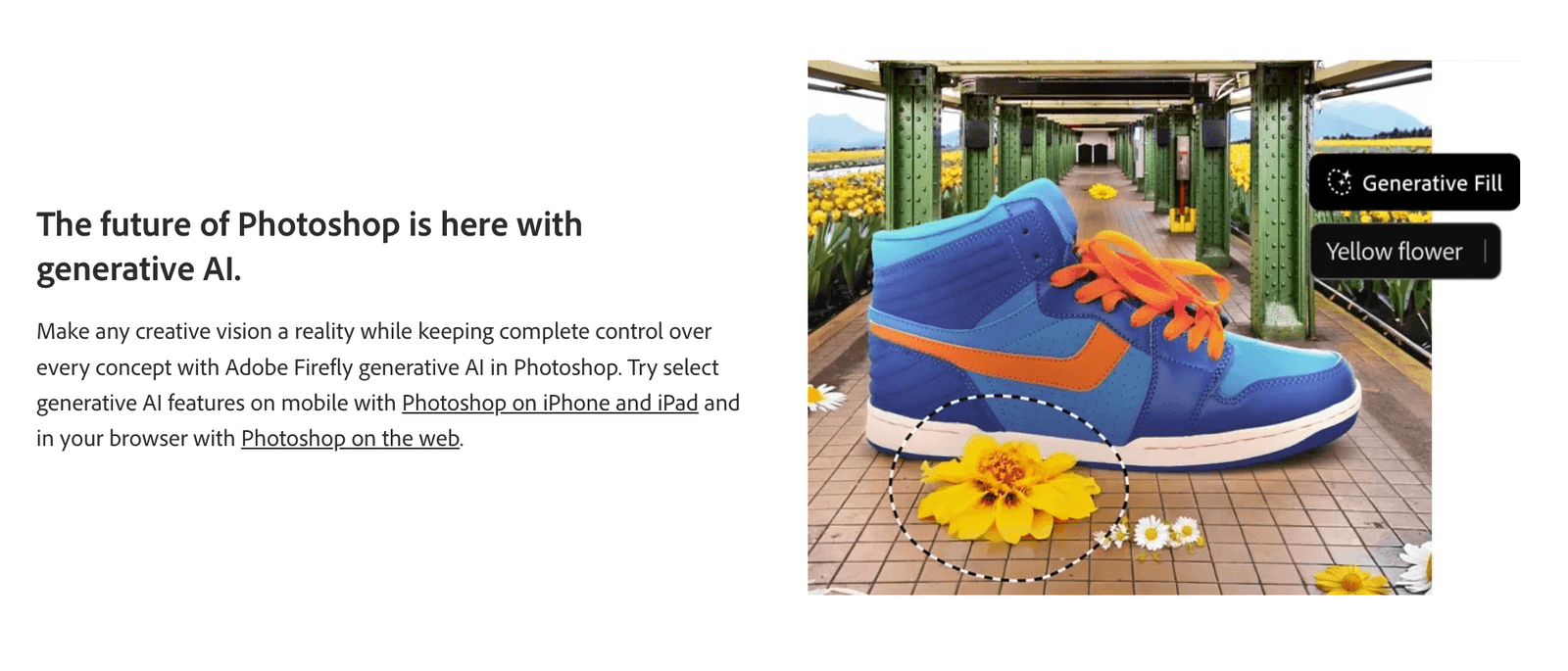
- Open assets directly in Photoshop for deep retouching.
- Push layouts into Adobe Express to quickly add typography and format them for social media.
- Pull in existing assets from Illustrator or Fresco.
The Bottom Line
You do not need to be a designer to be a visual thinker.
Tools like Adobe Firefly Boards remove the technical friction between having an abstract idea and seeing that idea on screen. It reduces decision fatigue, aligns your team, and gives you the confidence to execute your campaigns faster.
If you are a founder, educator, or creator who starts with words, I challenge you to try starting your next project on an infinite canvas instead of a blank document.
How do you currently plan your visual campaigns? Are you still using messy folders on your desktop? Let me know in the comments!
Try Firefly Boards for your next project here
#AdobeFireflyAmbassadors #Ad #AdobePartnerModels
You might also enjoy…
Topics

Written by
Fei WuFei Wu is the founder and CEO of Feisworld Media, a Massachusetts-based digital media company helping brands get discovered by people and by AI. An Adobe Global Ambassador and brand partner to ElevenLabs, Synthesia, and 50+ other tech and AI companies, she hosts the Feisworld Podcast (400+ episodes, 500K+ downloads — guests have included Seth Godin, Steve Wozniak, Chris Voss, and Arianna Huffington) and co-created the documentary Feisworld: Live Your Art on Amazon Prime. Fei writes for CNET, Lifehacker, and PCMag, and her work has been featured in Forbes, Harvard Business Review, and WIRED. She has been publishing on the internet since 2014 — long before AI discoverability had a name.
View all posts by Fei Wu→Stay updated
Weekly insights on content, AI, and digital media.
Keep Reading
Related Articles
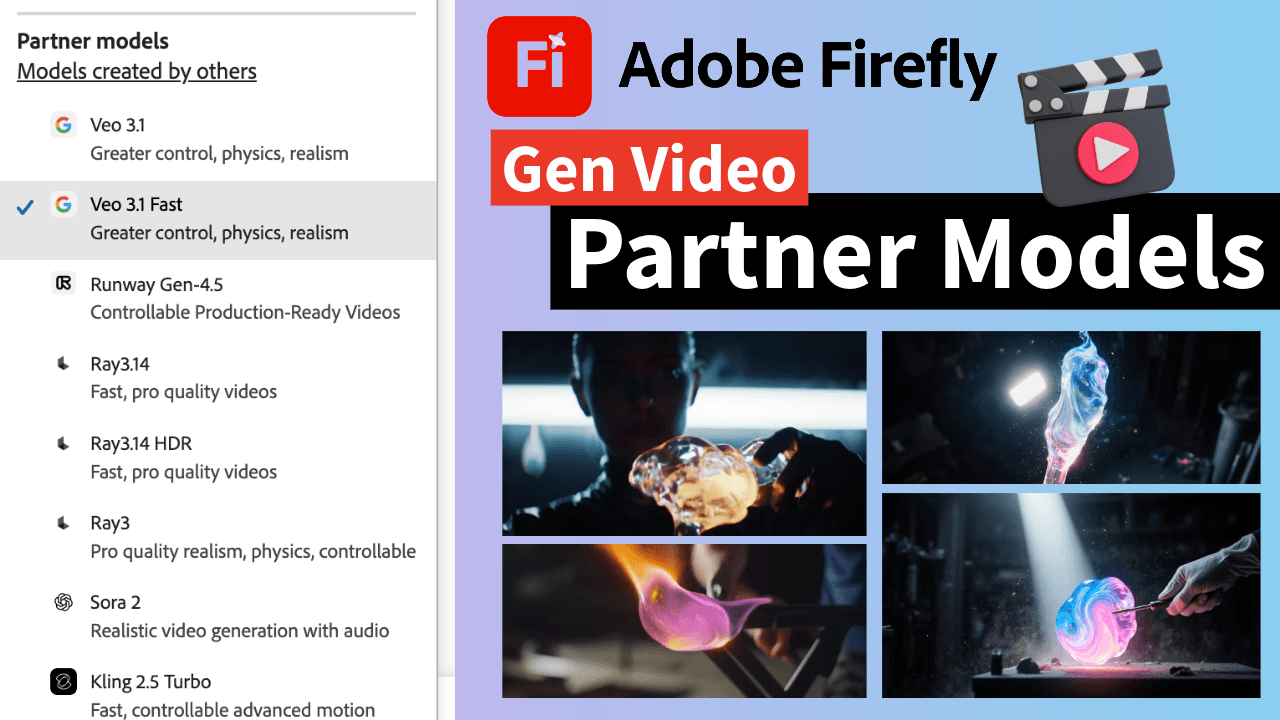
The Ultimate Guide to Adobe Firefly Video Generation: Choosing the Right Model for Your Project (2026)
ElevenLabs Flows: How to Build an Entire Content Pipeline on One Canvas (2026 Guide)