If you’ve been experimenting with Adobe Firefly, you already know how quickly it can turn an idea into an image or a short video clip. What’s changed recently and what’s worth slowing down to really understand is the Adobe Firefly Video Editor (beta). This is not just a place to generate clips. It’s a browser-based timeline where your ideas, visuals, text, audio and video finally come together in one coherent creative space.
After creating nearly 1000 videos on our YouTube channel called Feisworld Media, we have learned a few things about video production, worked with dozens of contractors and tools. Here’s our honest review of how we think you should approach video editor tools such as Adobe Firefly Video Editor.
This shift matters because AI video creation is no longer just about producing something impressive in isolation. It’s about shaping meaning, pacing a message, and telling a story that actually works. Adobe Firefly’s Video Editor moves generative video from “wow” to useful.
In this post, I’ll walk through how the editor works from prompt to timeline, highlight what’s new, explain how non-editors can get started, and answer a question I hear a lot: can you use Adobe Firefly as a regular video editor without AI prompts?
What the Adobe Firefly Video Editor Is and Why It Matters
The Adobe Firefly Video Editor is a lightweight, web-based editing environment built directly into Adobe Firefly. Instead of generating a clip and exporting it somewhere else, you can now assemble, trim, arrange, and refine your video in one place. You get a familiar timeline, multiple tracks, text layers, audio tracks, and the ability to generate or import content as you go.
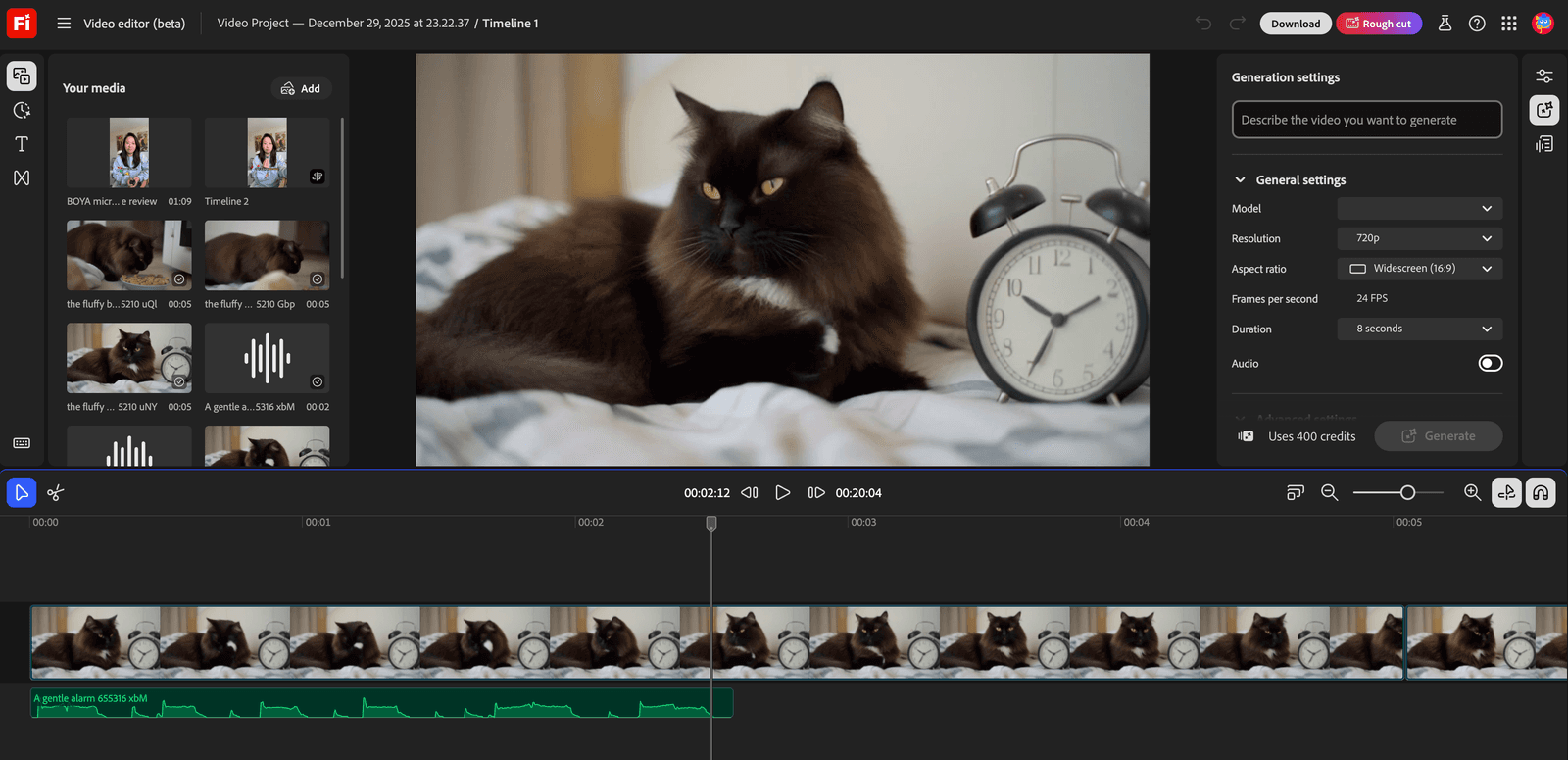
This isn’t meant to replace Premiere Pro or high-end editing suites. It’s designed for speed, clarity, and iteration. Think of it as a creative workspace where ideas can take shape quickly, without technical friction getting in the way.
For creators, marketers, educators, and small teams, this is a meaningful shift. You’re no longer forced to choose between “AI tools” and “real editing software.” Firefly sits comfortably in between.
From Prompt to Timeline: How the Workflow Actually Works
Starting a New Project
When you open Firefly and create a new video project, the timeline is immediately available. There’s no setup ritual, no overwhelming panels. You can upload existing footage, images, or audio, or you can start generating content right away. The timeline becomes the backbone of your story, showing how everything unfolds over time.
Generating Video Clips Inside the Editor
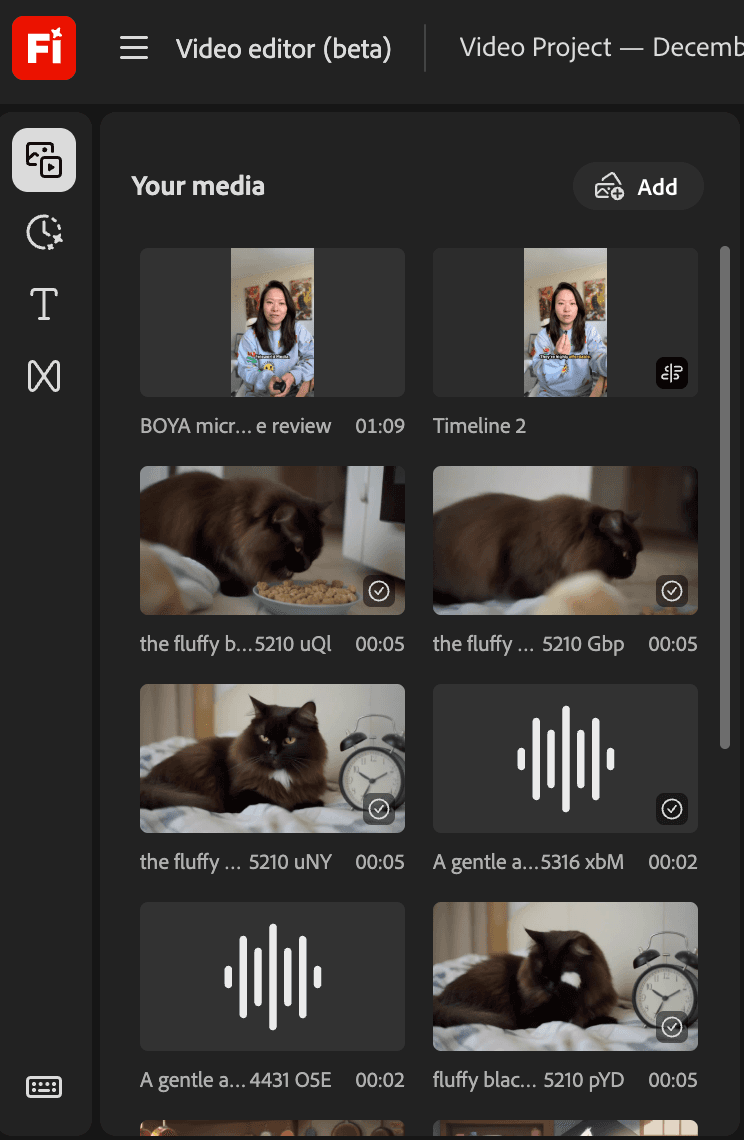
You can generate video clips directly from text prompts without leaving the editor. This is where Firefly still feels magical, but more grounded than before. You describe the scene, set visual parameters like aspect ratio and style, and Firefly generates a clip that drops into your media library. From there, it’s just drag-and-drop onto the timeline.
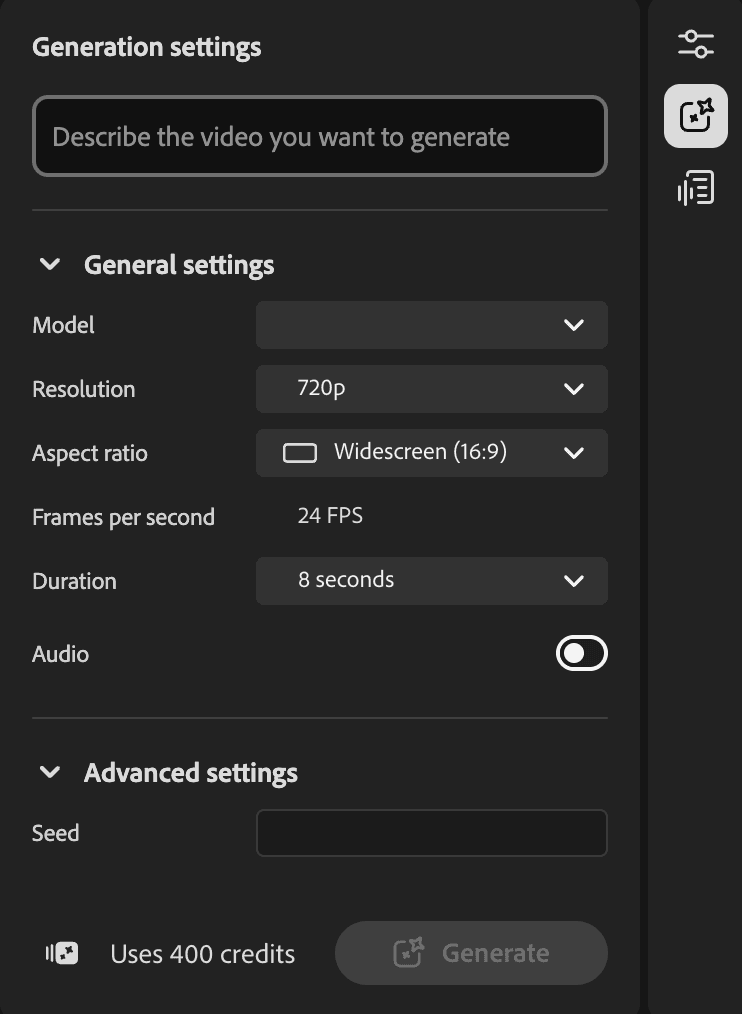
What’s powerful is that you don’t have to do all your generation upfront. You can build your structure first, then generate missing pieces as you go, which feels much closer to how creative work actually happens.
Trimming, Arranging, and Refining
Once clips are on the timeline, everything becomes intuitive. You trim by dragging edges. You split clips where pacing feels off. You rearrange segments until the story flows. This is where Firefly stops feeling like an AI toy and starts behaving like a real editor.

The interface stays focused on what matters: timing, order, and clarity.
Working With Text in a More Natural Way
Text plays a central role in Firefly’s editor. If your video includes narration or dialogue, Firefly generates a transcript. You can click into the transcript to navigate the timeline, which makes editing spoken content dramatically faster.
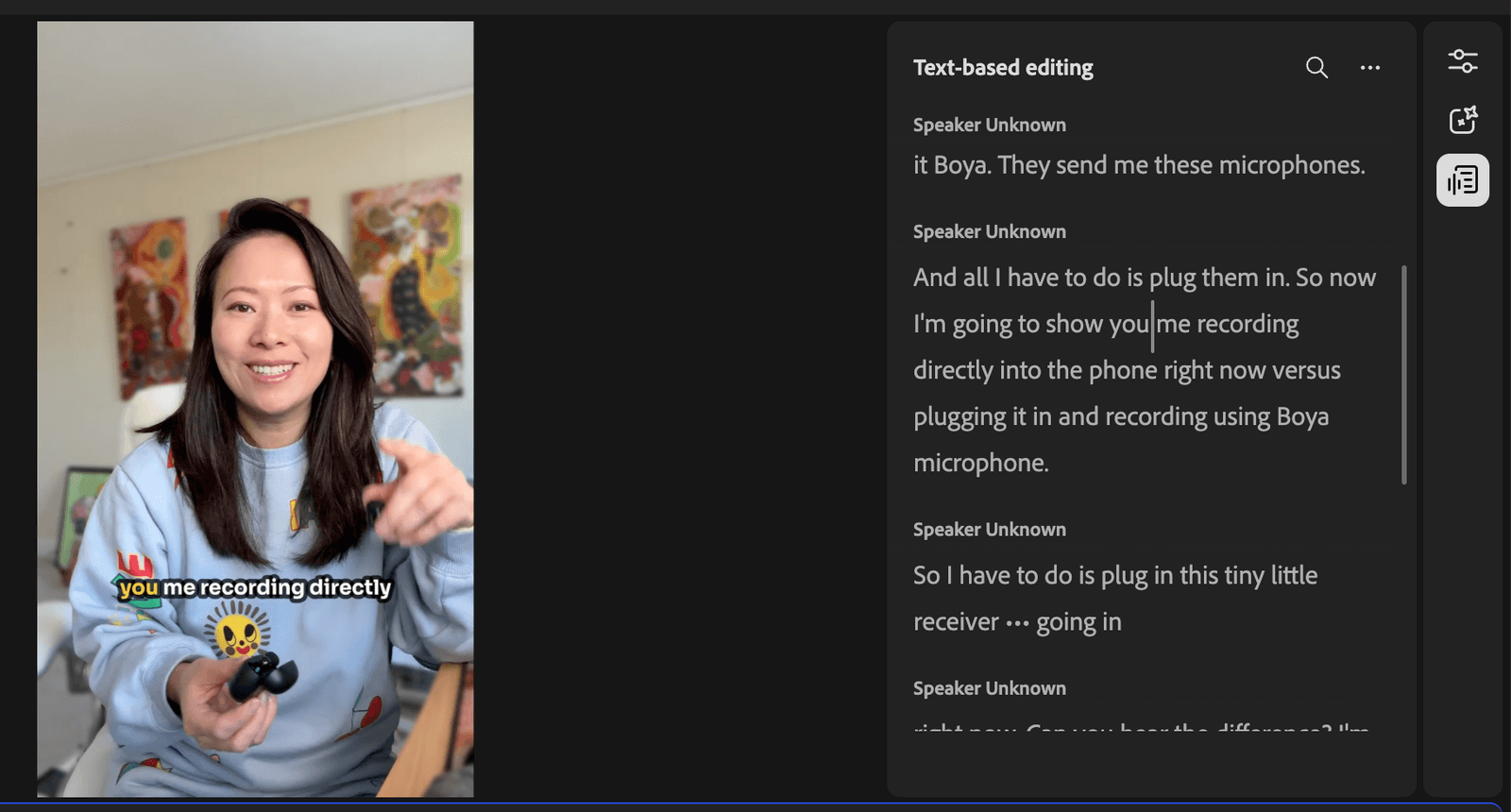
You can also add text manually for titles, captions, or callouts. These text layers live on the timeline like any other element, so you can control exactly when they appear and disappear. For explainers, social videos, and educational content, this alone saves a huge amount of time.
Adding and Syncing Audio
Audio works the way you’d expect. You can import music, sound effects, or voiceovers, place them on audio tracks, trim them, and adjust levels. If you’re already using Firefly’s AI audio features, those assets drop into the timeline seamlessly.
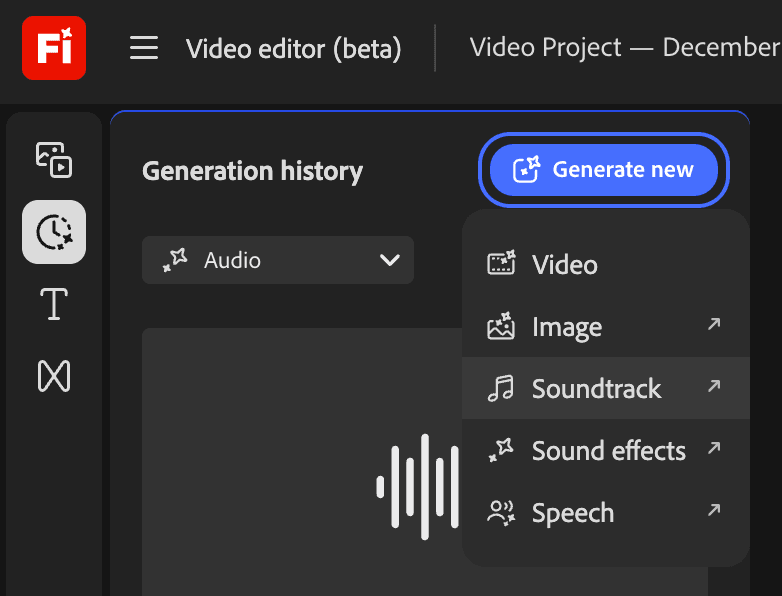
The result is a workflow where visuals and sound evolve together, rather than being stitched together at the very end. You can learn more about Adobe Just Supercharged Adobe Podcast with Two New AI Tools (2025) – Soundtrack and Sound effects features from Adobe Podcast is readily accessible through Adobe Firefly video editor.
Generating New Clips Mid-Edit
One of the most underrated features is the ability to generate new clips while you’re already editing. If you realize a section needs a visual beat or transition moment, you can pause, write a prompt, generate a clip, and drop it straight into the timeline.
This keeps momentum high. You’re not breaking flow to “go generate something.” You’re staying inside the story.
Can Non-Editors Really Use Adobe Firefly’s Video Editor?
Short answer: yes, with the right expectations.
Firefly’s Video Editor is one of the most approachable video tools Adobe has ever released. It’s not built around technical mastery. It’s built around intent. You don’t need to understand keyframes, codecs, or color science to make something that looks polished.
If you can:
- describe what you want to show
- recognize when something feels too long or too fast
- arrange ideas in a logical order
you can use this editor.
The timeline exists, but it behaves more like a storyboard with time than a traditional editing bay. For non-editors — founders, consultants, educators, creators, marketers — this is the difference between avoiding video altogether and actually enjoying the process.
Check out How to Use Adobe Firefly Boards to Create a Simple AI Kitten Video as my first attempt of creating a full AI video using Firefly video editor.
Who Adobe Firefly Video Is Best For
Firefly’s Video Editor works best when the goal is clarity and communication rather than technical perfection.
It’s especially strong for:
- explainer videos and thought leadership
- short-form social content
- brand storytelling and concept videos
- marketing drafts and pitch visuals
- educational and training content
For many people, Firefly fills the gap between “I have an idea” and “I need to hire a video editor.”
Where Adobe Firefly Is Not the Best Fit (Yet)
Firefly is not trying to replace professional editing tools, and it’s important to be honest about that.
It’s not ideal for:
- long-form narrative films with complex continuity
- advanced color grading and sound design
- multi-camera productions
- broadcast-level finishing
If you already live in Premiere Pro every day, Firefly will feel more like a creative sketchpad than a full studio. That’s not a flaw. It’s exactly what makes it useful for early-stage ideas and fast iteration.
Can You Use Adobe Firefly as a Regular Video Editor Without AI Prompts?
Yes — and this is an important point.
You can absolutely use the Firefly Video Editor without writing a single AI prompt. You can import your own footage, images, audio, and graphics, arrange them on the timeline, trim and split clips, add text and captions, adjust audio levels, and export a finished video.
In this mode, Firefly feels similar to beginner-friendly editors like iMovie, CapCut, Canva Video, or Adobe Express. The difference is that AI is available when you want it, not required.
Even when you’re not generating content, Firefly’s AI still helps quietly in the background through transcription, text-based navigation, and smart defaults. These features speed things up without forcing you into generative workflows.
This flexibility matters. It means you can edit first and experiment with AI later, or never use AI at all and still get value from the tool.
Adobe Firefly vs iMovie vs CapCut vs Canva: Which One Should You Use?
A lot of creators ask whether Firefly replaces tools they already know, like iMovie, CapCut, or Canva. The short answer is: they solve different problems, even though there’s some overlap.
Here’s a clear comparison to help readers choose the right tool for the job.
Video Editor Comparison Table
| Feature / Use Case | Adobe Firefly Video Editor (Beta) | iMovie | CapCut | Canva Video |
|---|---|---|---|---|
| Learning curve | Very low, idea-first | Low | Low–medium | Very low |
| Timeline-based editing | Yes | Yes | Yes | Limited |
| AI video generation | Yes (optional) | No | Limited | Limited |
| Edit without AI | Yes | Yes | Yes | Yes |
| Text-based navigation (transcript) | Yes | No | No | No |
| Built-in AI audio / speech | Yes | No | Limited | Limited |
| Best for non-editors | Yes | Yes | Yes | Yes |
| Best for professionals | Not primary | No | Sometimes | No |
| Social-first workflows | Good | Basic | Excellent | Excellent |
| Brand / presentation videos | Excellent | Basic | Good | Excellent |
| Long-form, complex edits | Not ideal | Not ideal | Medium | Not ideal |
| Browser-based | Yes | No | Yes | Yes |
| Ecosystem integration | Adobe Creative Cloud | Apple only | Platform-specific | Canva ecosystem |
How to Think About the Differences
Adobe Firefly Video Editor
Best when you want to move from idea to video quickly, especially if text, narration, or AI-generated visuals are part of your workflow. Firefly shines at early-stage creation, explainers, brand storytelling, and educational content. It’s ideal for people who think in words first and want visuals to follow.
iMovie
Best for Apple users who want a traditional, offline editor with minimal features. It’s stable and familiar but hasn’t evolved much for modern, fast-paced, AI-assisted content creation.
CapCut
Best for social-first creators who want trends, effects, templates, and mobile-friendly workflows. CapCut excels at short-form content but is less focused on storytelling, narration, or structured explainers.
Canva Video
Best for design-led videos, presentations, and marketing content. Canva is excellent for teams and non-creatives who prioritize layout, branding, and speed over editing depth.
The Key Difference Most People Miss
Firefly isn’t competing head-to-head with these tools on effects or templates. Its real advantage is bridging ideation and assembly.
You don’t have to:
- generate content in one tool
- write scripts in another
- assemble everything somewhere else
Firefly lets you stay in one environment longer especially in the messy middle where most people get stuck.
From Editing Software to Idea Assembly
What Adobe Firefly gets right is reframing video creation as assembling ideas over time, not mastering software. You’re not punished for not knowing the rules. You’re rewarded for experimenting.
That’s why Firefly works so well for people who think in words first, sketch ideas before refining them, and want to see something exist before perfecting it.
And because it’s part of the Adobe ecosystem, Firefly doesn’t trap you. When you need advanced control, your project can move downstream. Until then, it gives you something rare in video creation: momentum.
You might also enjoy…
Topics

Written by
Fei WuFei Wu is the founder and CEO of Feisworld Media, a Massachusetts-based digital media company helping brands get discovered by people and by AI. An Adobe Global Ambassador and brand partner to ElevenLabs, Synthesia, and 50+ other tech and AI companies, she hosts the Feisworld Podcast (400+ episodes, 500K+ downloads — guests have included Seth Godin, Steve Wozniak, Chris Voss, and Arianna Huffington) and co-created the documentary Feisworld: Live Your Art on Amazon Prime. Fei writes for CNET, Lifehacker, and PCMag, and her work has been featured in Forbes, Harvard Business Review, and WIRED. She has been publishing on the internet since 2014 — long before AI discoverability had a name.
View all posts by Fei Wu→Stay updated
Weekly insights on content, AI, and digital media.
Keep Reading