Ecamm Review 2026: Dual Mode Changed How I Create Video (Here’s How)
If you’ve been creating video content for any amount of time, you know the pain of finishing a great recording session and then realizing — oh wait, I need a vertical version of this for Reels. And Shorts. And TikTok. And LinkedIn.
That usually means one of two things: you either spend hours cropping and reformatting in post, or you just… don’t. And all that potential reach disappears.
I’ve been using Ecamm for years now — for my podcast, my tutorials, my livestreams, even my Zoom presentations. It’s one of the tools that genuinely made me better at creating content, not just faster. So when the Ecamm team reached out about version 4.5 and a feature called Dual Mode, I was curious but skeptical. I’ve seen plenty of “game-changing” updates that turned out to be minor tweaks.
This one is not that. Let me explain.
What Is Ecamm? (And Why the Name Changed)
If you’re new here, Ecamm is a complete video creation studio built exclusively for Mac. You can livestream, record, present, and produce professional-quality video — all from one app, without needing a production team or engineering degree.
Here’s the thing a lot of people miss: Ecamm is not just for livestreaming. I’d say the majority of my own usage is actually recording. I use it for screen tutorials, podcast episodes, course content, and even polished presentations I bring into Zoom through the virtual camera.
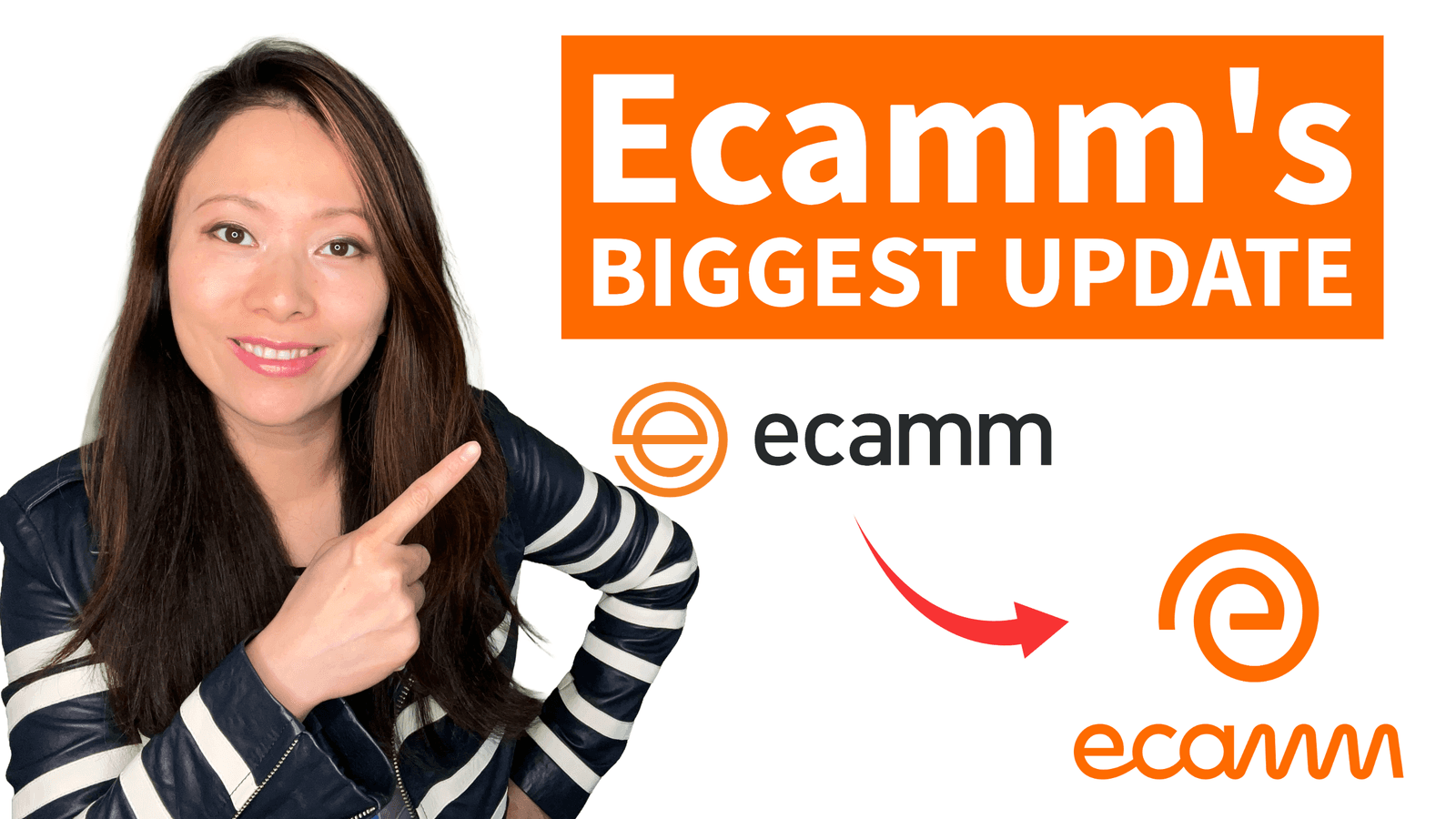
And that’s exactly why Ecamm made a big change with this release. Ecamm Live is now simply called Ecamm.
The “Live” part was confusing people. Creators kept assuming Ecamm was only for going live on Facebook or YouTube, when in reality it had become a full production studio. The rebrand reflects what long-time users like me already knew — this is a tool for all your video, not just your streams.
The tagline says it all: Your Mac’s Creative Studio.

What Is Dual Mode? (The Headline Feature of Ecamm v4.5)
Dual Mode is the feature I didn’t know I needed until I used it. Here’s the concept:
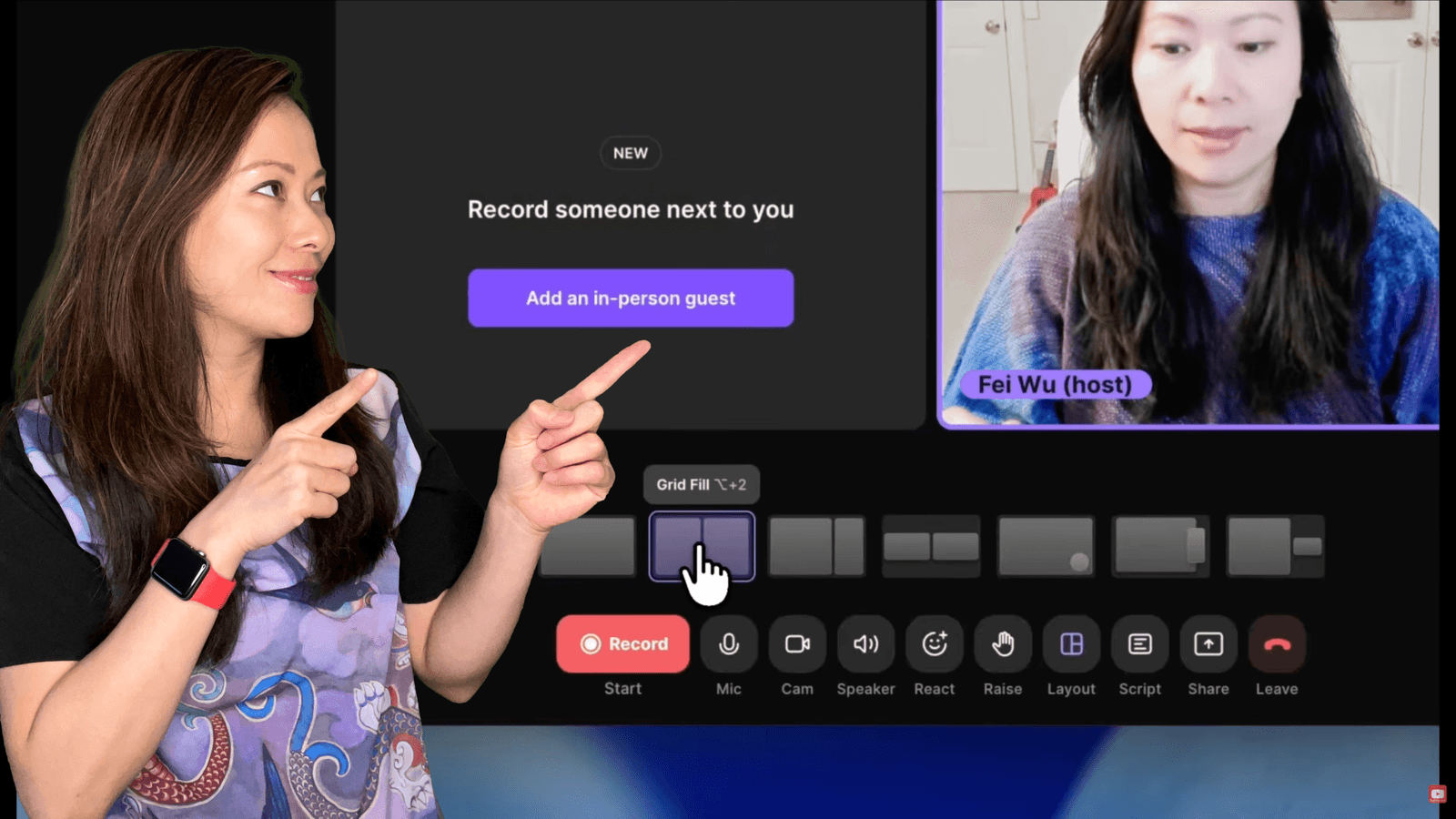
You design two separate video canvases — one landscape (16:9) and one vertical (9:16) — and record or stream both simultaneously. One session, two purpose-built outputs.
I want to be really clear about what makes this different from other tools that claim to support multiple aspect ratios. Most of those tools take your horizontal video and auto-crop it into a vertical frame. The result? Your face gets cut off, your lower thirds disappear, your branding looks weird, and you end up fixing it all in post anyway.
Dual Mode lets you intentionally design both formats before you hit record. You can set different framing, different overlays, different branding elements for each canvas. When you’re done recording, you walk away with two finished files — one ready for YouTube and one ready for TikTok, Reels, or Shorts. No post-production cropping. No second recording session.
How I’m Using Dual Mode in My Workflow
Here’s my actual workflow now. When I sit down to record a podcast episode or a tutorial, I set up my horizontal scene the way I normally would — my camera, my branding, my lower thirds. Then I switch to the vertical canvas and adjust things specifically for that format. Maybe I zoom my camera in tighter for the vertical version. Maybe I add a different text overlay that works better on a phone screen.
Then I hit record once. I do my thing. When I’m done, I have both files ready to publish — the full episode for YouTube and Spotify, and a vertical version I can cut into Reels and Shorts.
The time savings are significant. I used to either skip short-form entirely or spend a few hours per week reformatting content. Now that step is basically gone.
How Dual Mode Compares to Other Approaches
I want to give an honest comparison here because I know a lot of creators are weighing their options.
Ecamm Dual Mode vs. StreamYard MARS: StreamYard’s MARS feature takes one show and auto-adapts it for different platforms. That’s useful, but it’s fundamentally different from what Ecamm does. With Dual Mode, you’re designing two intentional versions of your content — not letting software guess how to reframe one version. If you care about how your vertical content actually looks, the distinction matters.
Ecamm vs. OBS + plugins: You can technically achieve something similar with OBS and a collection of plugins, but the setup is complex and fragile. Ecamm builds this directly into the interface with no extra configuration. If you’re an engineer who loves tinkering, OBS is great. If you’re a creator who wants to focus on content, Ecamm respects your time.
Ecamm vs. auto-crop tools (like Opus Clip, Kapwing, etc.): These tools crop your video after the fact using AI. The results have gotten better, but they’re still reactive — they’re trying to salvage something that wasn’t designed for vertical. Dual Mode is proactive — you decide exactly what your vertical audience sees before you record.

Beyond Dual Mode: What Else Ecamm Does
For those who are newer to Ecamm, let me walk you through the three core things you can do with it. I was once really intimidated by the interface — it’s packed with features — but you don’t need to use everything at once.
1. Present
You can use Ecamm as a virtual camera for Zoom, Google Meet, Microsoft Teams, and other conferencing apps. This means all of Ecamm’s production tools — your overlays, your multi-camera setup, your screen sharing — show up in your video call. It’s a massive upgrade for anyone doing webinars, workshops, or client presentations.
2. Record
This is honestly where I spend most of my time with Ecamm. I record podcast episodes, screen tutorials, course modules, and standalone videos. You get multi-camera switching, screen sharing with zoom and pan, picture-in-picture, and isolated audio tracks for easier editing in post. It’s a full recording studio.
3. Stream
Ecamm supports livestreaming to YouTube, Facebook, Instagram, LinkedIn, X (Twitter), Amazon Live, Twitch, and more. You can even multistream to multiple platforms simultaneously with live comments pulled into your broadcast. If you’re using Restream or Switchboard Live, Ecamm integrates with those too.
All three of these modes work from the same interface. You’re not switching between different apps or modes — you just toggle what you need at the top of the screen.
Ecamm Pricing in 2026
Let me break this down clearly because I know pricing is one of the most-searched questions about Ecamm.
- Free Trial: 14 days, full access to both Standard and Pro features. No credit card required. Seriously — just download and try it.
- Standard Plan: $20/month, or $16/month when billed annually ($192/year). This gives you a complete live studio — custom overlays and branding, screen sharing with picture-in-picture, automatic recording, multistreaming to up to 10 destinations, green screen effects, and comment overlays. For most creators just getting started, this is plenty.
- Pro Plan: $40/month, or $32/month when billed annually ($384/year). Everything in Standard, plus: Dual Mode, 4K streaming and recording, Interview Mode for guests, virtual camera and mic for conferencing apps, and isolated audio/video tracks for post-production. If you’re serious about content creation — especially if you want Dual Mode — this is the plan.
- For existing users upgrading: Ecamm is offering 15% off Pro Annual upgrades, and you can request a trial reset to test the new features.
- Is Ecamm worth it? For what you get — a full video production studio, not just a streaming tool — the pricing is very competitive. I’ve spent more on single pieces of gear that I use less than I use Ecamm. At $32/month on the Pro annual plan, you’re paying roughly a dollar a day for a tool that replaces what used to require multiple apps and hours of post-production.

Important: Ecamm Is Mac-Only
I want to address this directly because I see the search queries — a lot of people are looking for Ecamm for Windows, and I don’t want to waste your time.
Ecamm is built exclusively for Mac and requires macOS 11.2 or later. There is no Windows version, and there isn’t one on the roadmap as far as I know. This is a deliberate choice — Ecamm is deeply integrated with macOS, and that’s part of why it works so smoothly.
If you’re on Windows and looking for similar functionality, the closest alternatives would be OBS (free, open-source, highly customizable but steeper learning curve), StreamYard (browser-based, easier but less control), or vMix (powerful but more expensive and complex). None of them are a 1:1 replacement for Ecamm’s workflow, but they’re solid options depending on what matters most to you.
Who Is Ecamm Best For?
Based on years of using Ecamm across different types of content, here’s who I think benefits the most:
- Video Podcasters: Record your full episode in landscape for YouTube and Spotify, and simultaneously capture vertical highlight clips for social. Dual Mode was practically designed for this use case.
- Educators and Course Creators: Build polished lessons with screen sharing, camera switching, and overlays. The virtual camera integration means you can bring production-quality visuals into Zoom or Google Meet for live teaching sessions.
- Business Leaders and Marketers: Create branded presentations, webinars, and thought leadership content that looks professional without hiring a production crew. The template and scene system means you can pre-build your layouts and switch between them on the fly.
- Content Creators on YouTube, TikTok, and Instagram: If you’re trying to be present on both long-form and short-form platforms, Dual Mode alone justifies exploring Ecamm. The workflow simplification is real.
Ecamm’s Community and Support
One thing I want to mention that doesn’t show up in feature lists: Ecamm has one of the most engaged creator communities I’ve encountered. They run live shows, tutorials, workshops, and office hours. Their Facebook group is active with people helping each other troubleshoot and share creative ideas. Katie Fawkes, who leads a lot of the community and marketing work, is wonderful — she’s created a ton of educational content that makes Ecamm approachable even if you’re brand new.
The company was founded in 1999 by Ken and Glen Aspeslagh, and you can feel that longevity in how stable and well-maintained the product is. This isn’t a venture-funded startup that might disappear — it’s a company that’s been building Mac software for over 25 years.
Feisworld’s Honest Take
I’ve been using Ecamm for years, and I’ll be direct with you: not every update has been transformational. Some were nice incremental improvements. Version 4.5 with Dual Mode is different. It solves a real, daily problem that every multi-platform creator deals with, and it does it in a way that feels genuinely Ecamm — intentional, creator-friendly, and built into the existing workflow rather than bolted on.
The rebrand from Ecamm Live to Ecamm is overdue and smart. The product outgrew its name a long time ago. And if you’ve been on the fence about trying Ecamm, the free 14-day trial with no credit card makes it zero risk to see if it fits how you work.
I hope this gives you a clear picture of what Ecamm is, what it costs, and whether it makes sense for your creative workflow. If you have questions, drop them in the comments — I’m happy to share more about how I’ve set things up.
Try Ecamm Free for 14 Days → (GET 15% OFF)
Frequently Asked Questions About Ecamm
What is Ecamm?
Ecamm (formerly Ecamm Live) is a complete video creation studio for Mac that lets you livestream, record, present, and produce professional-quality video from a single app. With version 4.5, it introduced Dual Mode for simultaneous landscape and vertical recording.
How much does Ecamm cost?
Ecamm offers two plans: Standard at $20/month ($16/month billed annually) and Pro at $40/month ($32/month billed annually). There’s also a free 14-day trial with no credit card required.
Is Ecamm available for Windows?
No. Ecamm is built exclusively for Mac and requires macOS 11.2 or later. There is no Windows version available.
What is Ecamm Dual Mode?
Dual Mode is a Pro feature in Ecamm v4.5 that lets you design and record landscape (16:9) and vertical (9:16) video simultaneously with independent scene layouts, framing, overlays, and branding. One recording session produces two finished files.
Is Ecamm better than OBS?
They serve different needs. OBS is free, open-source, and highly customizable — but requires more technical setup. Ecamm is a paid Mac-only app with a more intuitive interface and built-in features like Dual Mode, Interview Mode, and virtual camera. If you value workflow simplicity and creative control over maximum customization, Ecamm is likely the better fit.
Is Ecamm better than StreamYard?
StreamYard is browser-based and easier to pick up, but offers less creative control. Ecamm gives you deeper customization, multi-camera support, local recording, and features like Dual Mode that StreamYard doesn’t match. If you want full production control and are on Mac, Ecamm is the stronger choice.
Can I use Ecamm with Zoom?
Yes. Ecamm’s virtual camera and virtual mic let you bring all of Ecamm’s production tools into Zoom, Google Meet, Microsoft Teams, and other video conferencing apps.
Does Ecamm support multistreaming?
Yes. Ecamm supports live streaming to YouTube, Facebook, Instagram, LinkedIn, X, Amazon Live, Twitch, and more — including multistreaming to multiple platforms simultaneously.
You might also enjoy…

Written by
Fei WuFei Wu is the founder and CEO of Feisworld Media, a Massachusetts-based digital media company helping brands get discovered by people and by AI. An Adobe Global Ambassador and brand partner to ElevenLabs, Synthesia, and 50+ other tech and AI companies, she hosts the Feisworld Podcast (400+ episodes, 500K+ downloads — guests have included Seth Godin, Steve Wozniak, Chris Voss, and Arianna Huffington) and co-created the documentary Feisworld: Live Your Art on Amazon Prime. Fei writes for CNET, Lifehacker, and PCMag, and her work has been featured in Forbes, Harvard Business Review, and WIRED. She has been publishing on the internet since 2014 — long before AI discoverability had a name.
View all posts by Fei Wu→Stay updated
Weekly insights on content, AI, and digital media.
Keep Reading
Related Articles
The Ultimate Guide to Adobe Firefly Video Generation: Choosing the Right Model for Your Project (2026)
ElevenLabs Flows: How to Build an Entire Content Pipeline on One Canvas (2026 Guide)